
Team members
Invite people into your company and choose what each of them can do.
In the app: Settings › Team Members
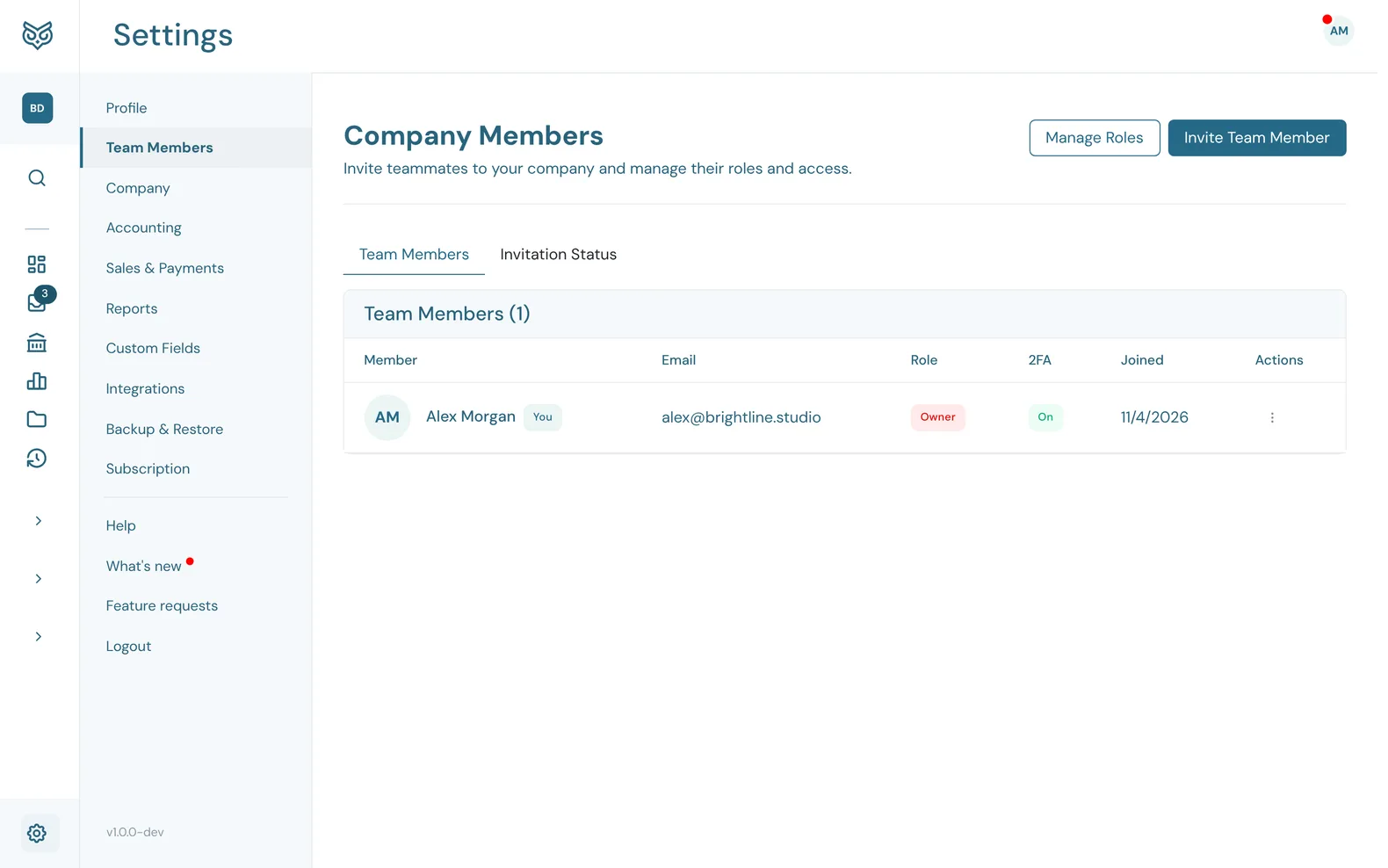
Team Members lists everyone with access to this company. Owners and admins invite and manage people.
The list
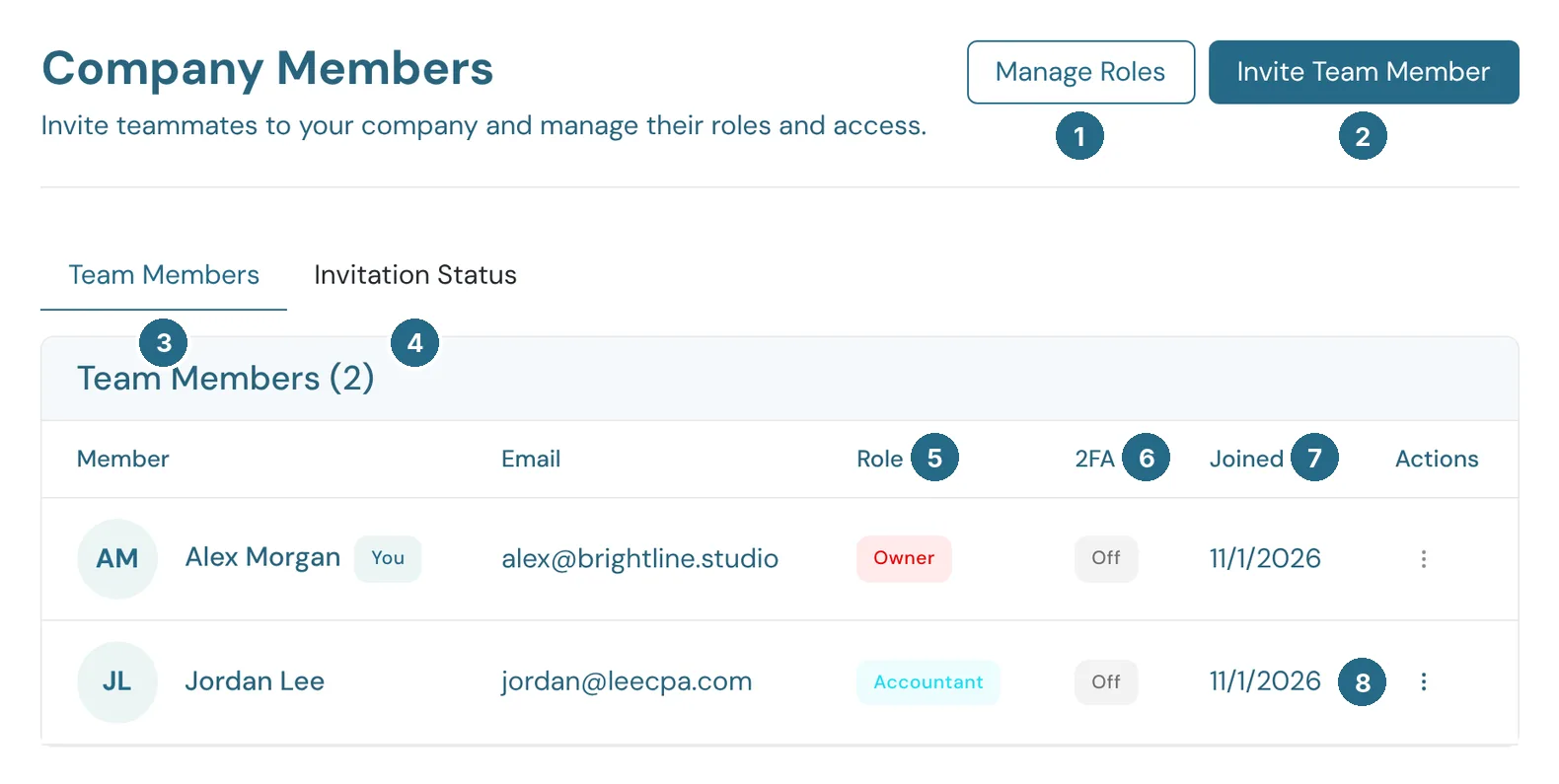
- Manage Roles lists the roles people can have and lets you make your own (see Roles).
- Invite Team Member sends someone an invitation (see Inviting someone).
- Team Members: everyone who has joined.
- Invitation Status: every invitation, Pending or Joined. Resend emails a pending one again.
- Role: what each person can do.
- 2FA: whether they sign in with two-factor.
- Joined: the date they joined.
- The row's ⋮ menu (below).
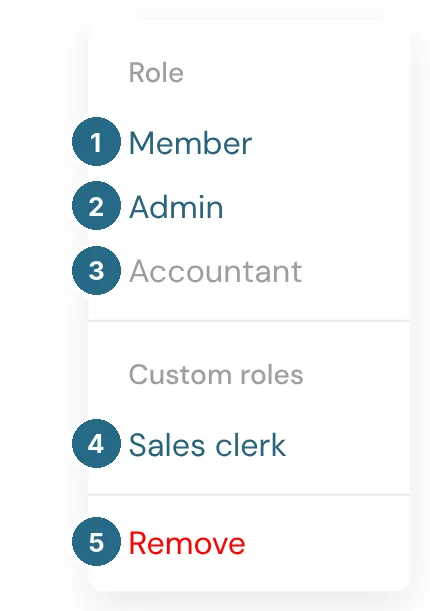
- Member: full access to the books, without the team, company settings, plan, billing or integrations.
- Admin: full access to the books, team members, company settings, integrations and backups.
- Accountant: works in the books like a Member, and uses one of your plan's accountant seats instead of a regular seat.
- Your custom roles, if you've made any.
- Remove takes them out of the company.
Owners and admins also see Reset two-factor authentication for someone who uses it, for when they've lost their phone or passkey. Only an owner changes a person's role, and nobody can change their own. The owner's row has no actions.
Roles
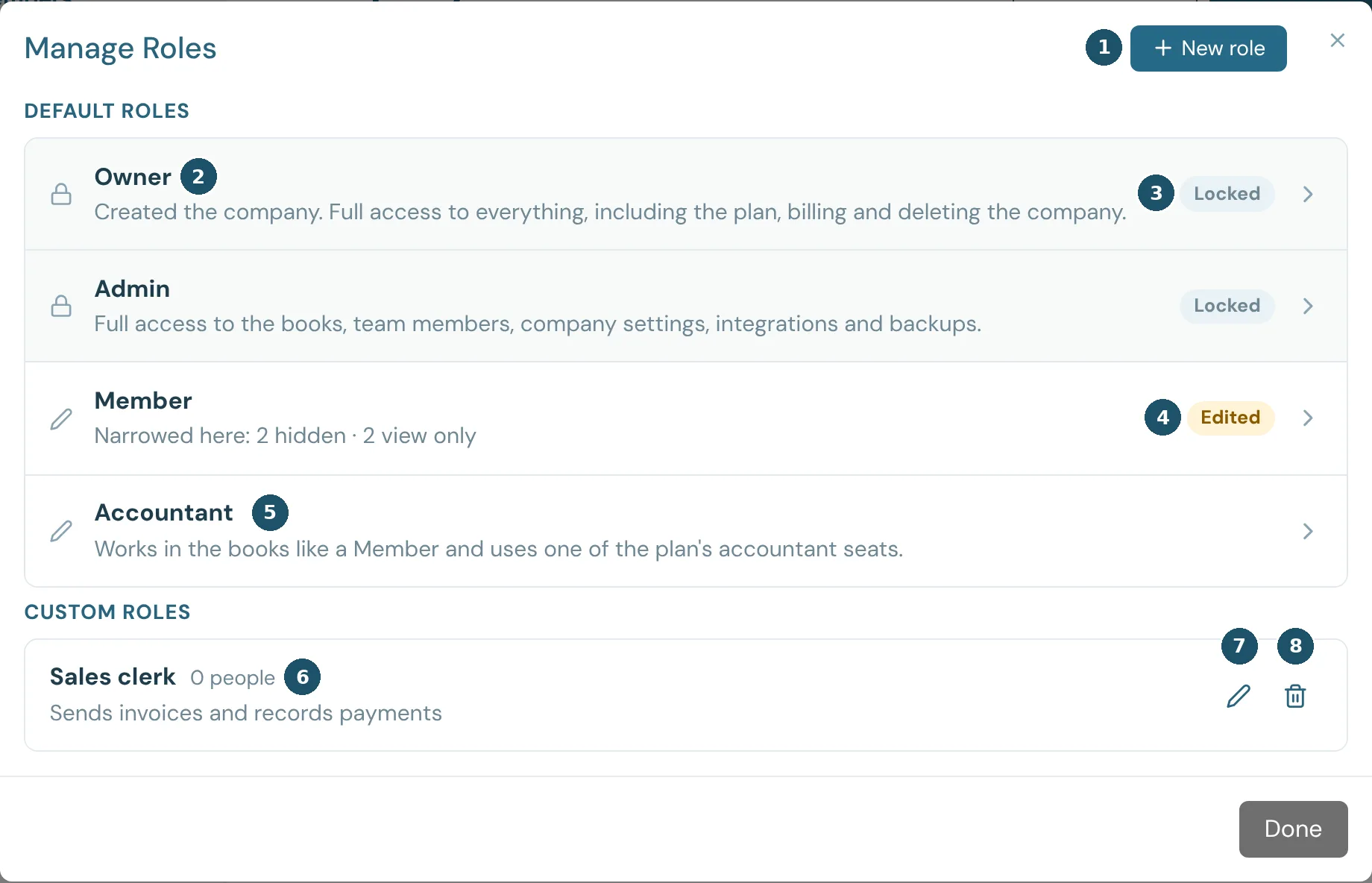
- New role makes a custom role. Custom roles are on the Pro and Enterprise plans.
- The default roles: Owner, Admin, Member and Accountant, each with what it can do.
- Locked: Owner and Admin can't be changed. Open one to see what it can do.
- Edited: this company has narrowed the Member or Accountant role. The line under it says how many parts are hidden or view only.
- Member and Accountant open for editing (owners and admins, on the Pro and Enterprise plans). See Editing Member and Accountant.
- How many people have this custom role, and how many are invited with it.
- Edit changes the role. Everyone who has it gets the change.
- Delete removes it. A role that someone has can't be deleted until they're given another role.
A custom role is a Member with less access, never more. Team, company settings, plan, billing and integrations always stay with the Owner and Admins.
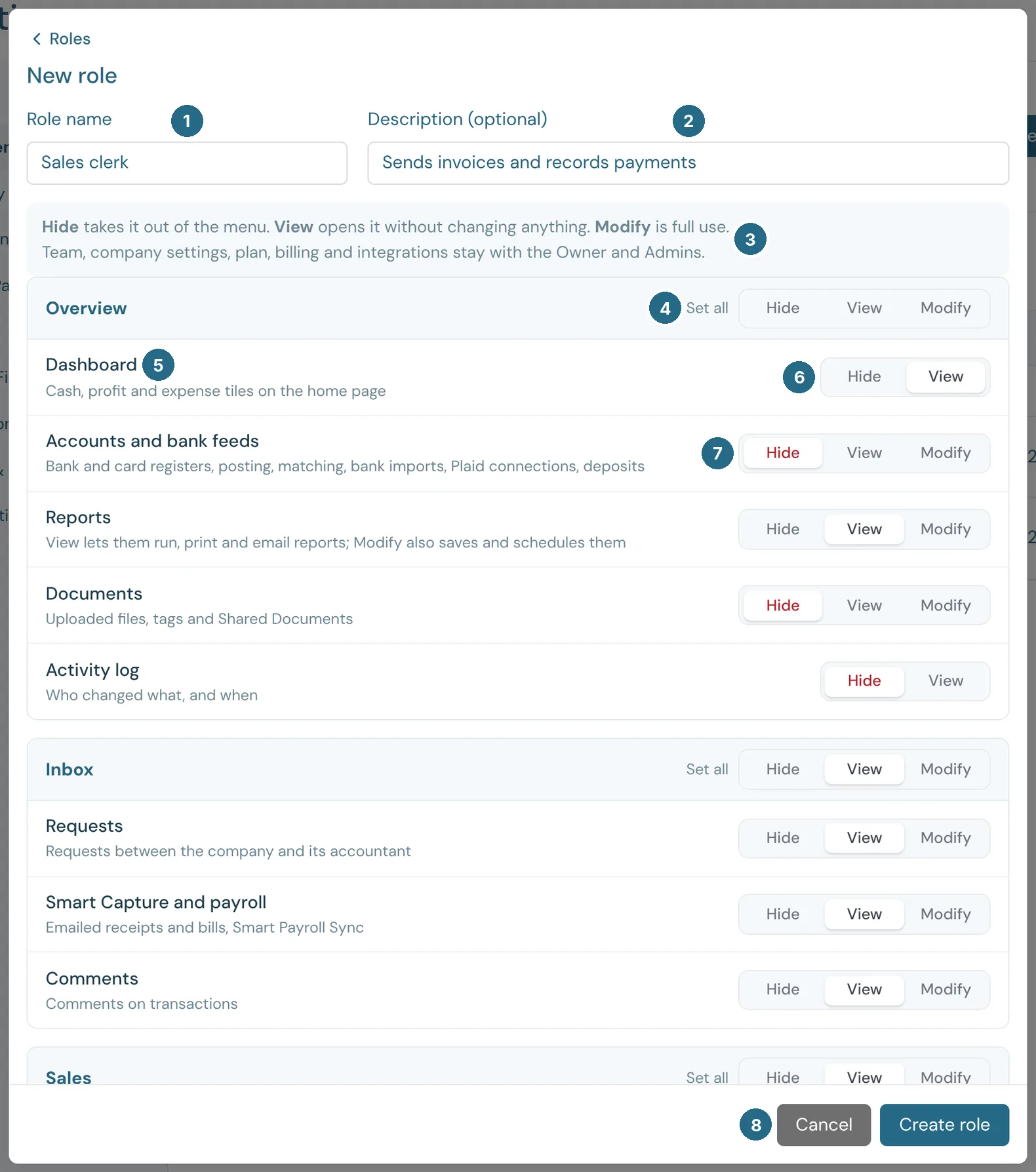
- Role name, such as Sales clerk.
- Description: what this person does, shown in the role lists.
- What the levels mean: Hide takes that part out of the menu, View opens it without changing anything, and Modify is full use.
- Set all sets every part of a group at once: Overview, Inbox, Sales, Purchases and Accounting.
- Each part of the app, with a note on what it covers.
- Parts you can only look at, such as the Dashboard and Activity log, have just Hide and View.
- The rest have Hide, View and Modify.
- Create role saves it. Cancel goes back to the list.
Notification emails
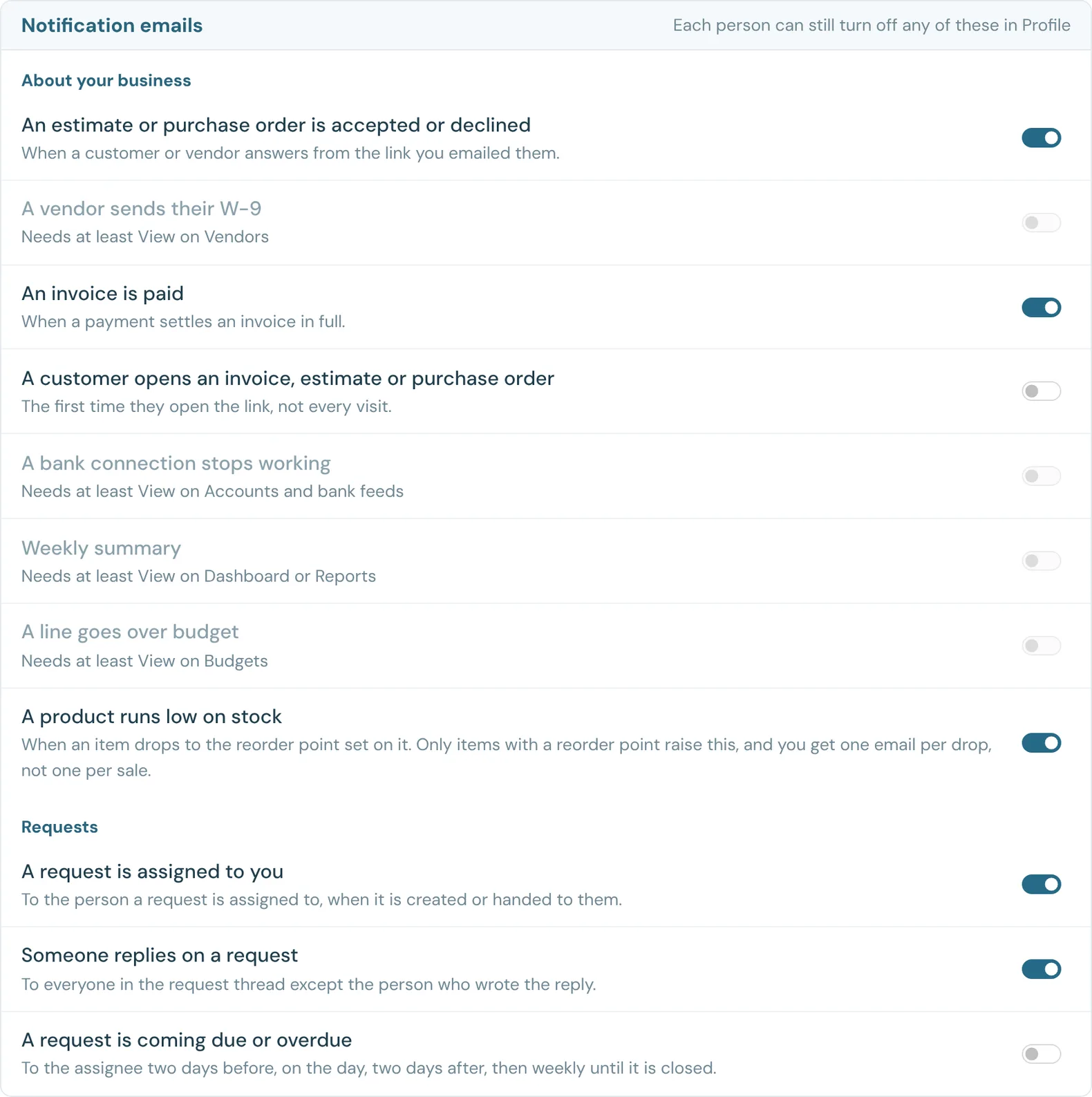
Under the parts of the app, each role lists the notification emails its people can get. Turn one off and nobody with the role sees it in their Profile or receives it. Each person can still turn off any that are on.
An email about a part the role hides is off and greyed out, with a note such as Needs at least View on Accounts and bank feeds. Give the role View on that part to offer it. Owner and Admin get every email, and so do Member and Accountant until they're edited.
Editing Member and Accountant
Owners and admins can narrow the Member and Accountant roles for their company, with the same Hide, View and Modify levels and notification emails as a custom role. The change applies to everyone with that role in this company, except a Member who has a custom role. It can take access away but never give more than a Member has, and the Company admin parts stay as they are.
Each company keeps its own. An accountant who works for several companies can have full access in one and narrower access in another, so check the role in the company where something is missing.
When an Accountant's Accounts and bank feeds, General ledger and journal entries, Reconcile or Period close is below Modify, a warning beside Save role says they won't be able to close the books.
Reset to default puts the role back as it comes: full access to the books and every notification email offered. Saving the role with everything at Modify and every email on does the same.
If you move to the Starter plan, people keep their custom roles and an edited Member or Accountant keeps its limits, but you can't add, edit or assign them. You can still reset Member or Accountant to default.
When WizeBooks adds a new part of the app, such as Mileage, it starts as Hide in the custom roles you already have and in an edited Member or Accountant. Edit a role to give its people access.
Inviting someone
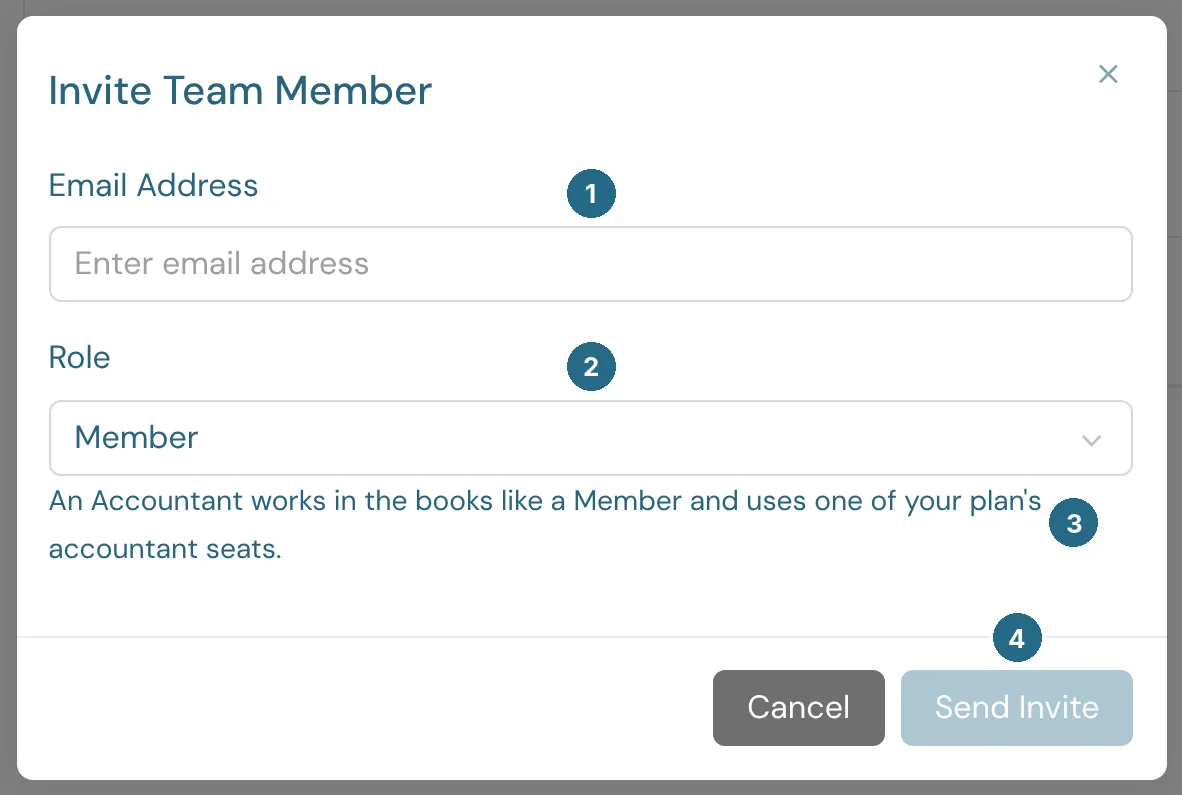
- Email Address: where the invitation goes.
- Role: Member, Admin, Accountant or one of your custom roles.
- A line on what that role can do.
- Send Invite emails them a link to join.
How many people you can invite depends on your plan. See also Invite your team.
Updated in v1.0.0