
Sales
Estimates
Quotes for customers, which turn into invoices once they're accepted.
In the app: Sales › Estimates
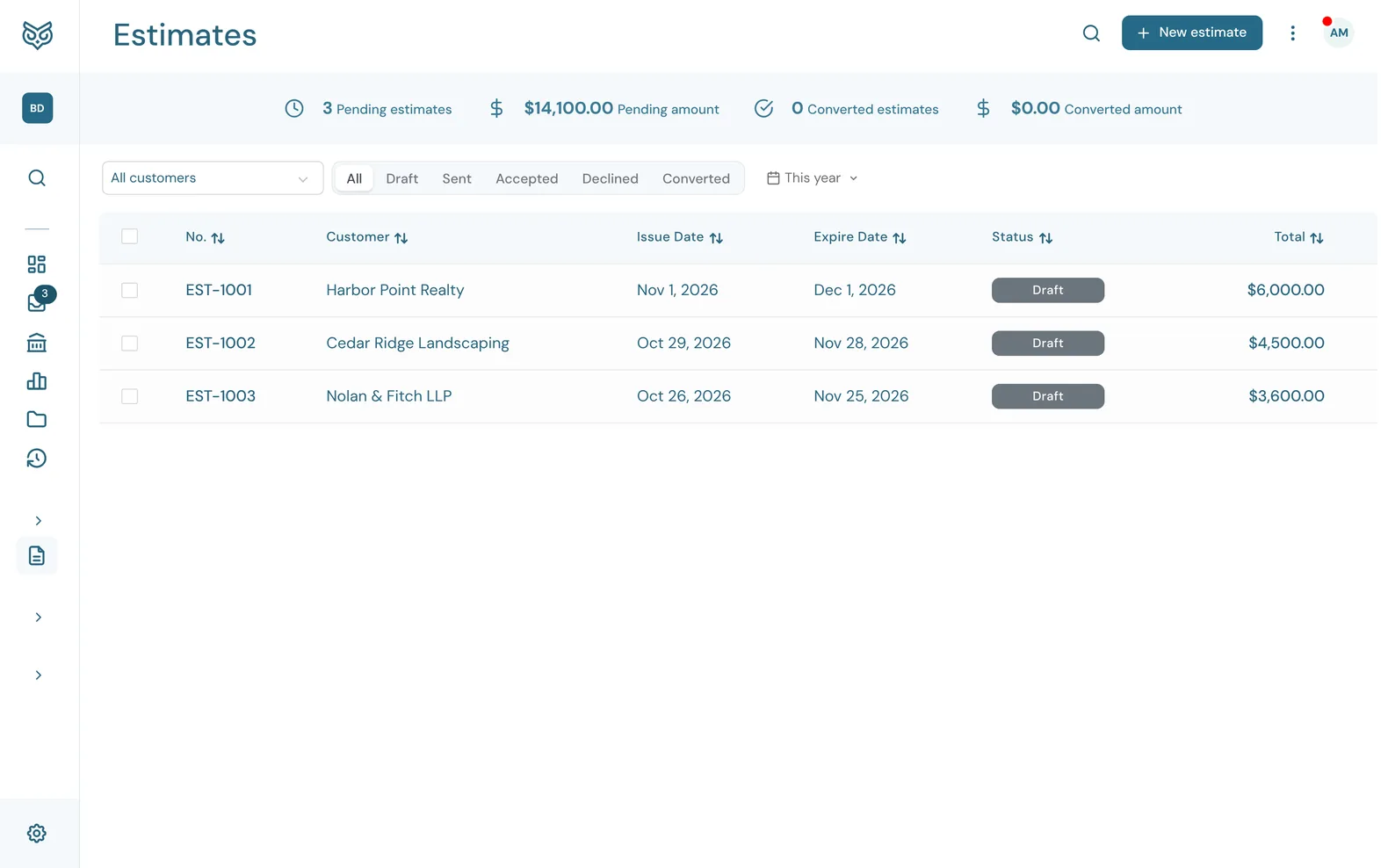
An estimate is a quote. It doesn't touch your books until it becomes an invoice.
The top of the page

- Search filters the list as you type.
- New estimate opens a blank estimate.
- More options: print or export the list, show or hide the stat band, and choose columns, page size and row height.
- The stat band: Pending estimates and their Pending amount (drafted or sent, not yet accepted, declined or converted), and Converted estimates and their Converted amount (turned into invoices).
The list
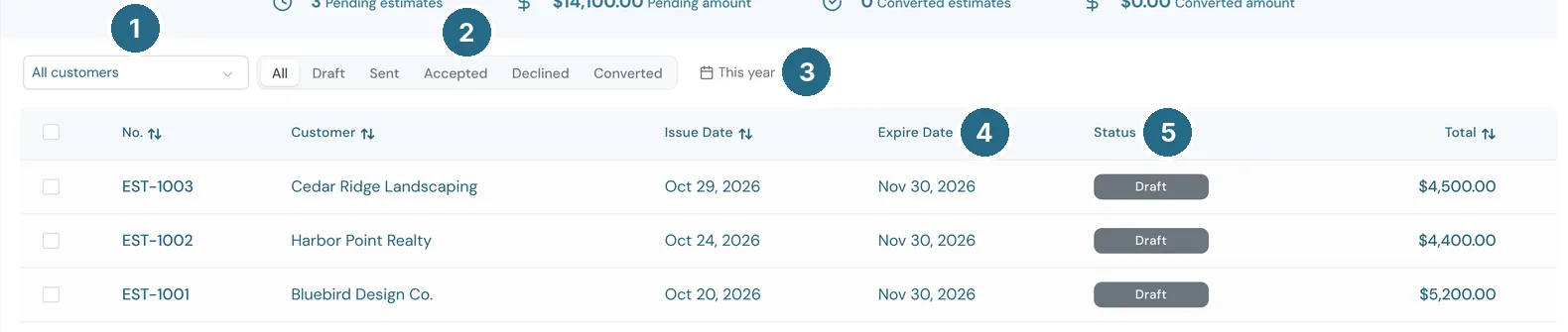
- All customers: one customer's estimates only.
- The status buttons: All, Draft, Sent, Accepted, Declined or Converted.
- The date filter sets the range of issue dates.
- Expire Date: the date the quote is good until.
- Status (below).
Click a row to open the estimate.
Statuses
- Draft: saved, not yet sent.
- Sent: emailed to the customer. They can open it online and accept or decline it.
- Accepted or Declined: the customer's answer.
- Converted: turned into an invoice.
An open estimate

- Preview shows the estimate as the customer will see it.
- More (below).
- Save as draft keeps it without sending.
- Save and send emails it to the customer.
Once an estimate has been sent, Save as draft and Save and send become a single Save. A sent or accepted estimate also gets Convert to Invoice, which makes an invoice from it with the same customer and lines and marks the estimate Converted.
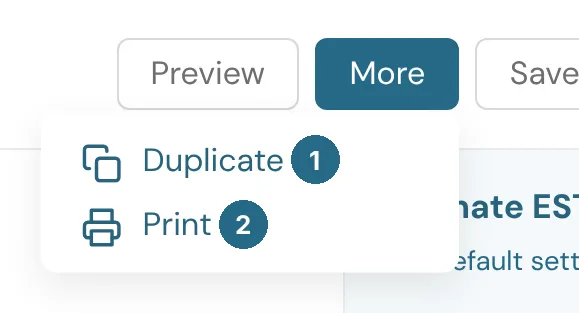
- Duplicate starts a new estimate with the same customer and lines.
- Print prints it.
Creating an estimate
An estimate is laid out like an invoice. See Invoices for the lines, totals and side panel. The heading has two dates of its own:
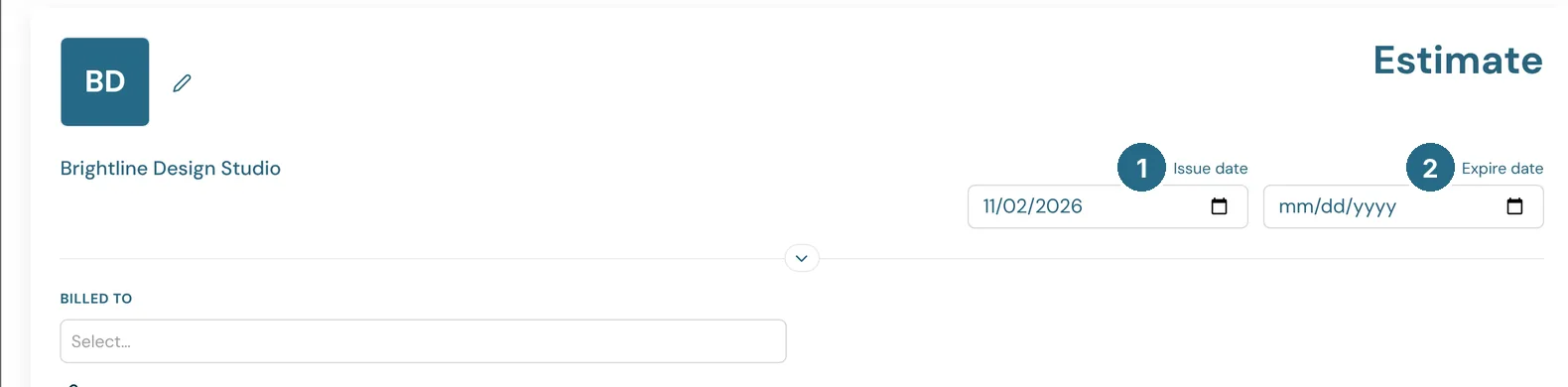
- Issue date: the date on the quote.
- Expire date: the date it's good until. Leave it empty for no end date.
On a customer's own page, the Estimates tab's row menu also offers Convert to Invoice and Decline.
Updated in v1.0.0