
Reports
Every report in WizeBooks, grouped by subject, plus the custom reports you save.
In the app: Overview › Reports
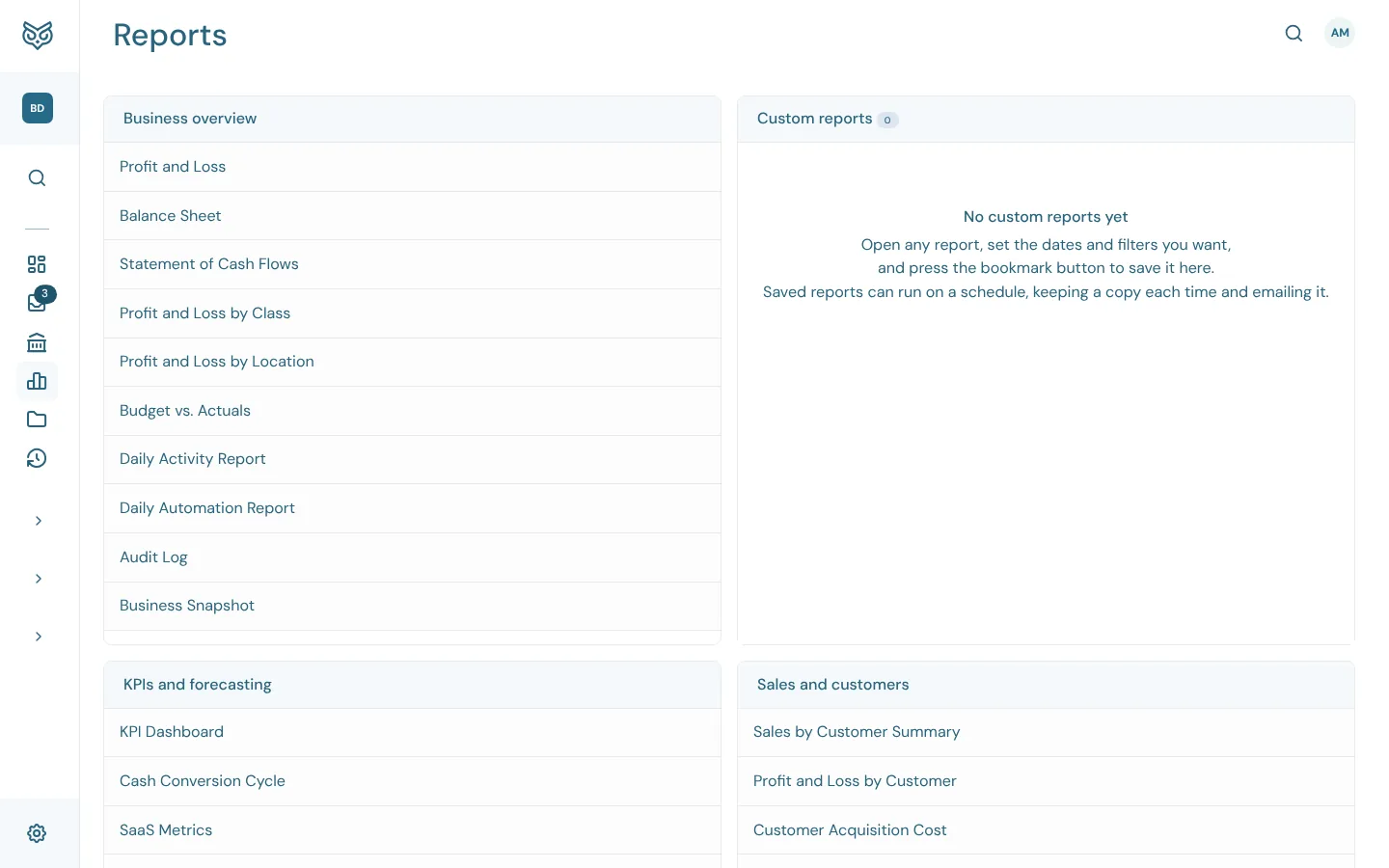
The Reports page lists every report, grouped by subject. Choose one to open it with your company's default period (set in Settings › Reports).
The Reports page
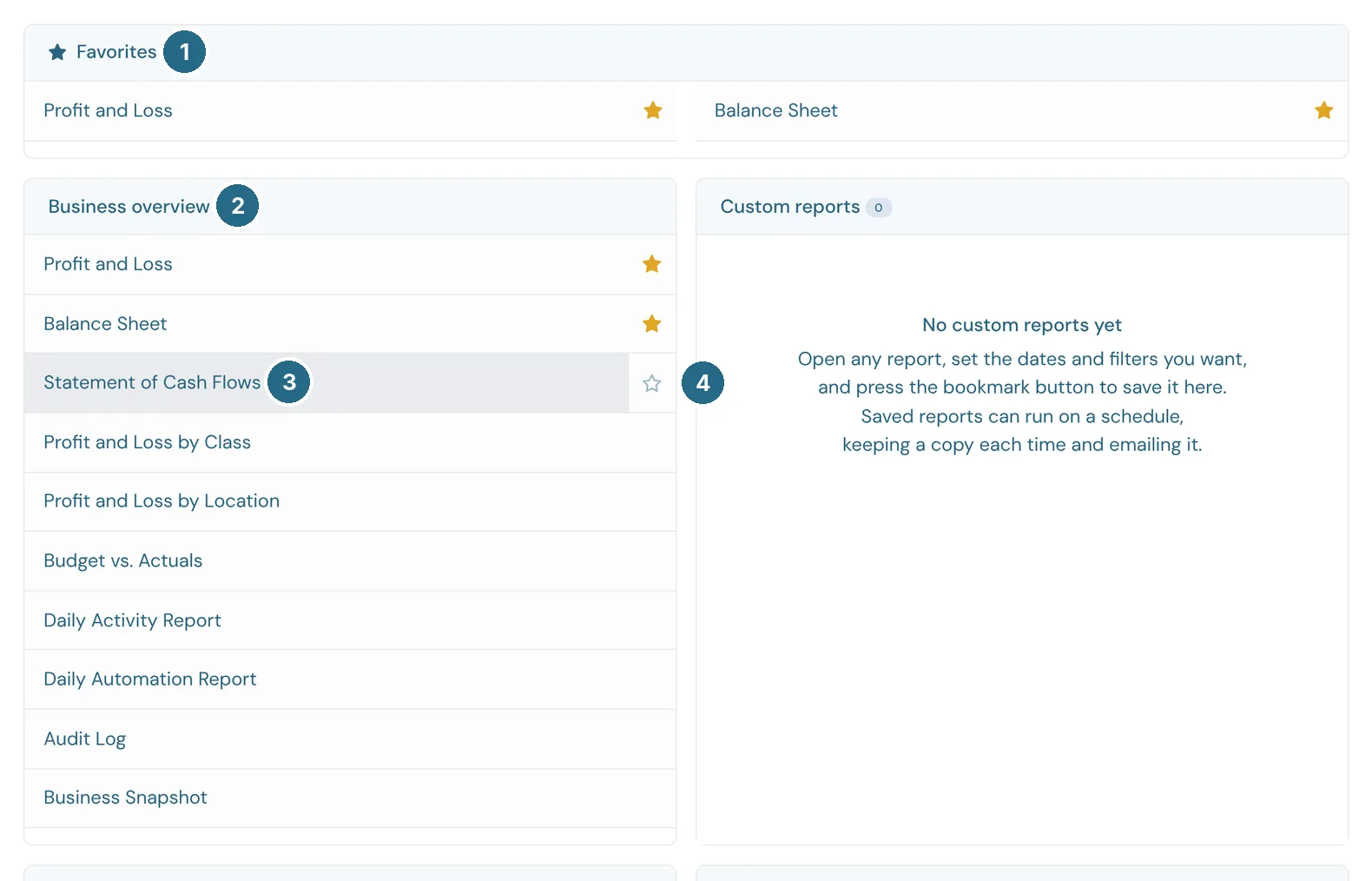
- Favorites: the reports you've starred, at the top of the page. Favorites are kept for this company in this browser.
- Each card is a group of reports: Business overview, KPIs and forecasting, Sales and customers, Expenses and vendors, Who owes you, What you owe, Products and inventory, Payroll and For my accountant.
- Choose a report's name to open it.
- Hover over a report and click the star to add it to Favorites. Click a filled star to take it off.
- Custom reports: reports you've saved with your own settings, with how many there are. See Custom and scheduled reports.
Reports your plan doesn't include show the plan they need. The magnifying glass in the title bar searches the reports by name.
The settings bar
Most reports share the same settings across the top. A report only shows the settings that apply to it.
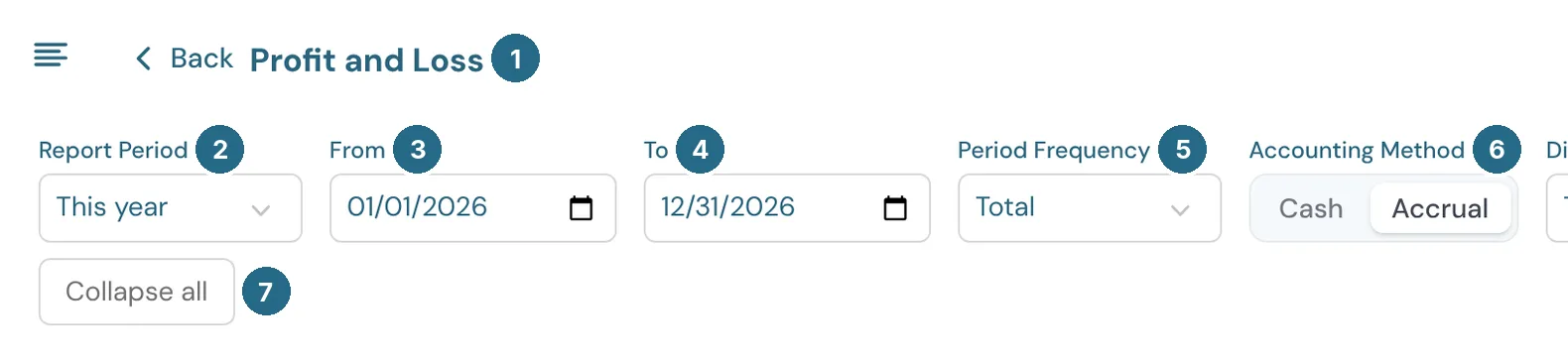
- Back returns to the Reports page, beside the report's name.
- Report Period: This year, Last month, Last 12 months and so on, All Time, or Custom.
- From and 4. To: the exact dates. Changing either switches the period to Custom.
- Period Frequency: Total shows one column. Days, Weeks, Months, Quarters or Years splits the period into a column for each.
- Accounting Method: Cash counts income and expenses when money moves. Accrual counts them when invoices and bills are dated.
- Collapse all folds every section down to its total (and Expand all opens them again).
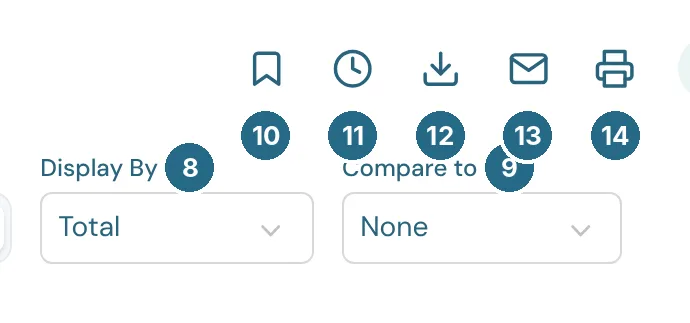
- Display By: Total, or a column for each Customer, or for each value of one of your custom fields, such as Class or Location.
- Compare to: Previous period or Previous year adds columns for the same dates before.
- The bookmark saves the report, with these settings, as a custom report.
- The clock schedules the report to run by itself.
- Export to CSV downloads the report as drawn, to open in Excel or Google Sheets.
- Email sends the report to someone now.
- Print prints it, or saves it as a PDF from your browser's print window.
Reading a report
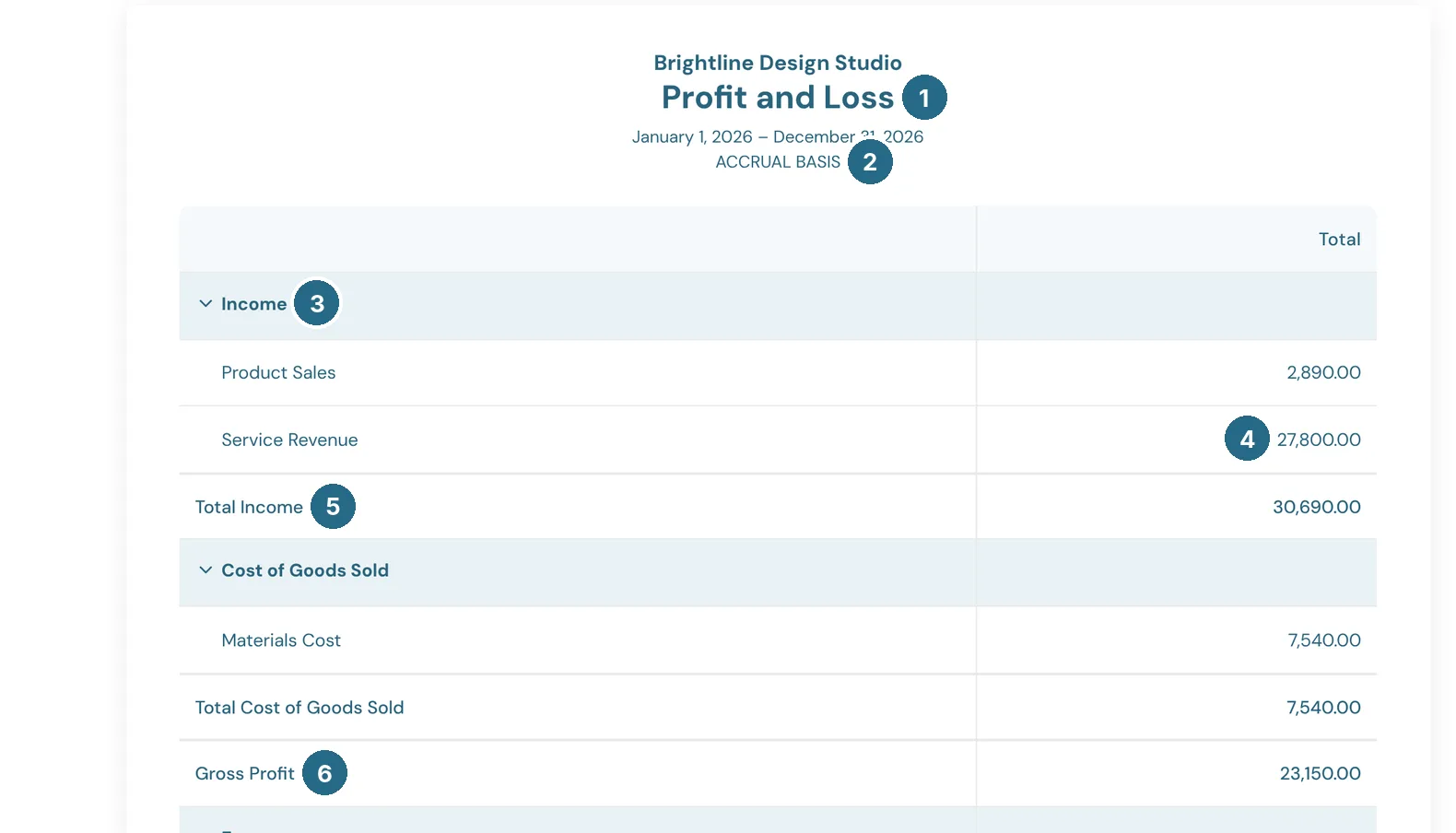
- The report's name, under your company name.
- The dates and the accounting method it was run with.
- Click a section heading to fold it down to its total, and again to open it.
- Choose any amount to see the transactions behind it.
- Section totals.
- Running results, such as Gross Profit and Net Income.
With a Period Frequency and Compare to set, each period gets its own column next to the period it's compared with (marked PY for previous year, PP for previous period):
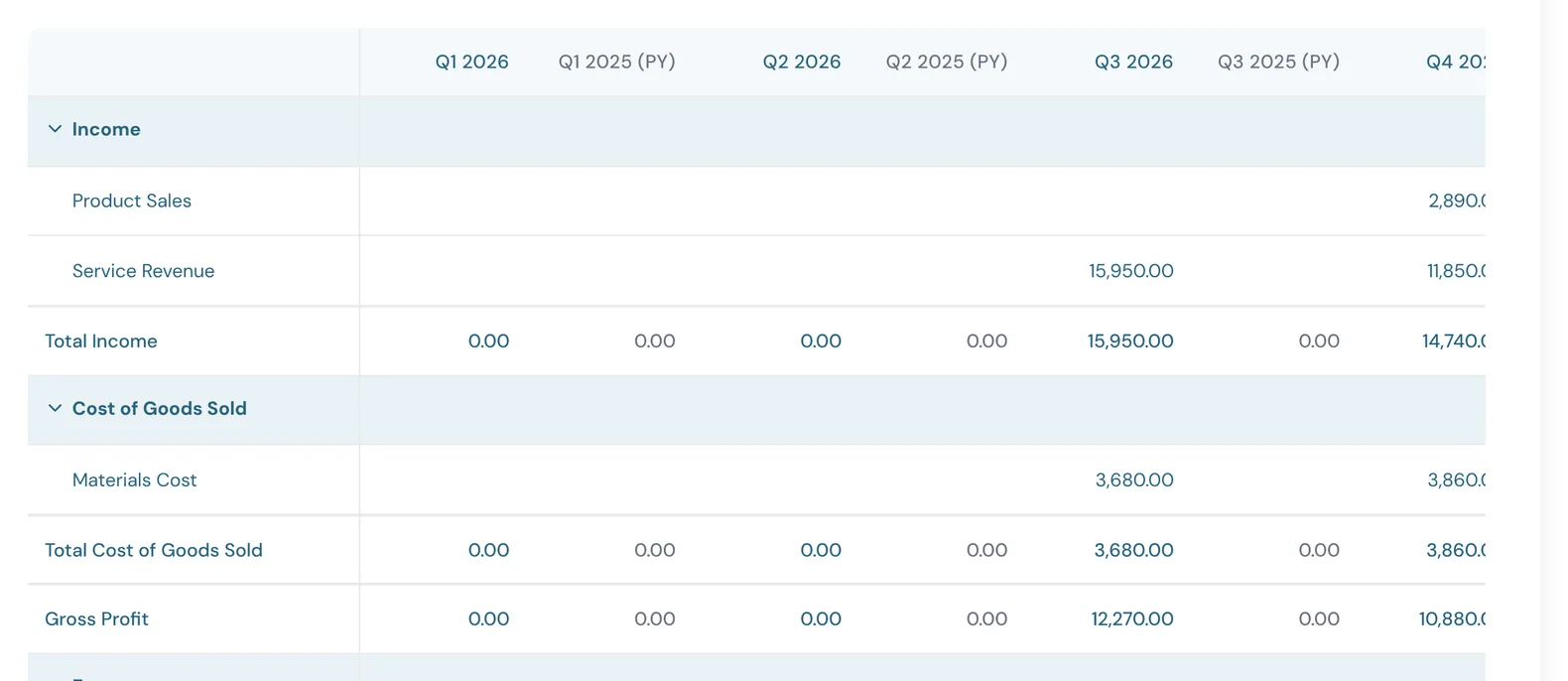
A wide report scrolls sideways, with a scrollbar above the report as well as below it.
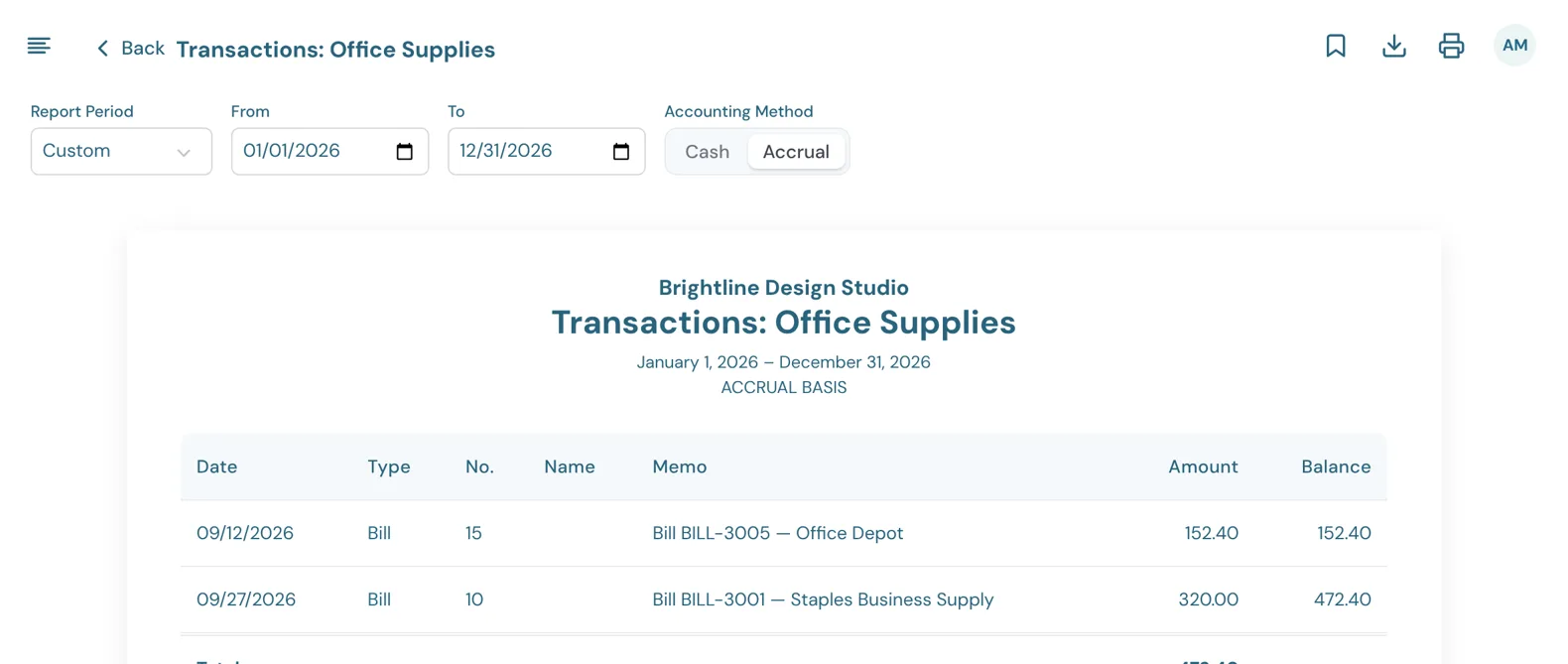
Choosing an amount opens the transactions behind it as their own report, with its own period, method, export and print:
Retained Earnings and Net Income
WizeBooks works out Retained Earnings for you, the same way QuickBooks Online does. There's no year-end journal entry to make.
- On the Balance Sheet, Net Income is this fiscal year's profit up to the report date.
- Retained Earnings is the profit of every earlier fiscal year added up, plus anything you posted to the Retained Earnings account yourself, such as an opening balance or a correction.
- On the first day of a new fiscal year, last year's profit moves into Retained Earnings on its own, and Net Income starts again from zero.
- The Trial Balance works the same way: income and expense accounts show this fiscal year only, and earlier years sit in Retained Earnings.
Your fiscal year starts on the first day of the First month of fiscal year in Company Settings. Retained Earnings has no drill-down on the Balance Sheet, because most of it comes from earlier years' profit, not from its own transactions.
Reports and these lists open in a new browser tab unless your company has turned that off in Company Settings › Browser tabs.
Custom and scheduled reports
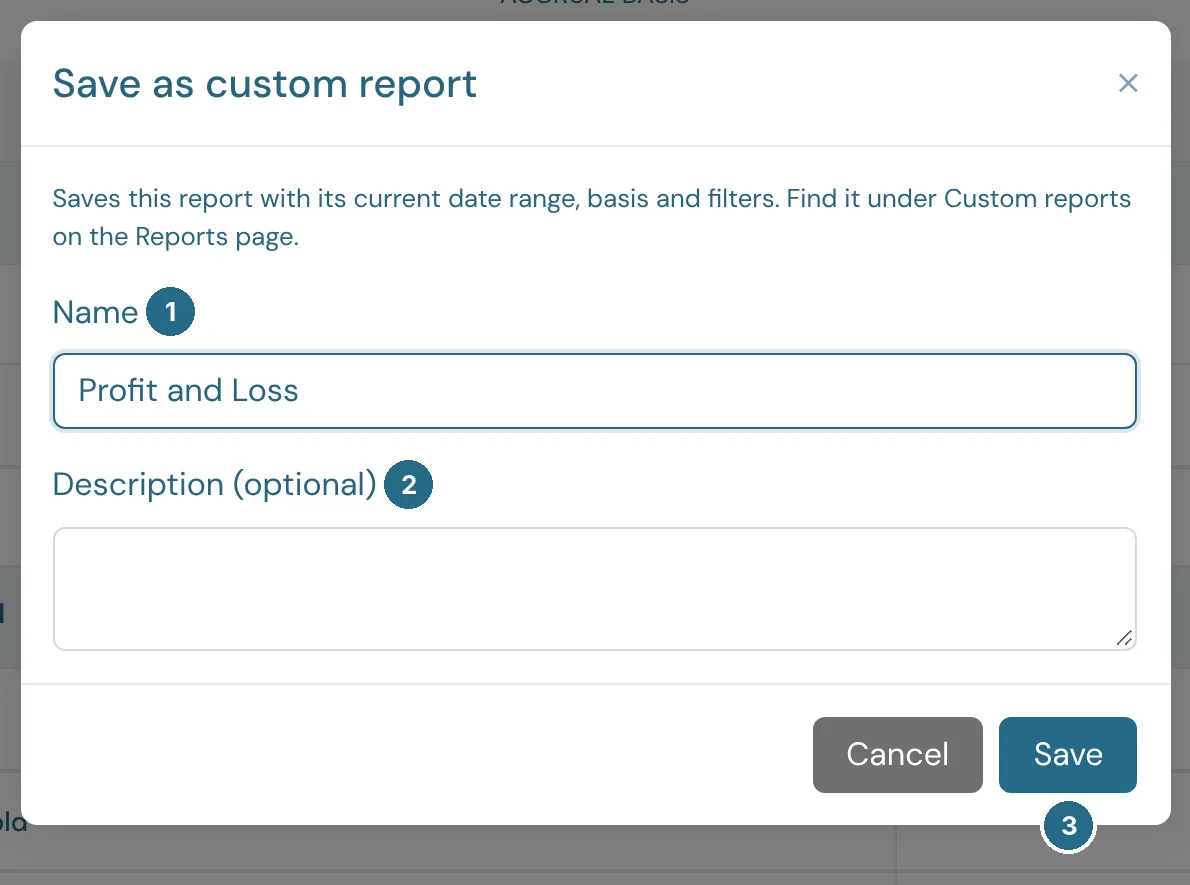
- Name: how it's listed under Custom reports.
- Description: an optional note on what it's for.
- Save keeps the report with its current dates, method and filters.
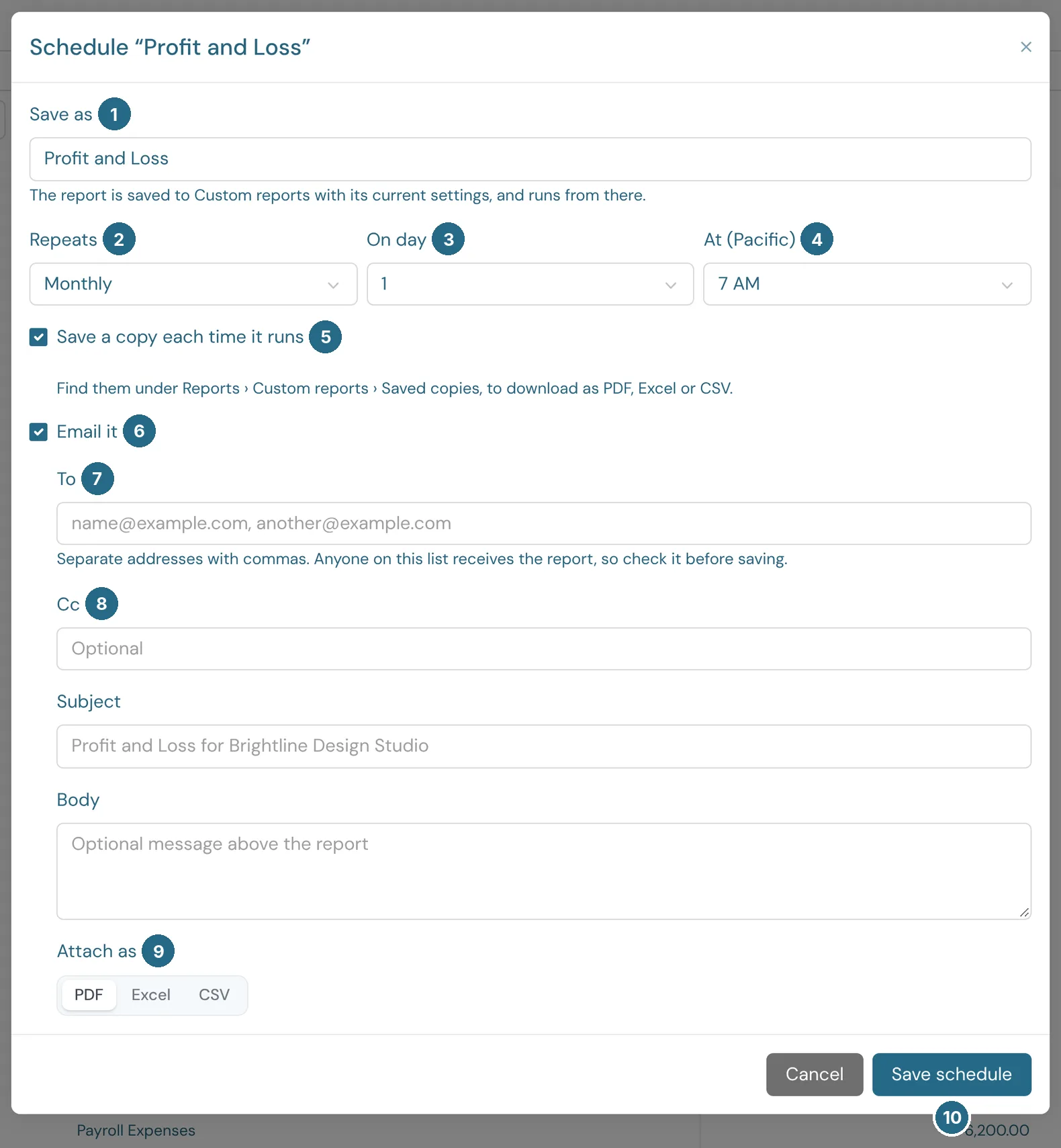
- Save as: scheduling saves the report to Custom reports first, under this name.
- Repeats: how often it runs, such as Monthly.
- On day: which day of the week or month.
- At: the hour, in Pacific time.
- Save a copy each time it runs: copies are kept under Custom reports › Saved copies, to download as PDF, Excel or CSV.
- Email it sends each run by email.
- To: one or more addresses, separated by commas. Anyone on the list gets the report, so check it before saving.
- Cc, Subject and Body: optional. The body appears above the report.
- Attach as: PDF, Excel or CSV.
- Save schedule turns it on.
Each custom report's ⋮ menu has Open, Schedule (or Edit schedule), Saved copies, Rename and Delete.
Updated in v1.0.0