
Documents
Keep receipts, statements, contracts and any other file with your books, tagged and searchable.
In the app: Overview › Documents
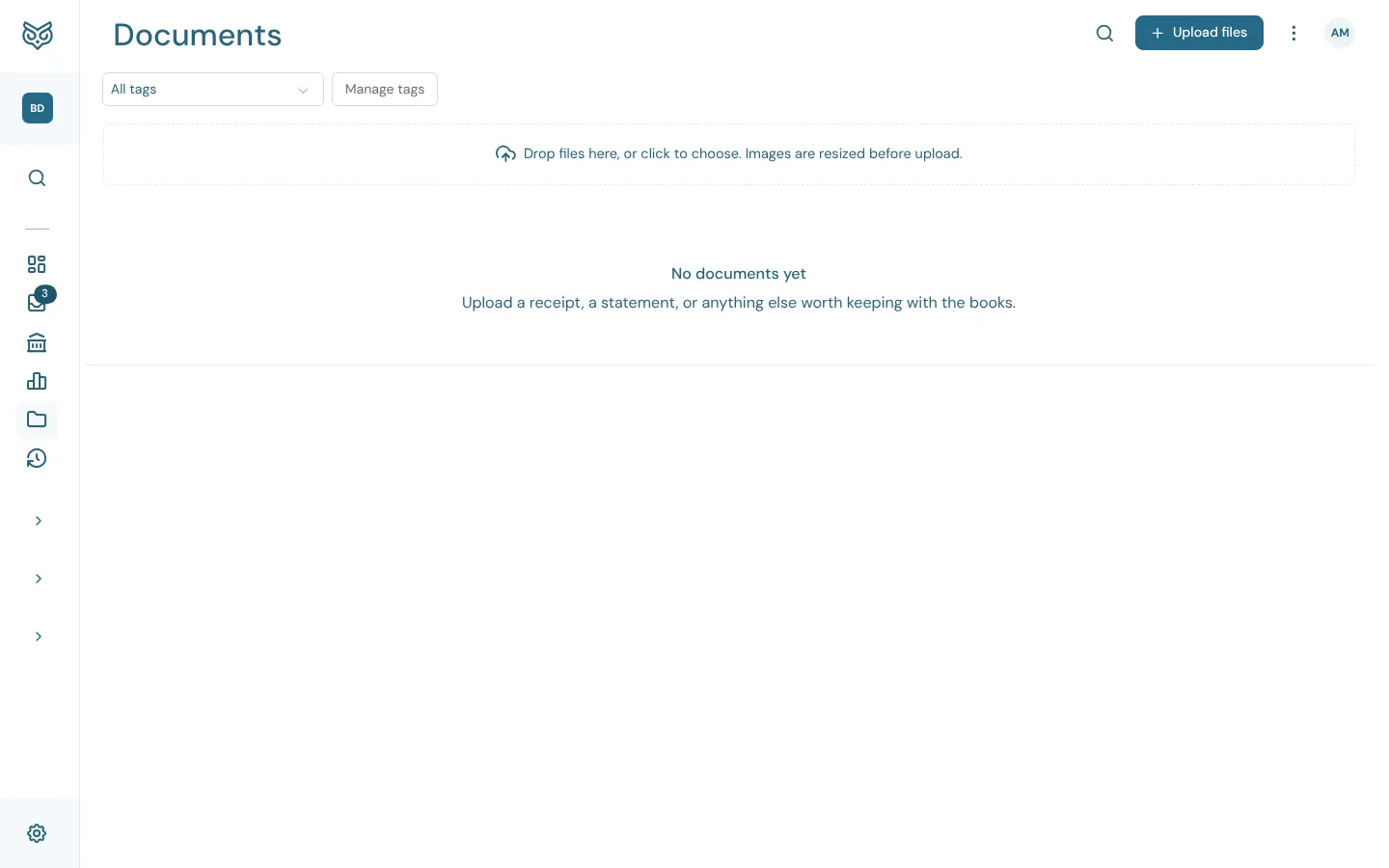
Documents is your company's file cabinet. Files attached to invoices, bills, expenses and other records anywhere in the app also appear here, as do files shared in the Inbox and receipts sent to Smart Capture.
Title bar and filters

- Search finds files by name, in every folder. While you search, the list shows a Folder column with where each file is.
- Upload files picks files from your computer. They go into the folder you have open.
- The ⋮ menu holds the list's own settings (see below).
- All tags shows only the files with the tag you pick.
- Manage tags renames, recolours, merges and deletes tags.
- Drop files on this box, or click it to choose them. Images are made smaller before they upload, to save space.
Every file is checked for malware when it arrives. While that runs it shows Scanning; a file that fails shows Malware found and can't be opened or downloaded.
Folders

- The path of the folder you're in. / is the top level.
- New folder makes a folder inside the one you're in.
- Each folder is a tile. Click it to open it.
- How many files and folders are inside.
- The folder's ⋮ menu.
- Tick files to act on several at once.
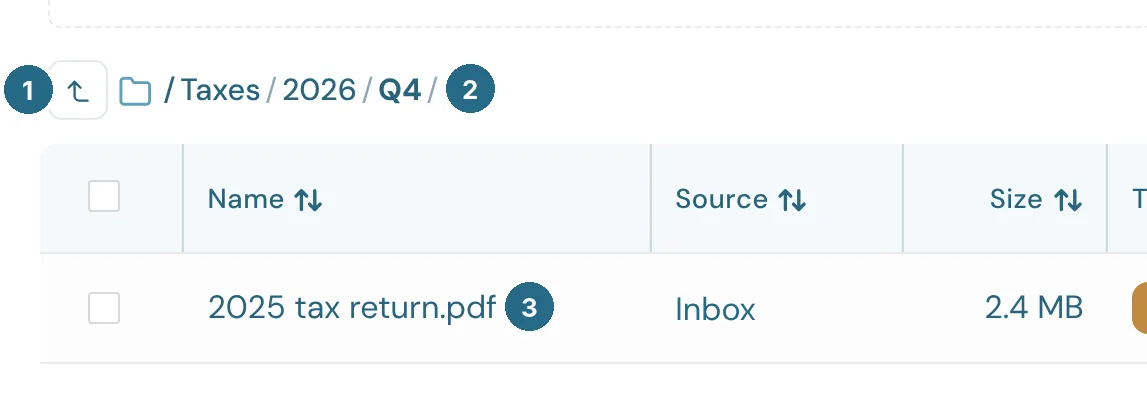
- The up arrow goes back one folder.
- The path, such as /Taxes/2026/Q4/. Click any part of it to jump straight there.
- The files in this folder.
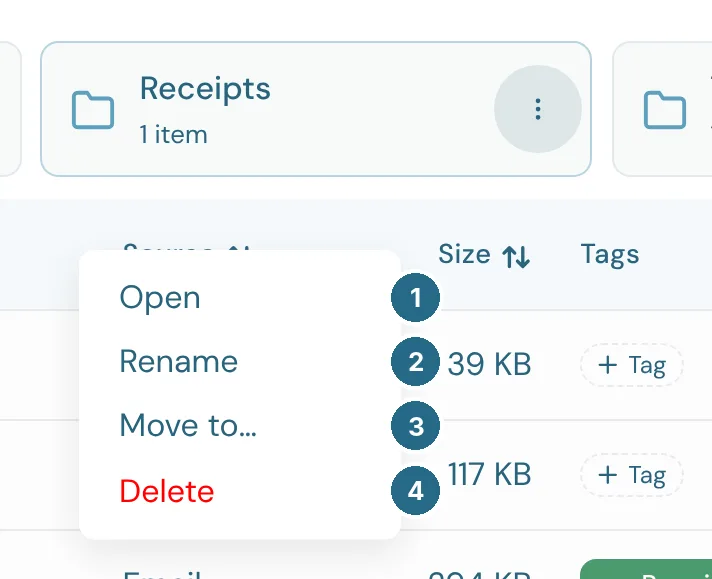
- Open the folder.
- Rename it.
- Move to… puts it inside another folder, with everything in it.
- Delete removes the folder only. Its files and folders move up into the folder above, so no file is ever deleted this way.
Moving files
There are three ways to move files into a folder:
- Drag a file's row onto a folder tile, or onto a part of the path to move it up.
- Choose Move to… from the file's ⋮ menu.
- Tick several files, then choose Move to… beside the count:
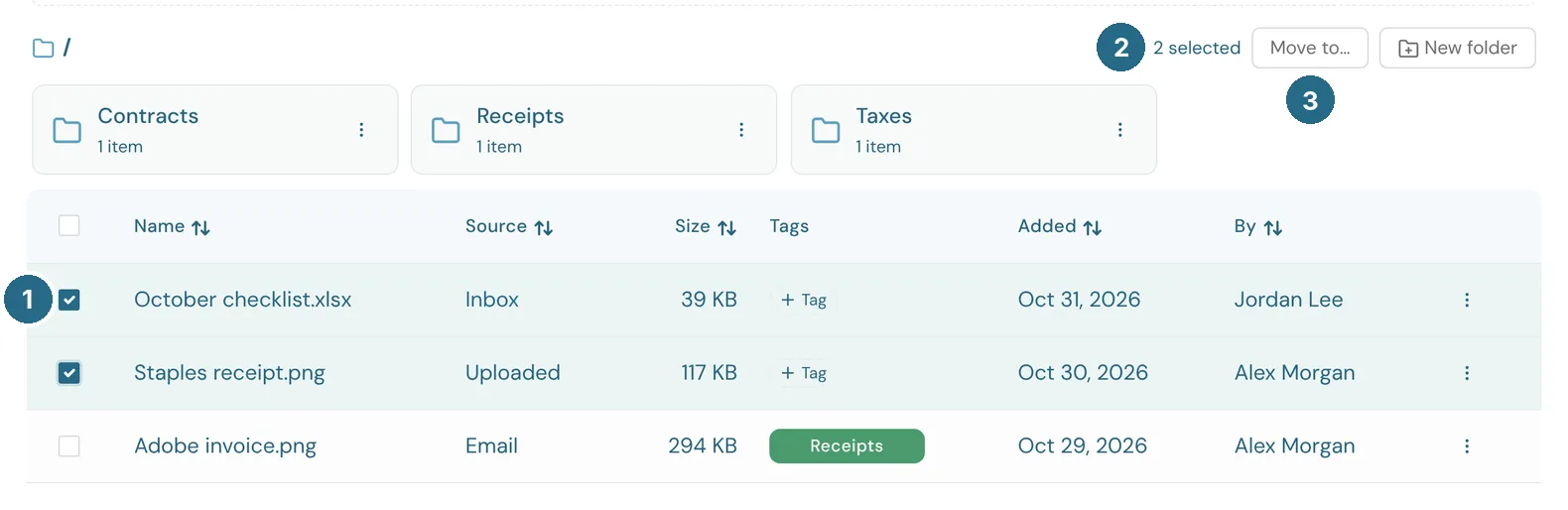
- Tick a file's box to select it. The box in the heading selects them all.
- How many are selected.
- Move to… opens the folder picker:
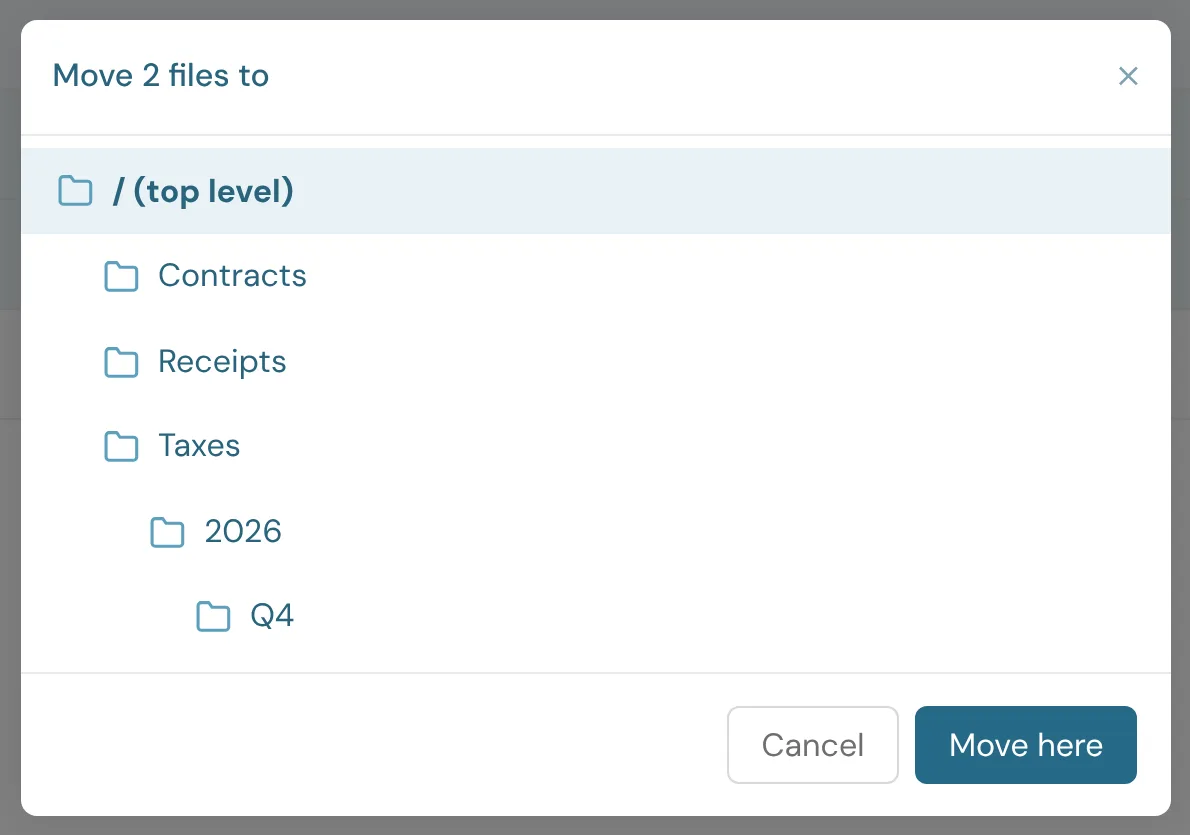
Pick a folder, or / (top level), and choose Move here. Dragging several ticked rows onto a tile moves them all. Files dragged in from your computer and dropped on a folder tile upload straight into that folder.
On a phone, tick the cards and use the Move to bar that appears above the bottom menu.
The list
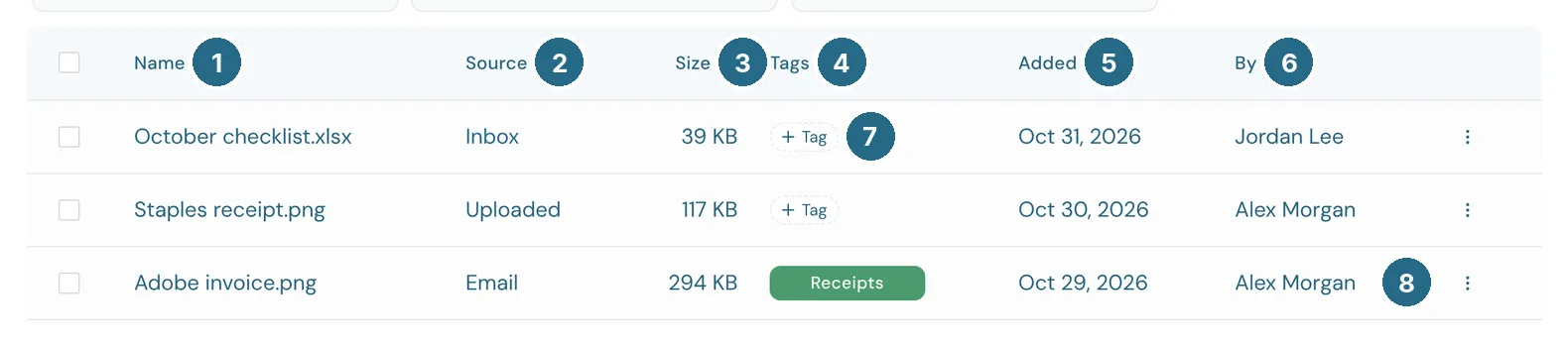
- Name: choose it to open the file.
- Source: where the file came from. Uploaded and Email are files added here or sent to Smart Capture; Inbox is a file shared with your accountant. A file attached to a record names it, such as an invoice number, and choosing it opens that record.
- Size.
- Tags: a file can have several.
- Added: the date it arrived.
- By: who added it.
- + Tag adds a tag. Choose a tag on a file to change or remove it.
- The file's ⋮ menu.
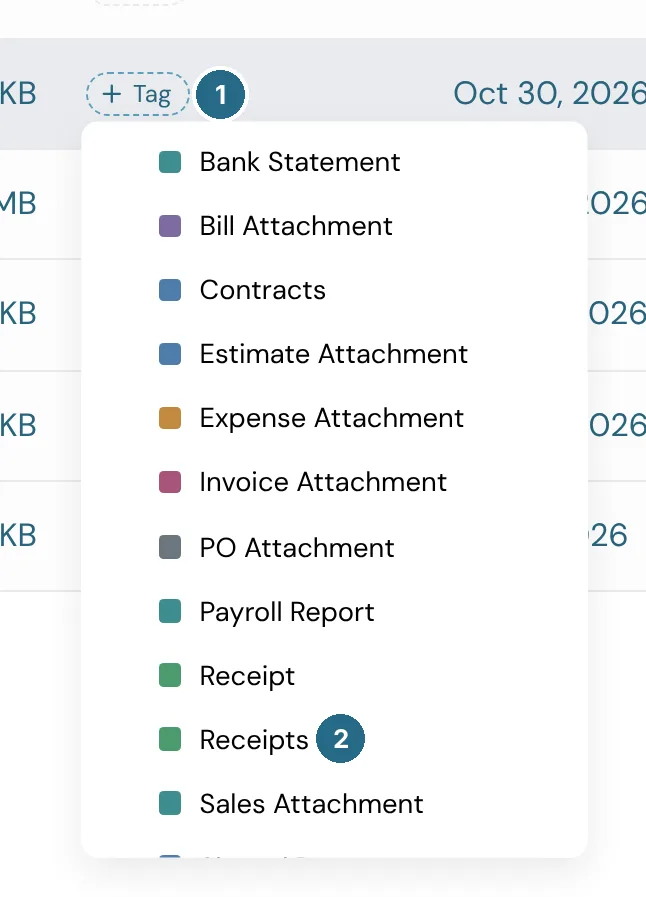
- + Tag opens the list of tags.
- Pick one. Type a new name to make a new tag. WizeBooks starts you with tags such as Receipt and Bill Attachment, and adds them to files it files for you.
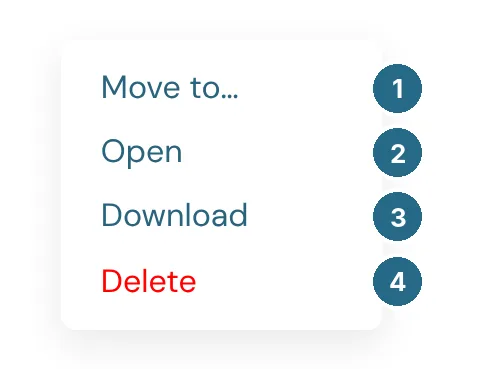
- Move to… another folder.
- Open the file in a new tab.
- Download it.
- Delete it, after you confirm.
Managing tags
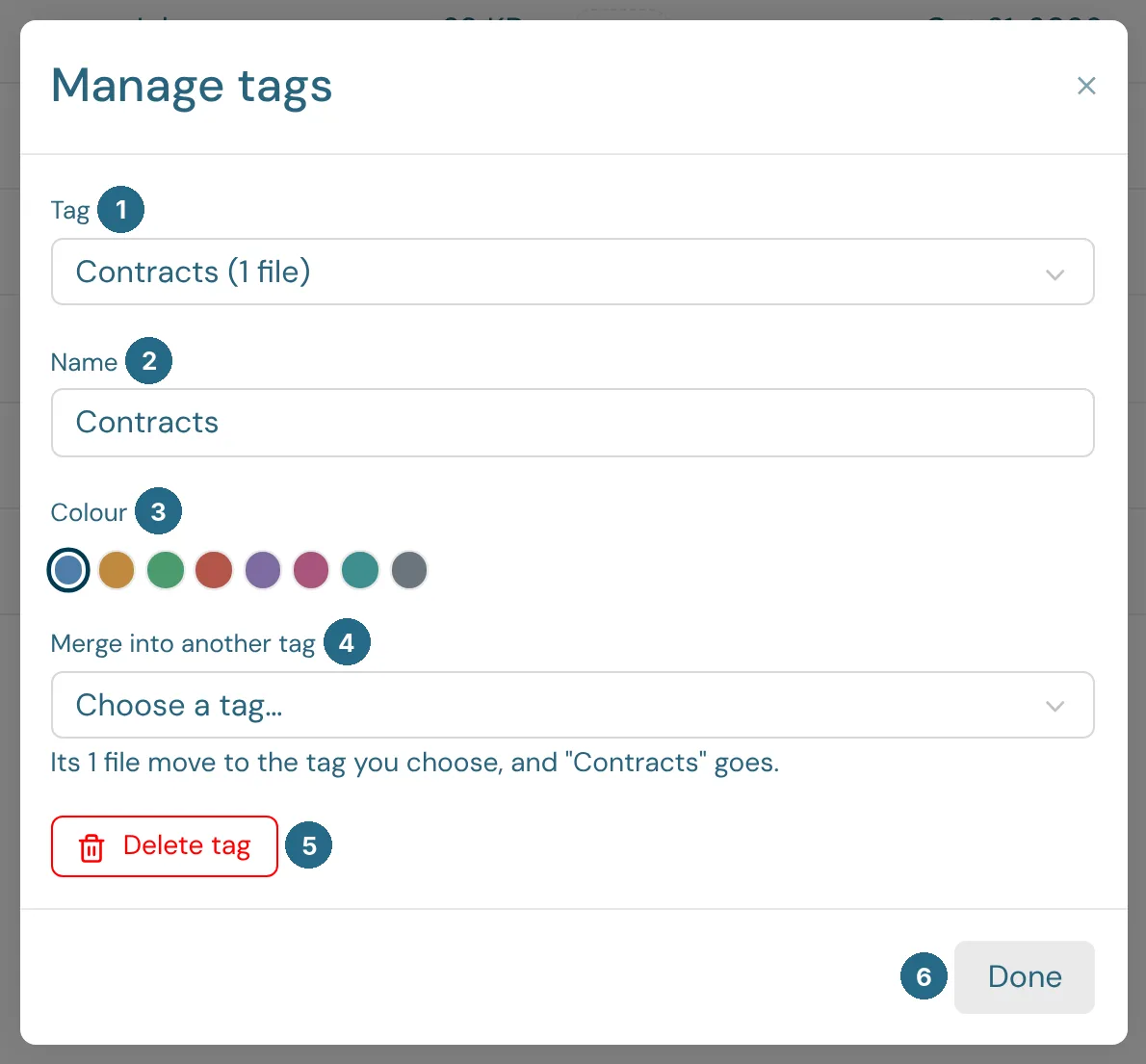
- Tag: pick the tag to change, with how many files carry it.
- Name: rename it.
- Colour: its colour in the list.
- Merge into another tag: moves its files to the tag you pick, then removes this one.
- Delete tag removes the tag from every file. The files stay.
- Done closes the window. Changes save as you make them.
List settings
The ⋮ menu at the top right of Documents, and of most lists in WizeBooks, holds the list's settings:
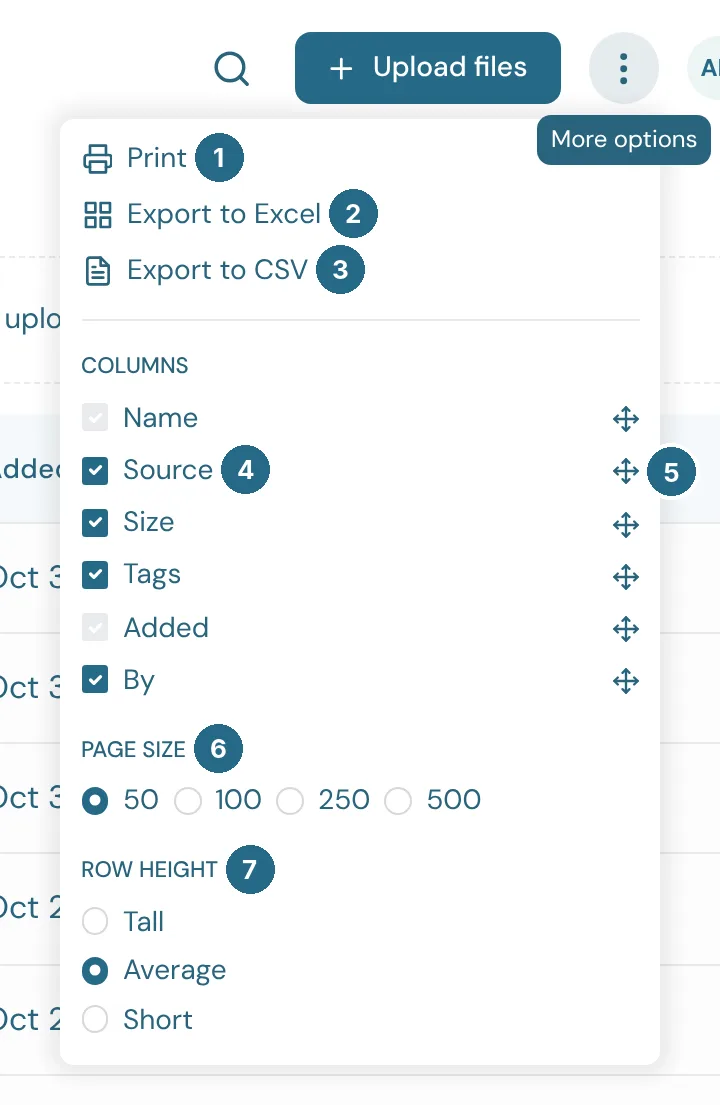
- Print the list.
- Export to Excel and 3. Export to CSV download it.
- Columns: untick a column to hide it. Greyed boxes are columns that can't be hidden.
- Drag the cross to put the columns in another order.
- Page size: how many rows load at a time.
- Row height: Tall, Average or Short.
These settings are kept for you in this browser.
Updated in v1.0.0