
Customer Credit
Credits you owe customers, how to apply them to invoices, and how to refund them.
In the app: Sales › Customers › Customer Credit
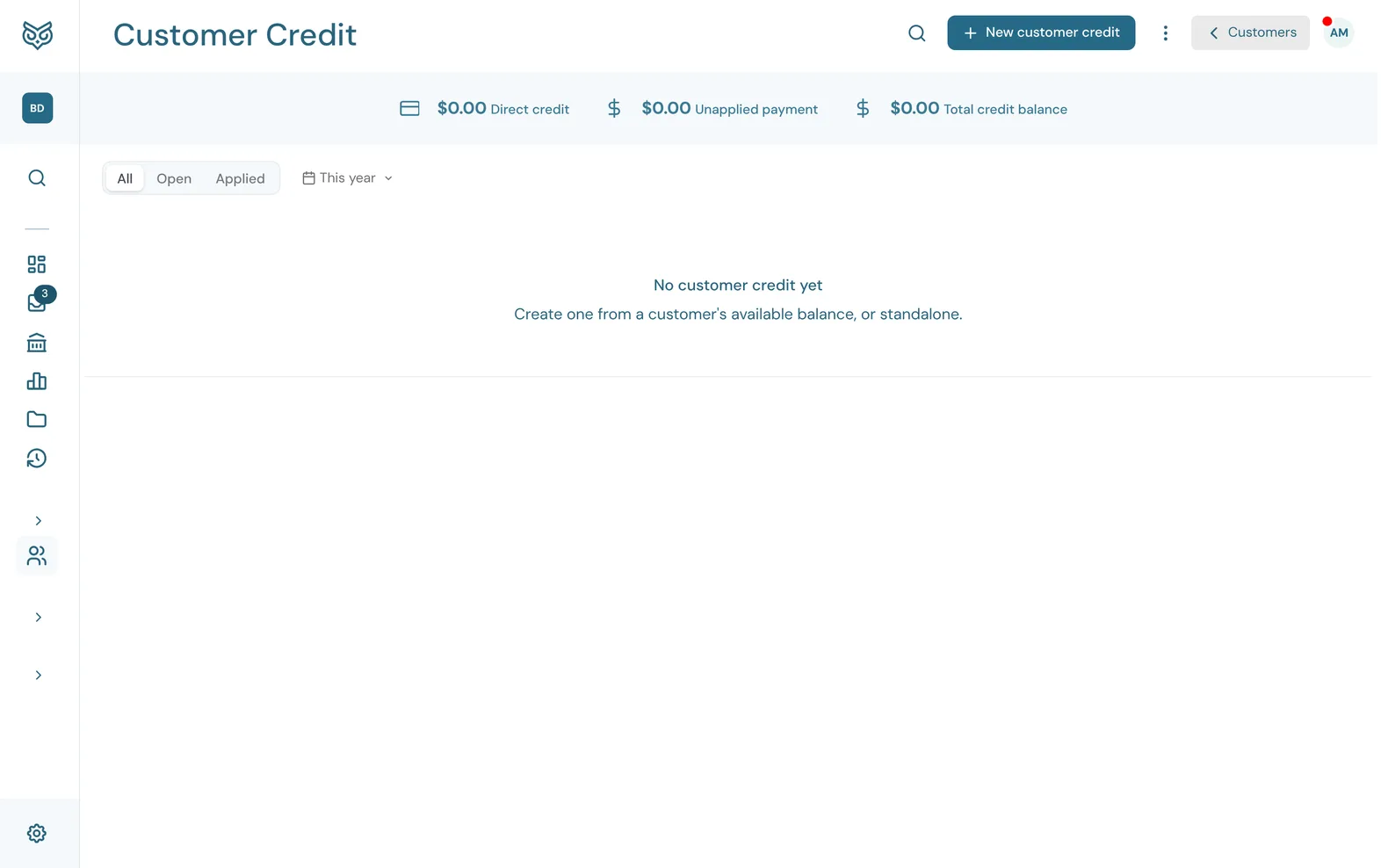
A customer credit is money you owe a customer: a credit memo for a return or a discount after the fact, or a payment they made that's bigger than what they owed.
Customer Credit isn't in the menu. Open it with the receipt icon at the top of the Customers page, or start a new credit from + New › Customer credit, or from a customer's own page with Add credit.
The top of the page

- Search filters the list as you type.
- New customer credit opens a blank credit (see Issuing a credit).
- More options: print or export the list, show or hide the stat band, and choose columns, page size and row height.
- ‹ Customers goes back to the Customers list.
- The stat band: Direct credit (credit memos you've issued), Unapplied payment (overpayments not yet used) and the Total credit balance of both.
The list

- All, Open (still has credit left) and Applied (used up).
- The date filter narrows the list to a period.
- Type: Direct Credit for a credit memo you issued, or Unapplied Payment for an overpayment.
- Status: Open while some credit is left, Applied once it is used up.
- Remaining Credit: what's still there to apply.
- The row's ⋮ menu (below).
No., Customer, Date and Total fill in the rest. Click a row to open the credit.
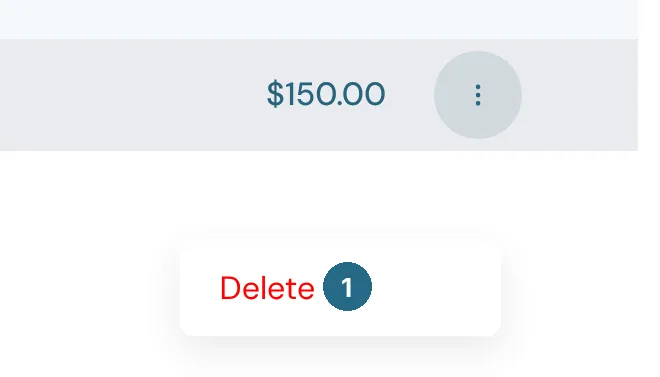
- Delete removes a credit that hasn't been applied to anything.
Issuing a credit
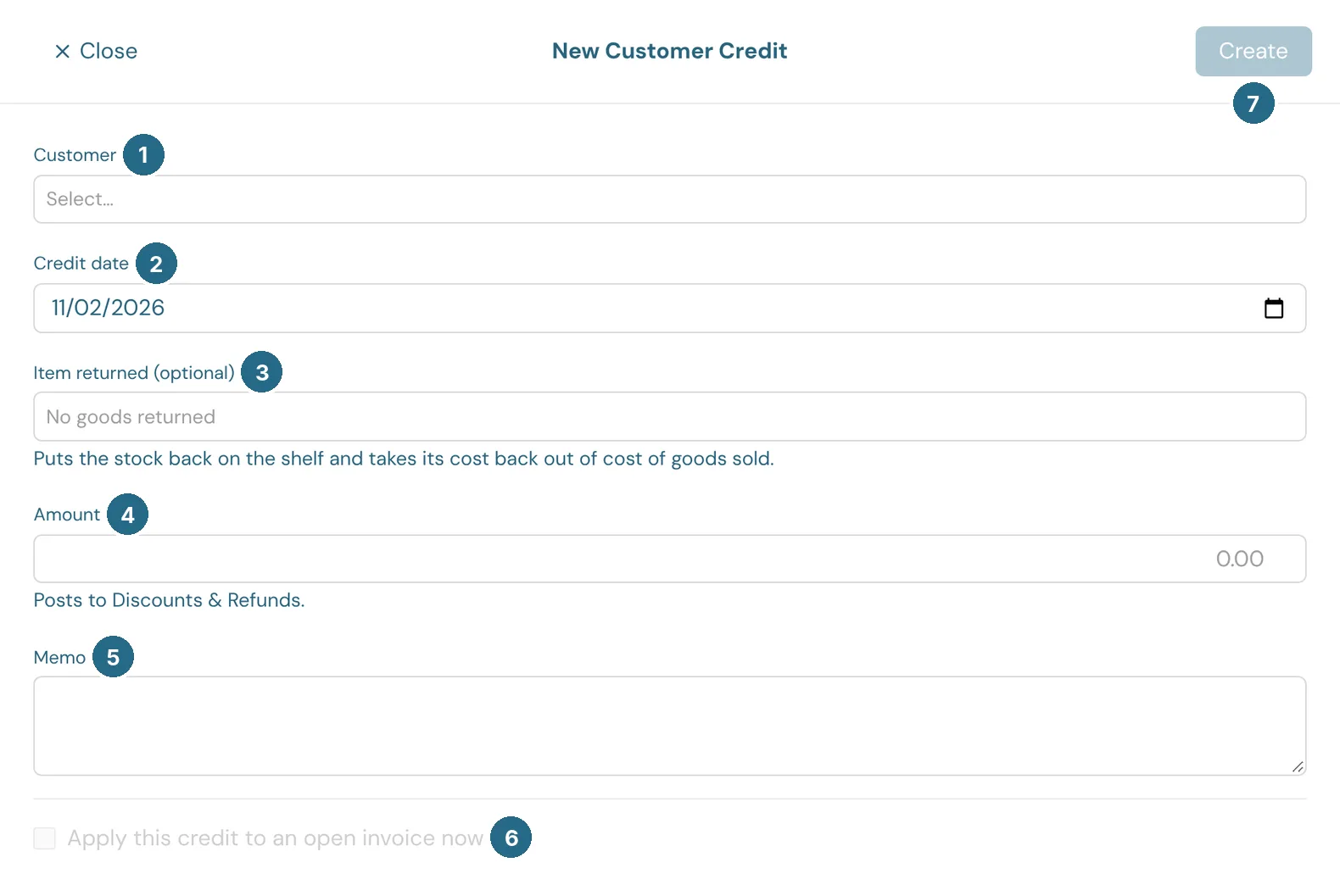
- Customer: who the credit is for.
- Credit date: the date it posts.
- Item returned (optional): pick the product they sent back. It puts the stock back on the shelf and takes its cost back out of cost of goods sold.
- Amount: the credit's value. It posts to Discounts & Refunds.
- Memo: a note for your records.
- Tick Apply this credit to an open invoice now to choose one of the customer's open invoices and lower its balance straight away.
- Create saves the credit.
Applying a credit later
A credit with something left can be applied whenever you like, in either of two ways:
- Open the credit, choose one of the customer's open invoices and the amount, and click Apply credit.
- Open the invoice and choose More › Apply credit.
The amount applied can't be more than the credit left or the invoice's balance.
Refunding a credit
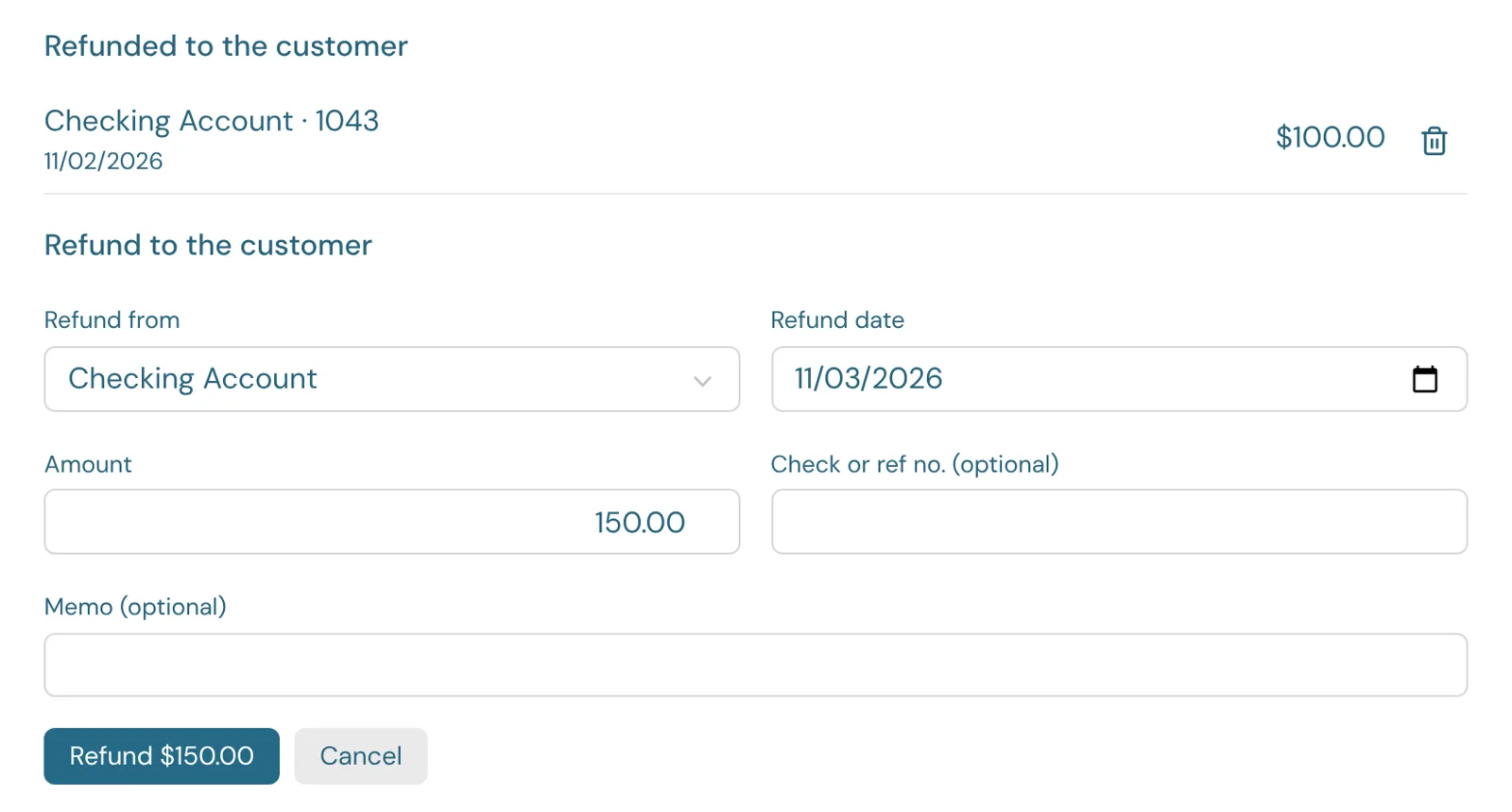
When the customer would rather have the money back than a credit on their next invoice, open the credit and click Refund $… to the customer.
- Refund from: the bank, cash or credit card account the money leaves from.
- Refund date: the date it posts.
- Amount: up to what's left on the credit. It starts at the whole amount left.
- Check or ref no. (optional): the check number or bank reference.
- Memo (optional): a note for your records.
- Refund $… records it.
The refund takes the money out of that account (it shows in its register as a Refund), clears that much of the customer's credit, and shows on their statement. A credit that's fully refunded or applied reads Applied. Both kinds of credit can be refunded: a credit memo you issued and an overpayment.
The credit lists its refunds under Refunded to the customer. The bin beside a refund deletes it and puts the amount back on the credit (not once it's reconciled). A credit with a refund can't be deleted until the refund is.
On the cash basis, a refund counts on its date: it takes back the income the overpayment added, or the discount a credit memo gives.
Updated in v1.0.0