
Mileage
Log business and personal trips at the IRS standard rate, and pay the driver back or book the deduction.
In the app: Purchases › Mileage
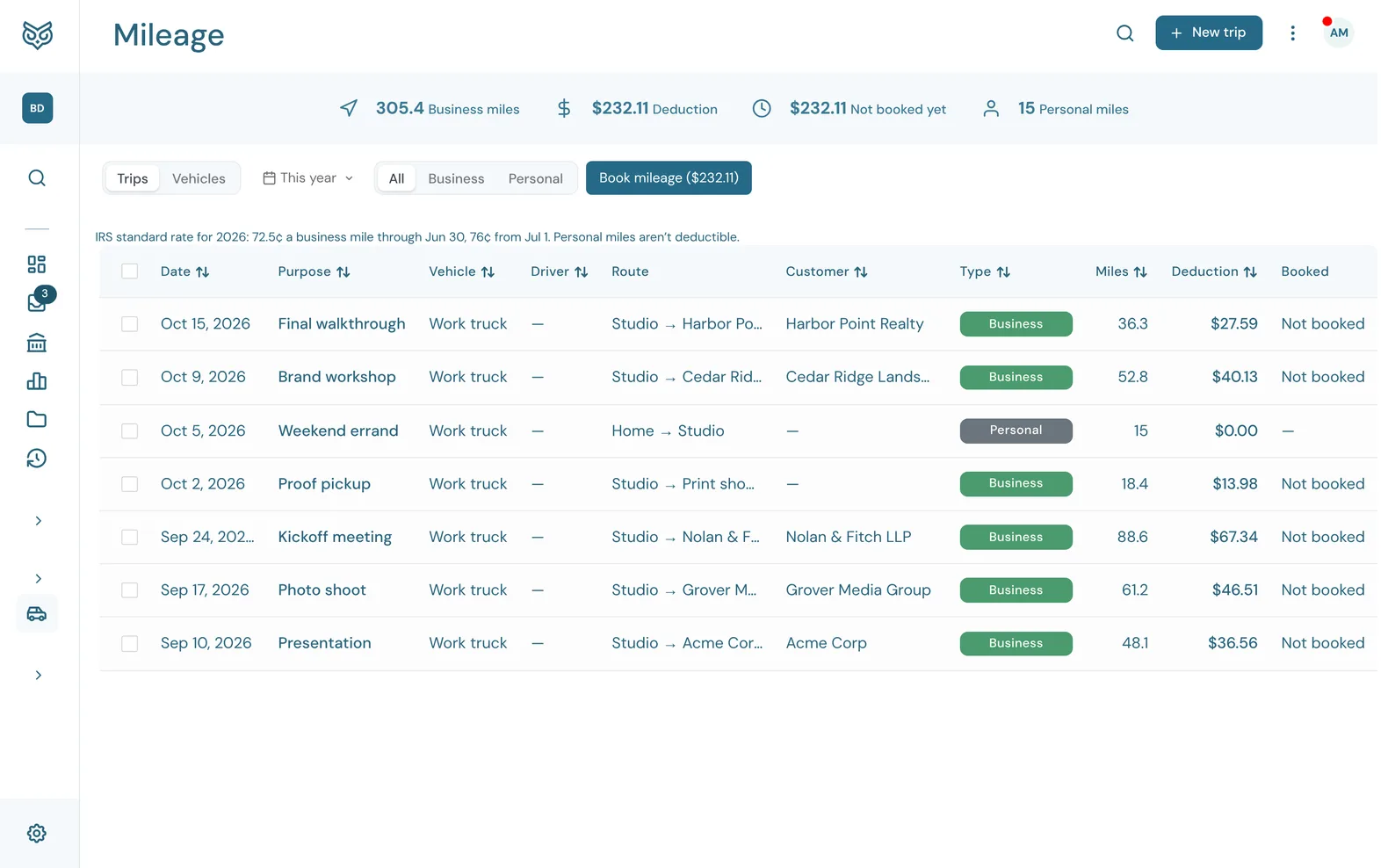
Mileage is your trip log. Enter each drive with its date, miles and business purpose, and WizeBooks works out the deduction at the IRS standard mileage rate for that date. When you're ready, Book mileage pays the driver back with a bill or an expense, or posts the deduction as a journal entry when it's the owner's own car.
Mileage is on the Pro and Enterprise plans. Trips are entered by hand. WizeBooks doesn't track trips with your phone's GPS.
The top of the page
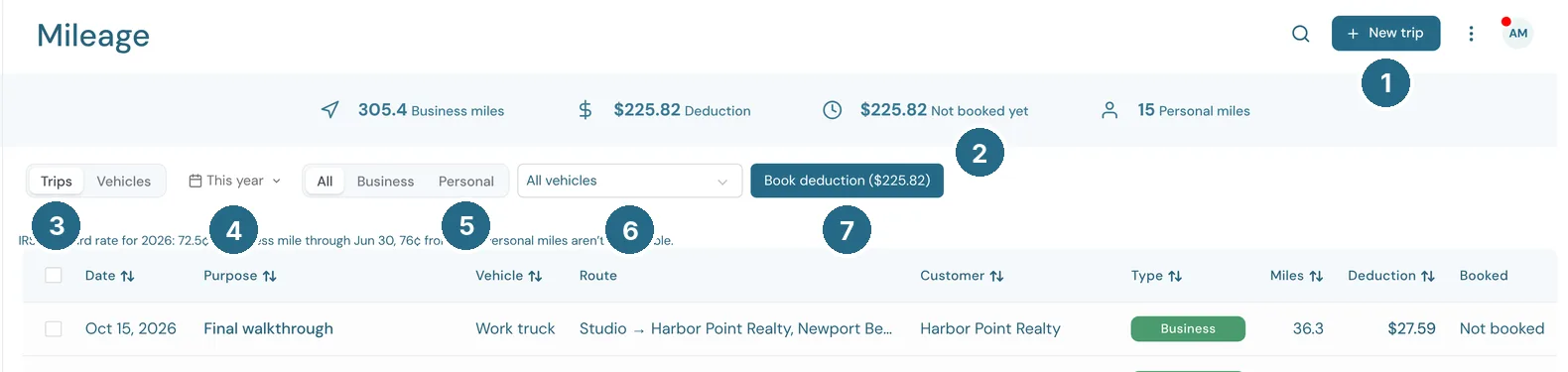
- New trip opens a blank trip. On the Vehicles tab it's New vehicle. You can also add a trip from + New › Trip (mileage).
- The stat band: Business miles, Deduction, Not booked yet (the deduction you haven't booked) and Personal miles, for the trips in view.
- Trips and Vehicles switch between the two tabs.
- The date range. It opens on This year.
- All, Business or Personal trips.
- All vehicles or one vehicle. It shows once you have two or more.
- Book mileage shows the amount waiting to be booked. Tick trips first to book just those.
The line under the filters gives the year's IRS rate.
The trip list
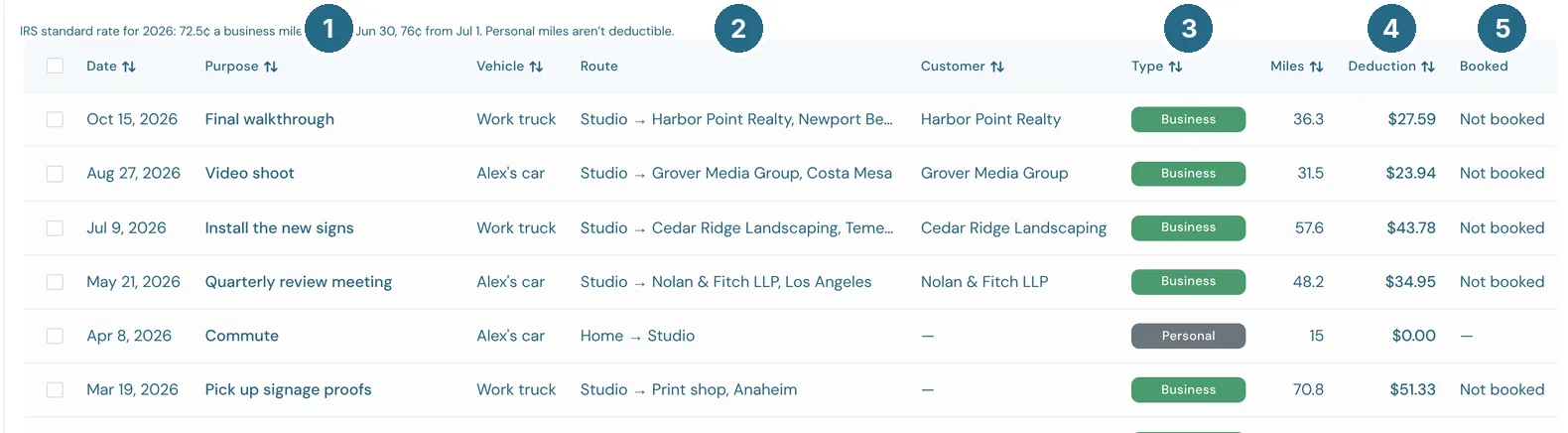
- Purpose: the business purpose, or "Personal trip".
- Route: where you drove from and to.
- Type: Business or Personal.
- Deduction: business miles times the IRS rate on the trip's date. Personal trips show $0.00.
- Booked: the bill, expense or journal entry that booked the trip (click it to open it), Not booked, or Company paid for a vehicle the company pays to run.
Click a trip to open it. On a phone, each trip is a card.
Adding a trip
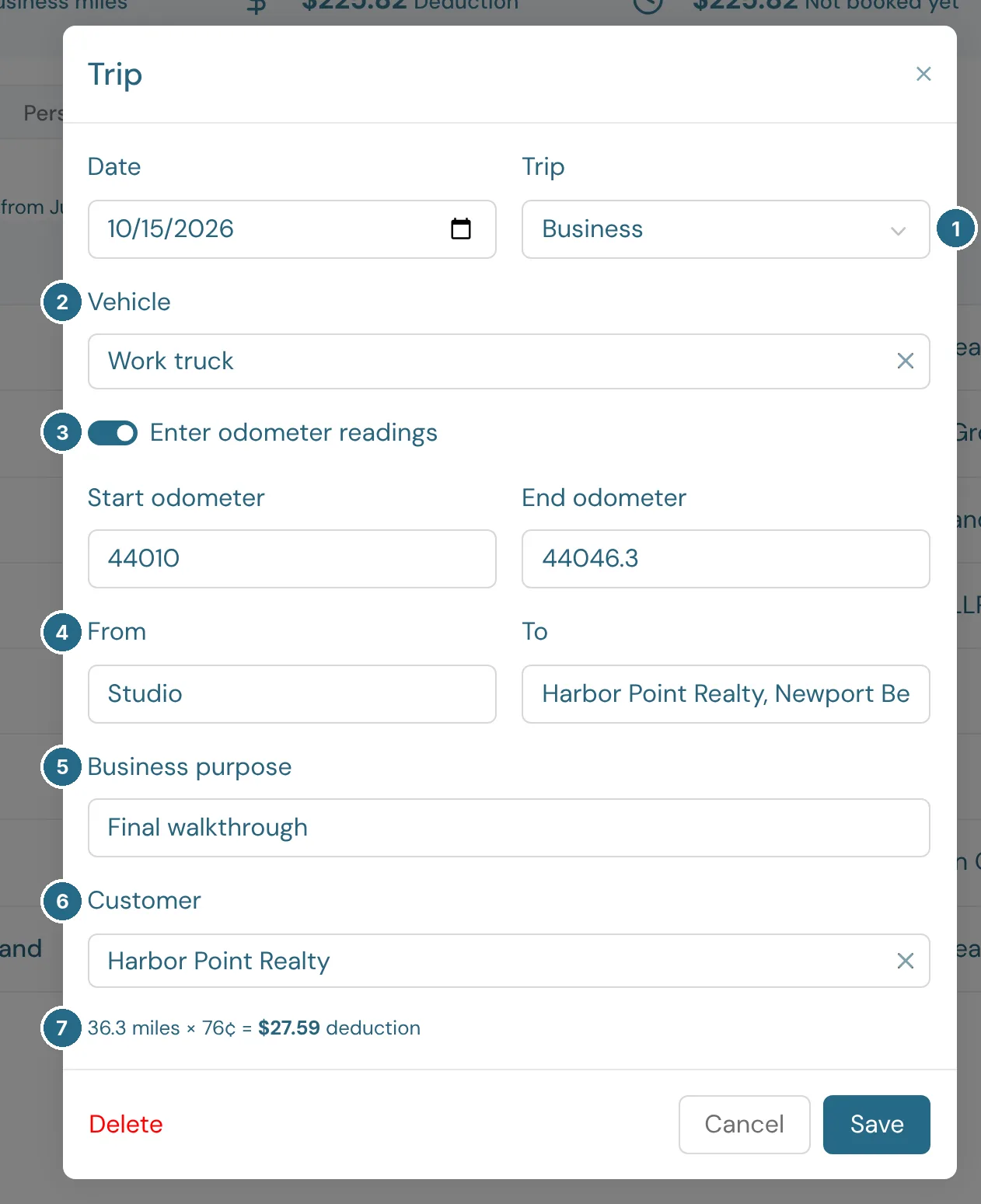
- Trip: Business or Personal. Only business miles are deductible. Personal trips are logged to show how much of the vehicle's use was business.
- Vehicle: pick one from your vehicles. If you have only one, it's filled in for you. Driver: who drove, from your vendors list. It starts as the vehicle's usual driver, so change it when someone else took the truck.
- Enter odometer readings: turn it on to enter the start and end readings, and the miles are worked out for you. The start reading is filled in from the vehicle's last trip. Leave it off to type the miles.
- From and To: where you drove.
- Business purpose: required on a business trip. The IRS asks for the purpose of every business trip.
- Customer: the customer the trip was for, if any. Booked mileage shows under that customer in reports displayed by customer.
- The deduction for this trip: miles × rate.
Save and new saves the trip and opens a new one with the same date, vehicle and type. Delete removes a trip.
The IRS rate
WizeBooks uses the IRS standard mileage rate for business use in force on each trip's date:
| Period | Rate a mile | |---|---| | 2026, from July 1 | 76¢ | | 2026, January 1 to June 30 | 72.5¢ | | 2025 | 70¢ | | 2024 | 67¢ | | 2023 | 65.5¢ | | 2022, from July 1 | 62.5¢ | | 2022, January 1 to June 30 | 58.5¢ | | 2021 | 56¢ | | 2020 | 57.5¢ |
When the IRS hasn't announced a year's rate yet, trips use the latest rate until it does, and the trip window says so.
Booking mileage
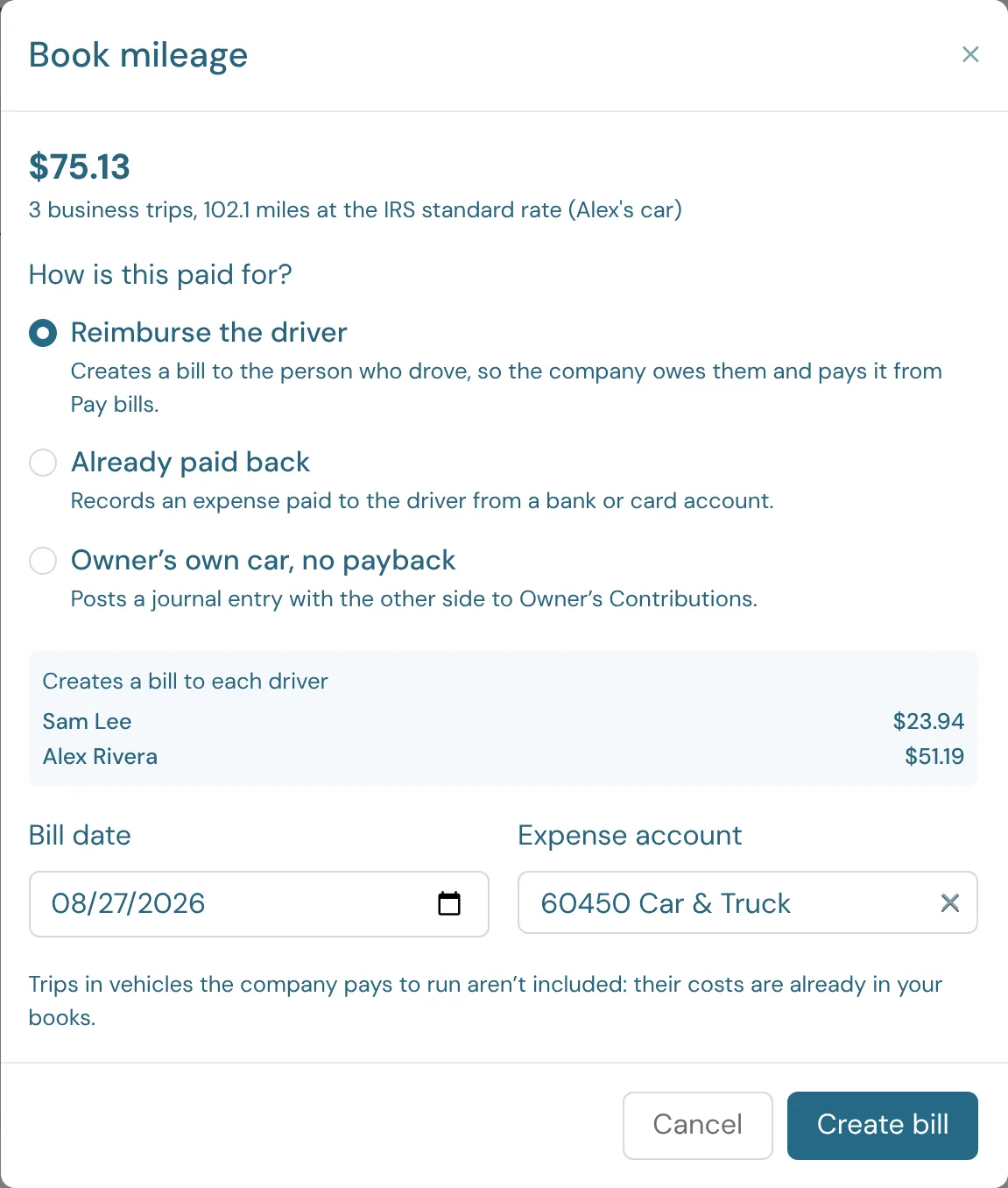
Book mileage shows the amount to book, and how many business trips and miles it covers. Trips already booked, and trips in vehicles the company pays to run, are left out.
Then pick How is this paid for?:
- Reimburse the driver (the default): creates a bill to the person who drove, so the company owes them. Pay it later from Pay bills. The bill is due on the driver's usual terms, or in 30 days.
- Already paid back: records an expense paid to the driver from the bank or card account you pick in Paid from.
- Owner's own car, no payback: posts a journal entry with the other side to Owner's Contributions, or another balance sheet account you pick.
The rest of the window:
- Each driver gets their own bill (or expense) for their trips, listed with the amount for each.
- Pay back for the trips with no driver: shows only when some trips have no driver. Pick who gets those. Drivers are kept in your vendors list, and you can add one by typing their name.
- Bill date, Payment date or Entry date: it starts on the last trip's date.
- Expense account: where the mileage goes. WizeBooks picks an account named Car & Truck, Auto or Vehicle if you have one, otherwise Travel.
The bill, expense or journal entry has one line for each customer the trips were for. The trips then show Bill, Expense or the entry number in Booked. Click it to open it.
A booked trip keeps its date, miles, type, vehicle and driver, because the booking was worked out from them. To change one, delete the bill, expense or journal entry. Its trips go back to Not booked, and you can book them again.
Vehicles
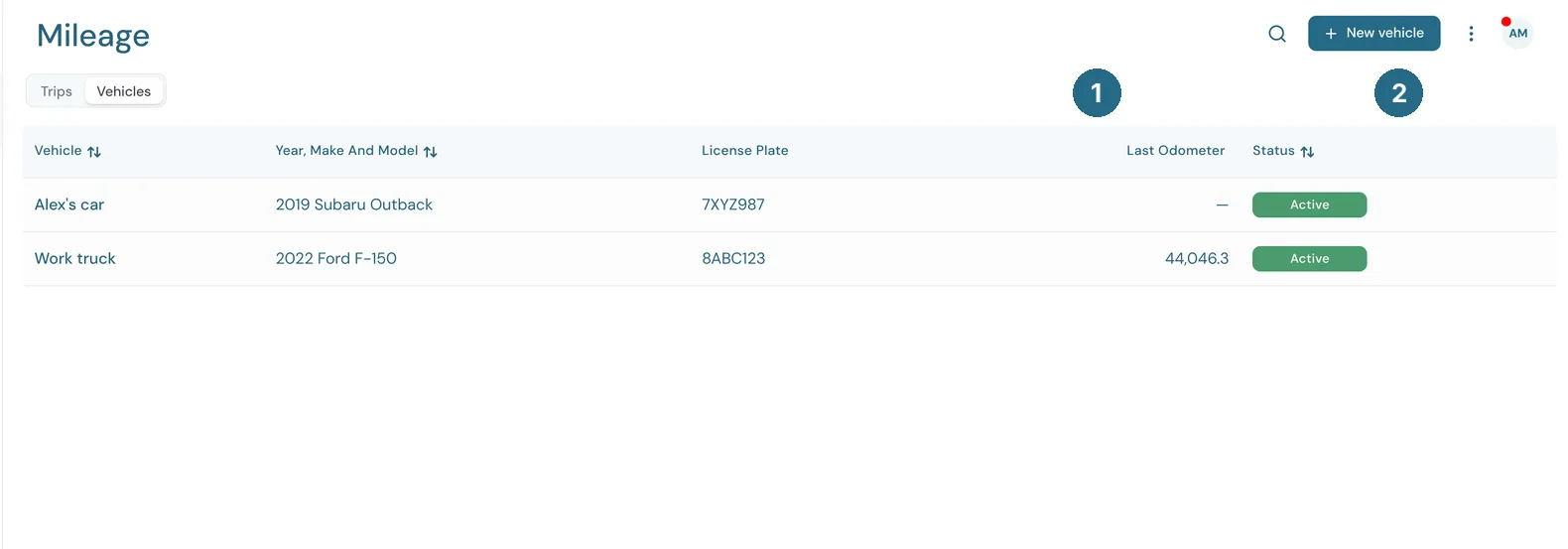
Add each car or truck you drive for the business with New vehicle: a name, the year, make and model, and the license plate.
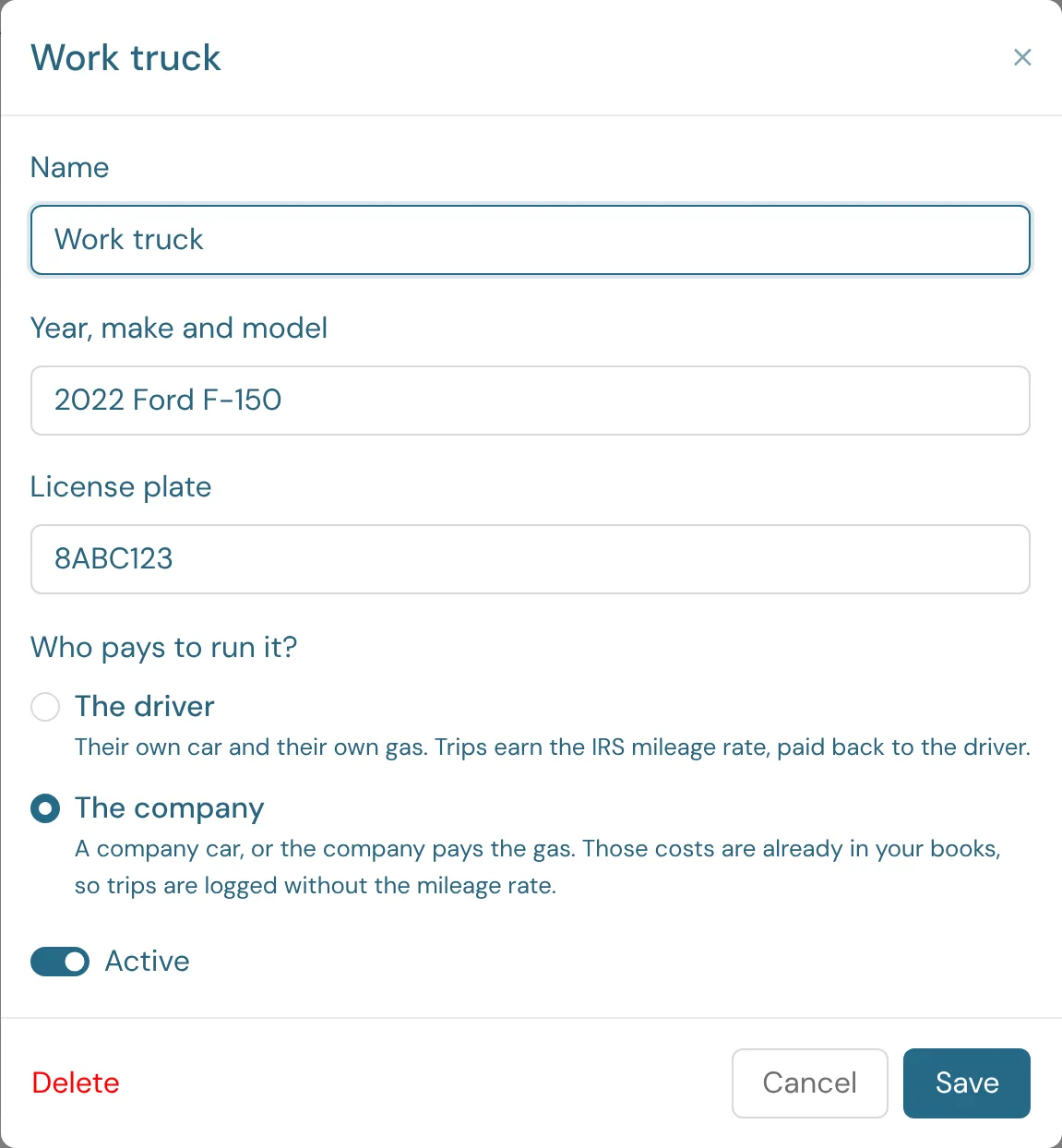
- Who pays to run it?: The driver when it's their own car and their own gas. Trips earn the IRS mileage rate, and the driver is paid back. Pick The company for a company car, or when the company pays the gas. Those costs are already in your books, so the vehicle's trips are logged without the mileage rate and show Company paid. You can't change this while any of the vehicle's trips are booked.
- Driver: who usually drives it. New trips in the vehicle start with this driver, and you can change it on any trip.
On the Vehicles tab:
- Last odometer: the highest end reading logged for the vehicle.
- Status: Active or Inactive. Turn Active off in a vehicle to take it out of the trip window's list. A vehicle with trips can't be deleted, so make it inactive instead.
Reports
Two reports in Reports › Expenses and vendors use the same numbers.
Mileage Summary
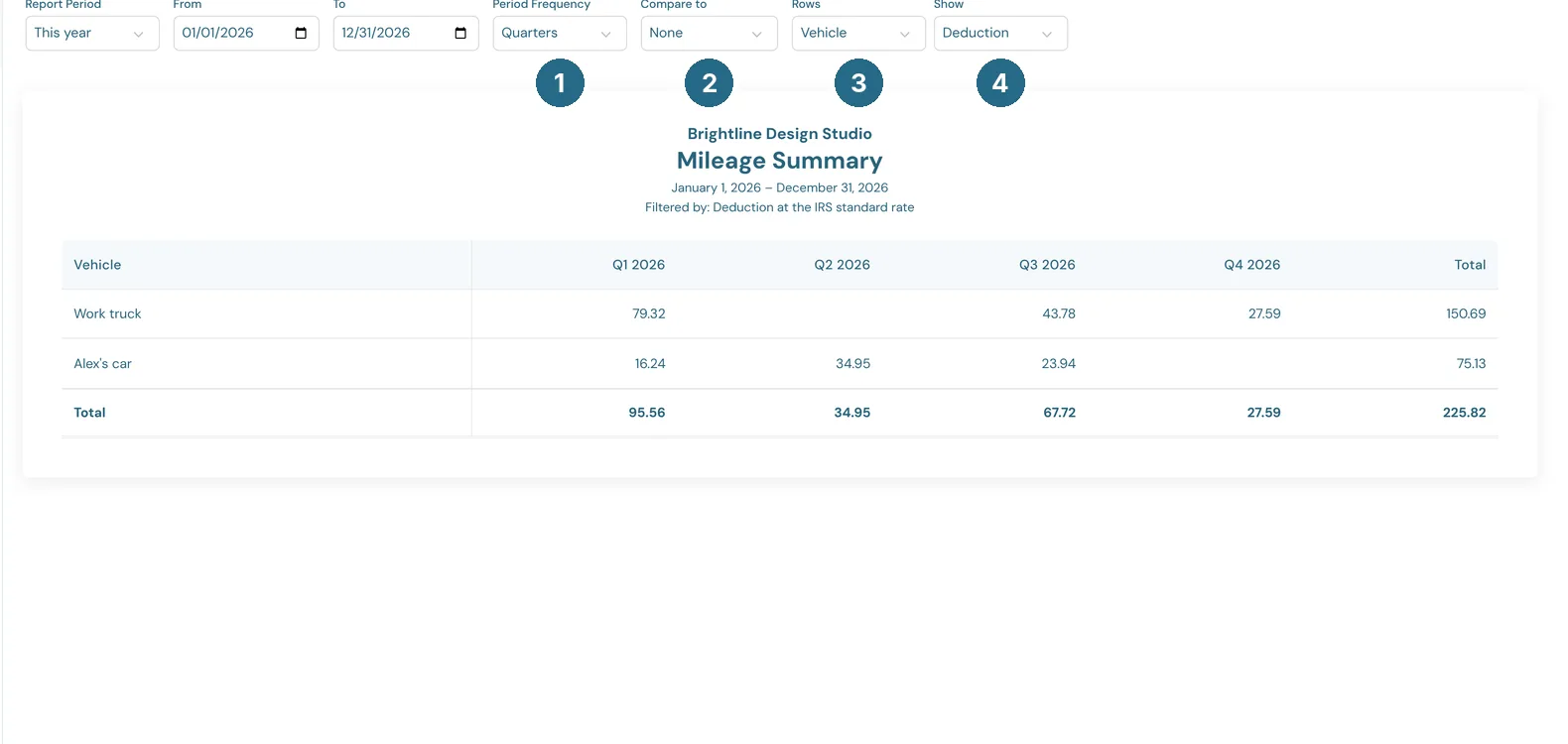
Trips, business miles, personal miles and the deduction, one row for each vehicle or customer.
- Period Frequency splits the report into a column for each period.
- Compare to adds the previous period or previous year beside each column.
- Rows: Vehicle, Customer or Driver.
- Show: with the report split into periods, show the Deduction or the Business miles.
Mileage Log
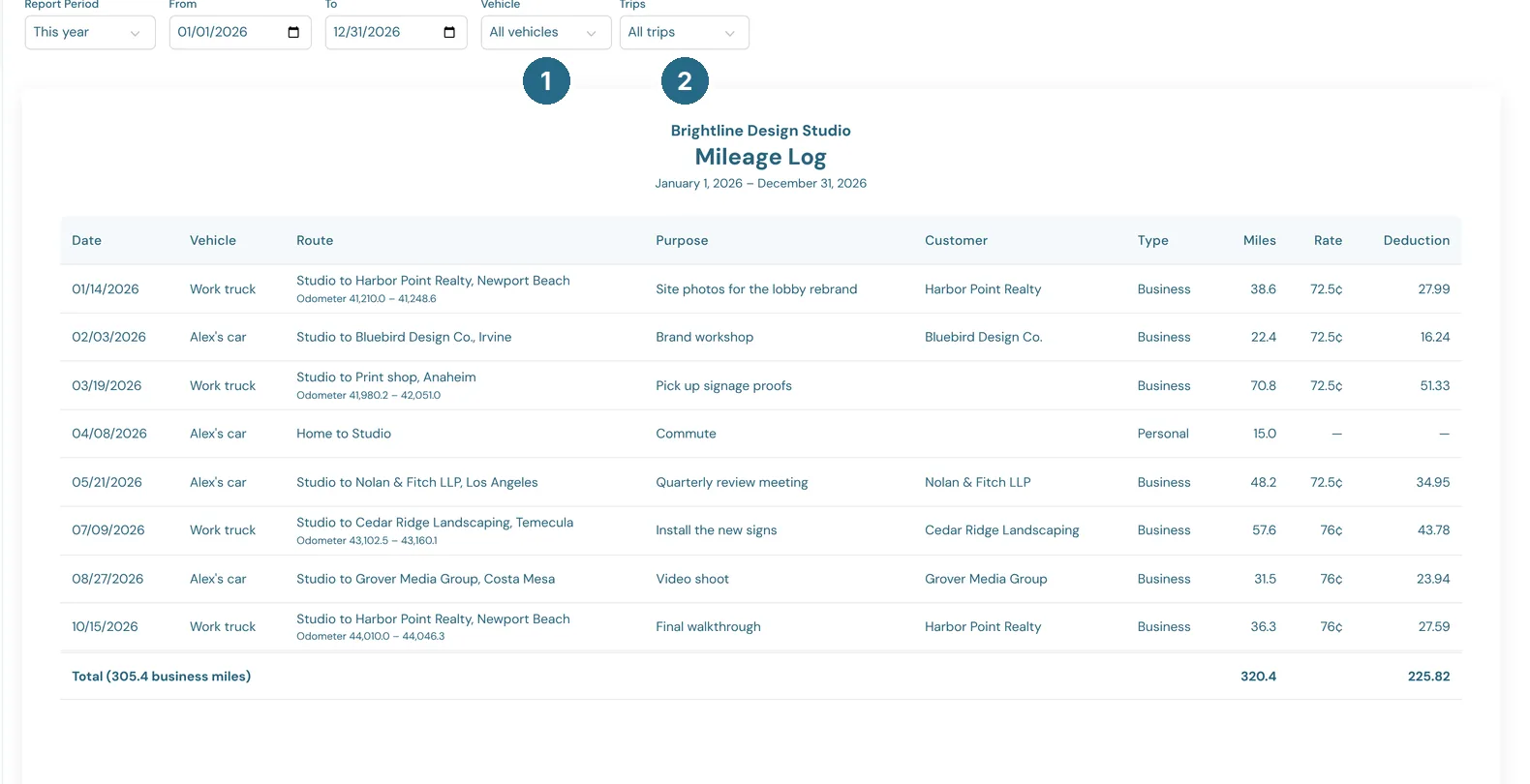
Every trip in the period with its date, vehicle, route, odometer readings, purpose, customer, miles, rate and deduction. Keep it with your tax records.
- Vehicle: all vehicles, one vehicle, or trips with no vehicle.
- Trips: all trips, business only, or personal only.
Updated in v1.0.0