
Inbox
Notifications, comments, requests, receipts to review and shared documents, all in one place.
In the app: Overview › Inbox
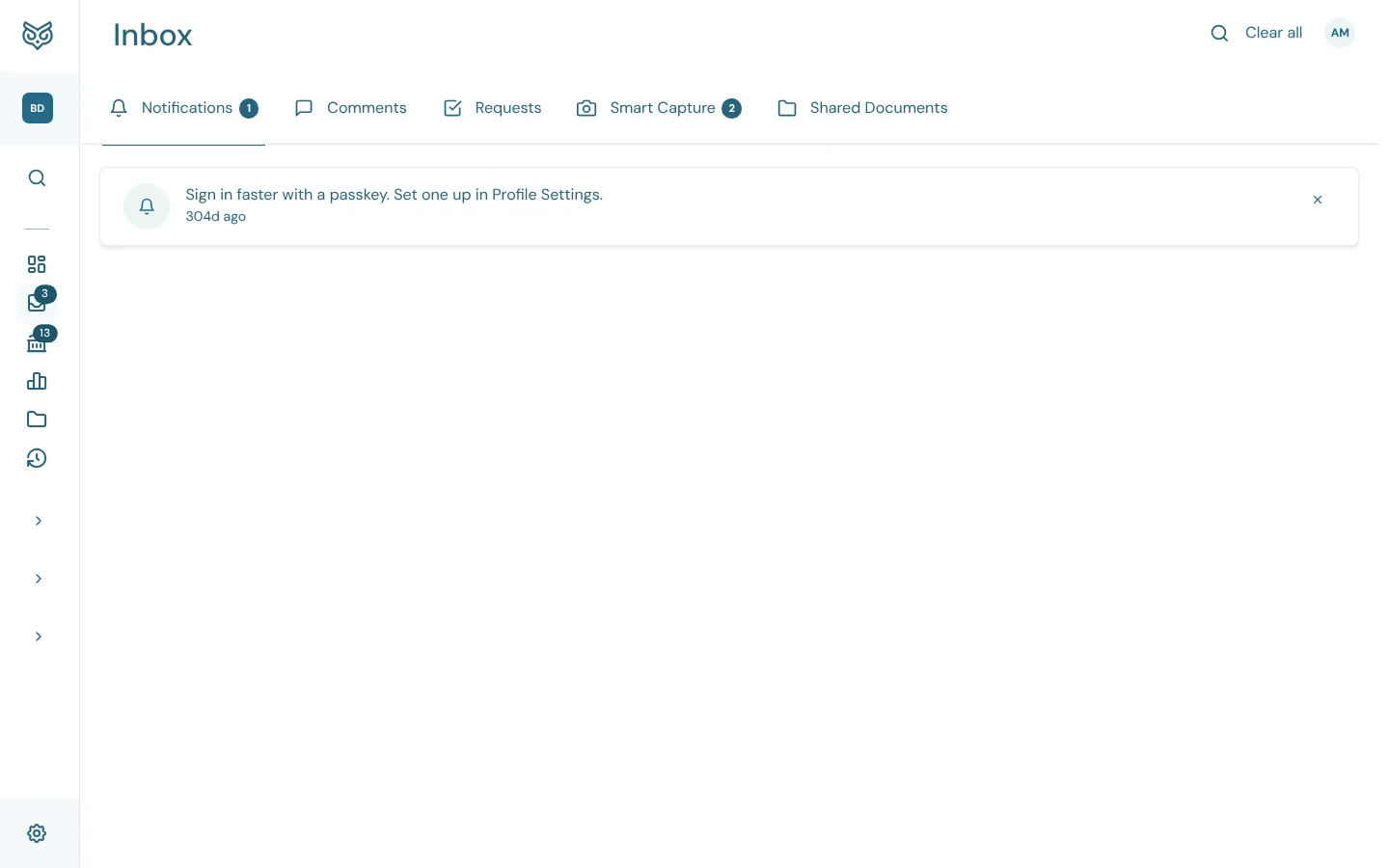
The Inbox collects everything that needs your attention. The number beside Inbox in the menu is how many items are waiting across its tabs.
Tabs and title bar

- Notifications: messages from WizeBooks about your company.
- Comments: transactions someone has commented on.
- Requests: things you or your accountant asked each other for.
- Smart Capture: receipts, bills and payroll reports for WizeBooks to read.
- Shared Documents: files you and your accountant share.
- Search filters the tab you're on.
- The button here changes with the tab: Clear all on Notifications, New request on Requests, Upload on Smart Capture and Share a file on Shared Documents. The number on each tab is how many items are waiting there.
Notifications

- What happened, such as a payment received, a bank that needs a new login, or a tip. Choose it to open what it's about.
- How long ago.
- × dismisses it. Clear all in the title bar dismisses every one.
Comments
Every transaction with a comment on it, shown as rows of the Accounts list, so you can categorize, post and reply right here.
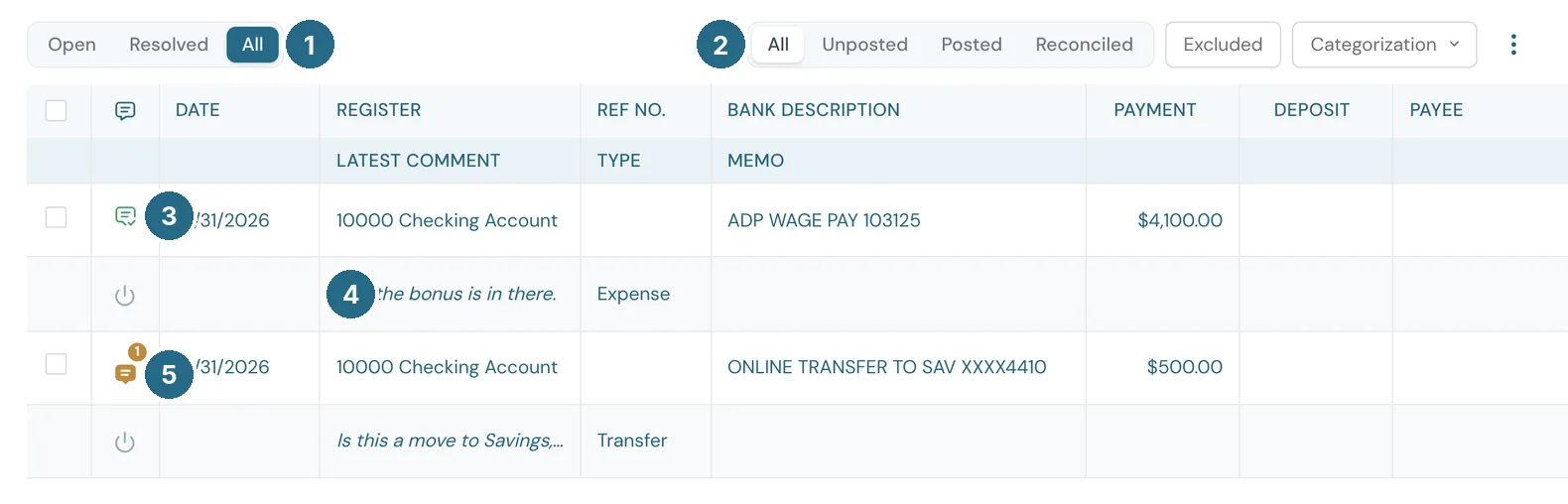
- Open, Resolved or All. A transaction is Open from its first comment until someone marks it Resolved.
- The same filters as the Accounts page: All, Unposted, Posted, Reconciled, Excluded and Categorization.
- The speech bubble opens the comments. Amber with a number means Open, with that many comments.
- Latest comment: the start of the newest comment, under the transaction.
- A green bubble with a check means Resolved.
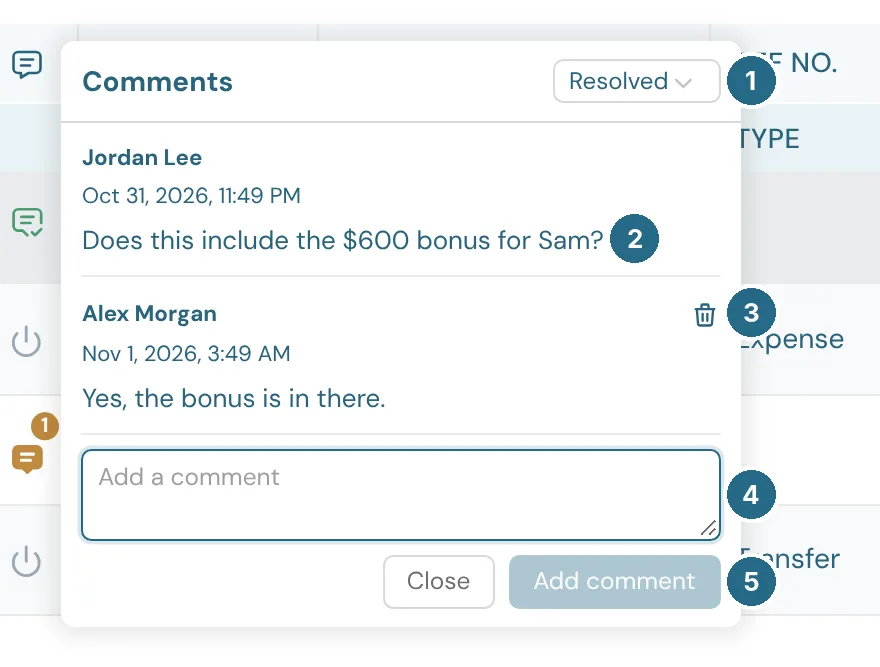
- Status: switch the transaction between Open and Resolved. A new comment on a Resolved transaction reopens it.
- Each comment, with who wrote it and when.
- The bin deletes a comment. You can only delete your own.
- Type a new comment. Ctrl+Enter (or ⌘+Enter) sends it.
- Add comment sends it. Close closes the box.
The same speech bubble is on every row of the Accounts page, so you can start a conversation from there.
Requests
Ask somebody for a document, an answer or a decision, and track it until it's done.
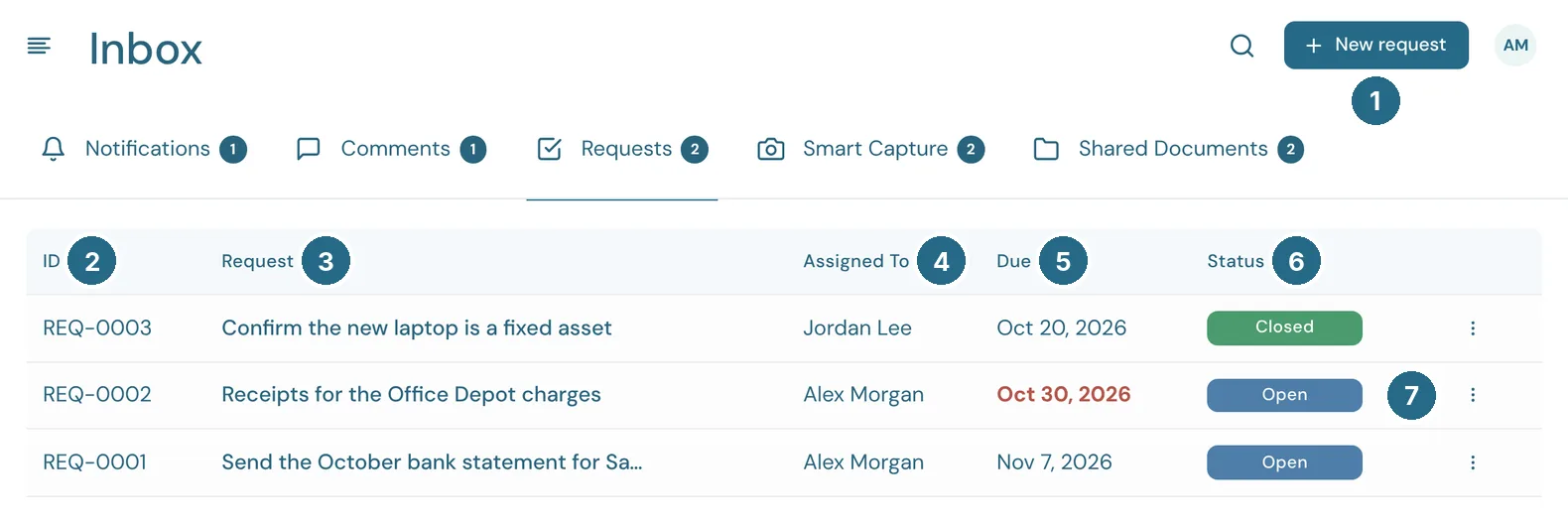
- New request starts one.
- ID: each request's number, such as REQ-0002. A file shared on a request shows this number too.
- Request: the subject. Choose it to open the request.
- Assigned to: the person who has to act.
- Due: the date it's needed by, in red when it's late.
- Status: Open, In progress, On hold or Closed.
- The ⋮ menu.
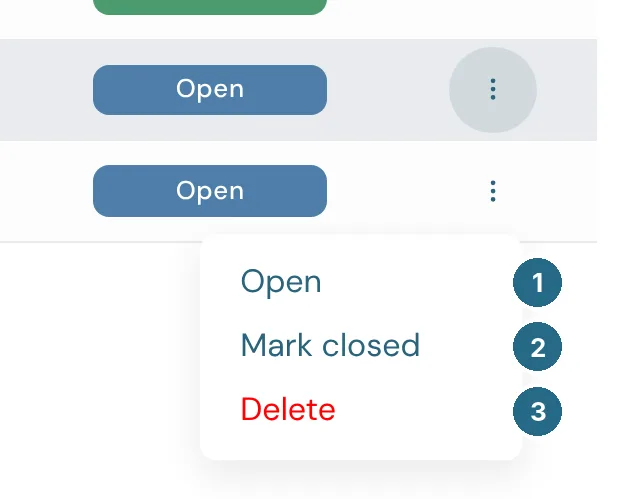
- Open the request.
- Mark closed (or Reopen on a closed one).
- Delete removes it, after you confirm.
Making a request
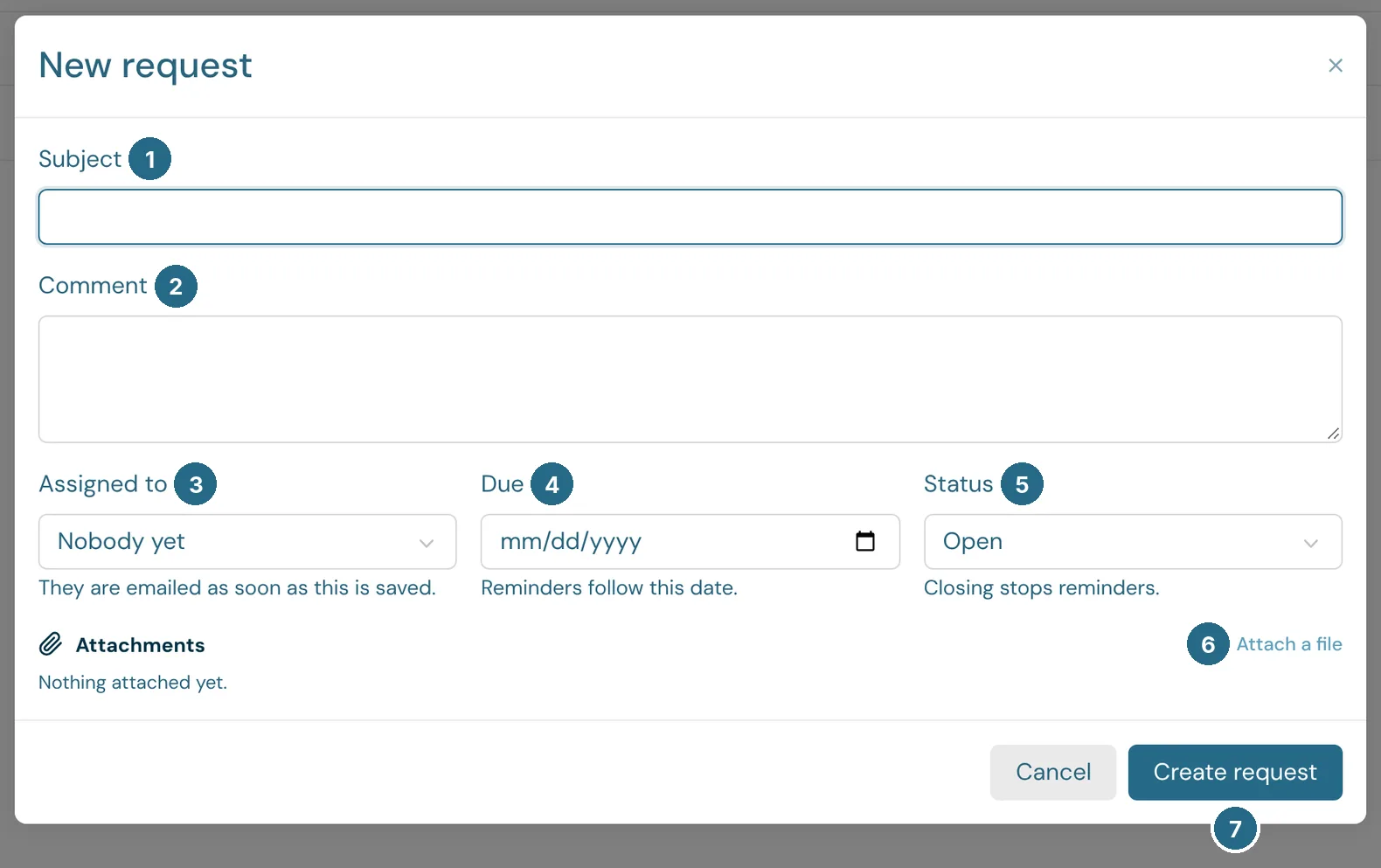
- Subject: what you need, in a line.
- Comment: the details. It becomes the first message on the request.
- Assigned to: anyone in the company. They're emailed as soon as you save.
- Due: reminders are emailed two days before, on the day, two days after, then weekly until the request is closed. Change the date and the reminders follow it.
- Status: closing a request stops its reminders.
- Attach a file adds files to the request. They're also saved to Shared Documents.
- Create request saves it.
An open request
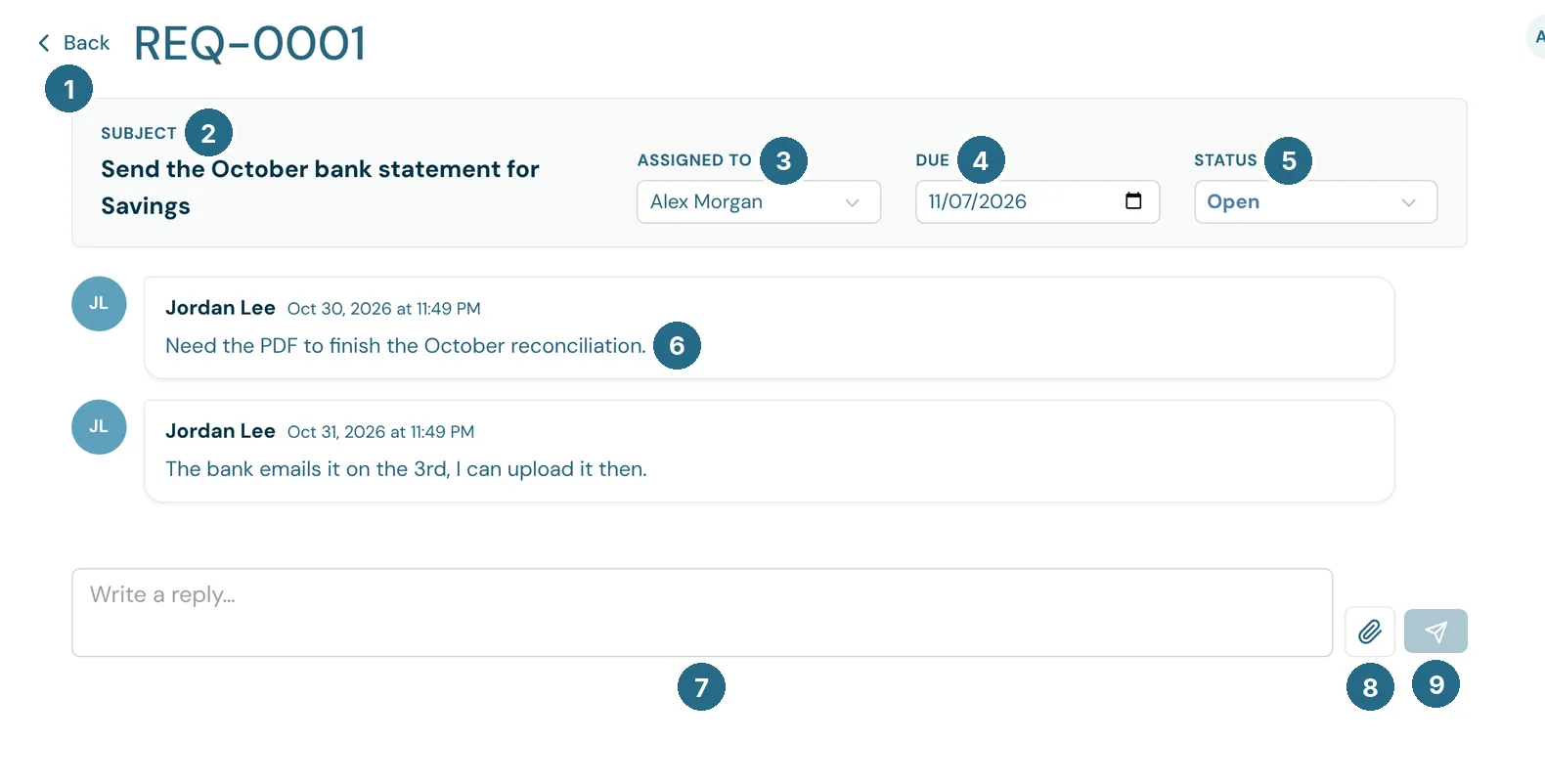
- Back returns to the Requests tab.
- The subject.
- Assigned to, 4. Due and 5. Status can be changed here, and save straight away.
- The conversation, oldest first.
- Write a reply. Enter sends it, Shift+Enter starts a new line.
- The paperclip attaches files to your reply.
- The arrow sends the reply.
Smart Capture
Receipts, bills and payroll reports that WizeBooks reads for you.
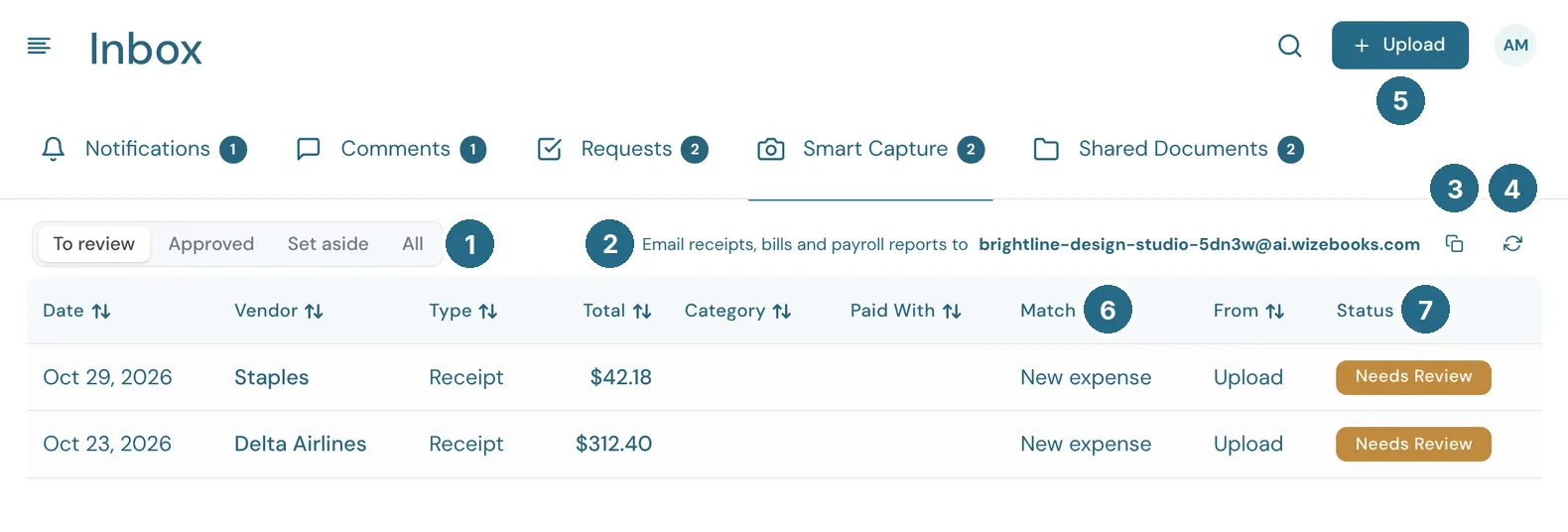
- To review, Approved, Set aside or All.
- Your company's own capture address. Email receipts, bills and payroll reports to it, from any email account.
- Copies the address.
- New address replaces it, after you confirm. The old address stops working straight away, so only use it if the address has been shared with someone it shouldn't have.
- Upload picks files from your computer: images, PDFs, or CSV and Excel payroll reports.
- Match: what approving will do, such as match a transaction already in your books, or create a New expense.
- Status: Needs Review until you approve it. Choose any row to review it.
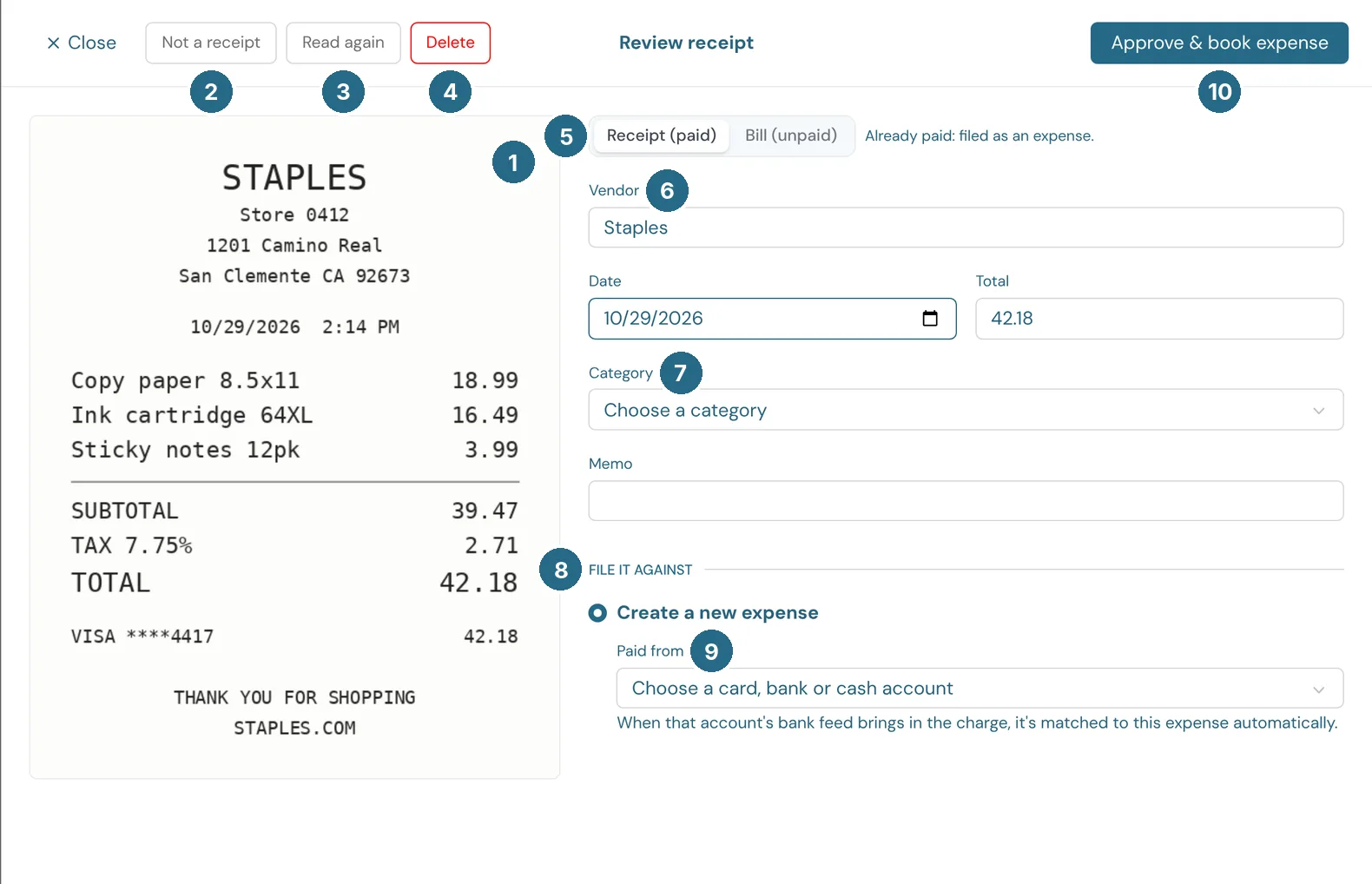
- The file itself, beside what WizeBooks read from it.
- Not a receipt sets it aside.
- Read again has WizeBooks read the file again.
- Delete removes it. You can also delete the file from Documents.
- Receipt (paid) or Bill (unpaid). A receipt is filed as an expense; a bill is entered as an open bill to pay later.
- Vendor, Date, Total and Memo, as read. Correct anything that's wrong.
- Category: the expense account.
- File it against: a transaction already in your books that matches (from a bank feed, say), or Create a new expense. Matching to a bank transaction categorizes and posts it.
- Paid from: the card, bank or cash account. When that account's bank feed brings in the charge, it's matched to this expense automatically.
- Approve & book expense saves it, with the file attached. The button changes to Approve & attach when you match an existing transaction, or Approve & create bill for a bill.
Payroll reports open a similar review, with the payroll lines to check before they're booked.
Shared Documents
Files you and your accountant have shared with each other.
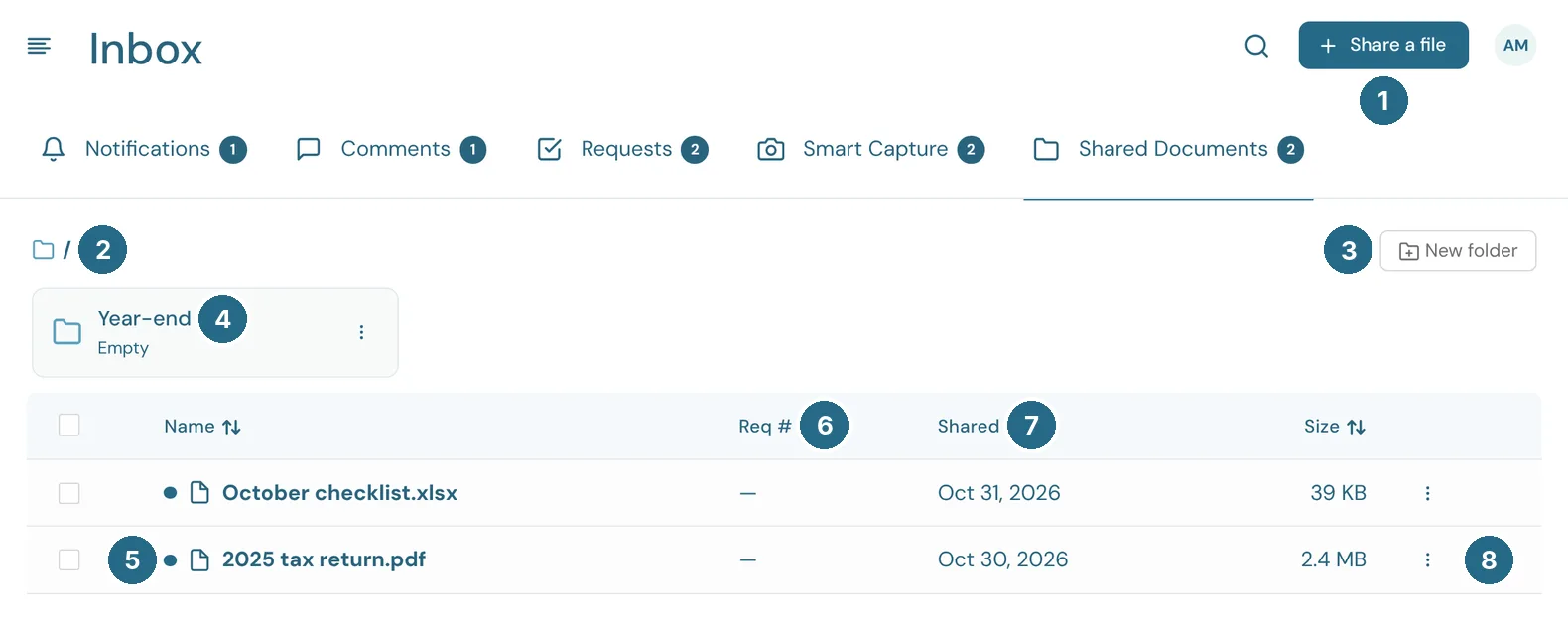
- Share a file uploads one or more files into the folder you have open.
- The folder path. Shared Documents has its own folders, separate from the Documents page.
- New folder makes a folder here.
- A folder. Folders work the same way as on Documents: open, rename, move, delete, and drag files onto them.
- A dot and bold name mean nobody has opened the file yet.
- Req #: the request the file was shared on, if any. Choose it to open the request.
- Shared: the date. Size is beside it.
- The ⋮ menu: Open, Download, Move to…, Mark as read (or Mark as unread) and Remove.
Shared files also appear on the Documents page.
Updated in v1.0.0