
Overview
Dashboard
Your business at a glance, with bank balances, cash flow, profit, invoices, spending and what you owe.
In the app: Overview › Dashboard
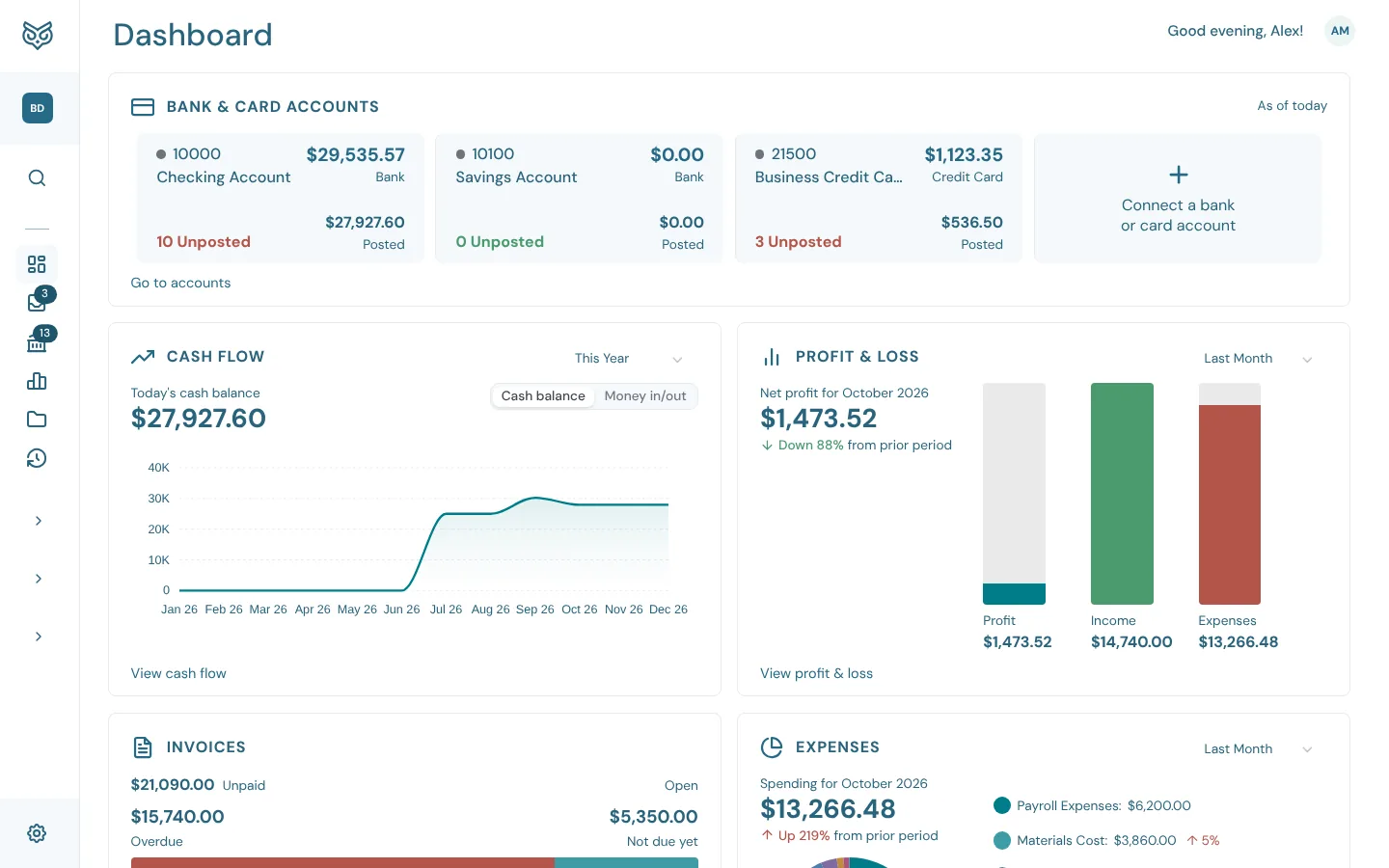
The Dashboard is the first page you see after signing in. Each card shows one part of the business and links to the page or report with the detail. The period you pick on a card is remembered for you in this company.
Title bar

- A greeting with your first name, which changes with the time of day.
- Your initials (or picture) open the avatar menu, on every page.
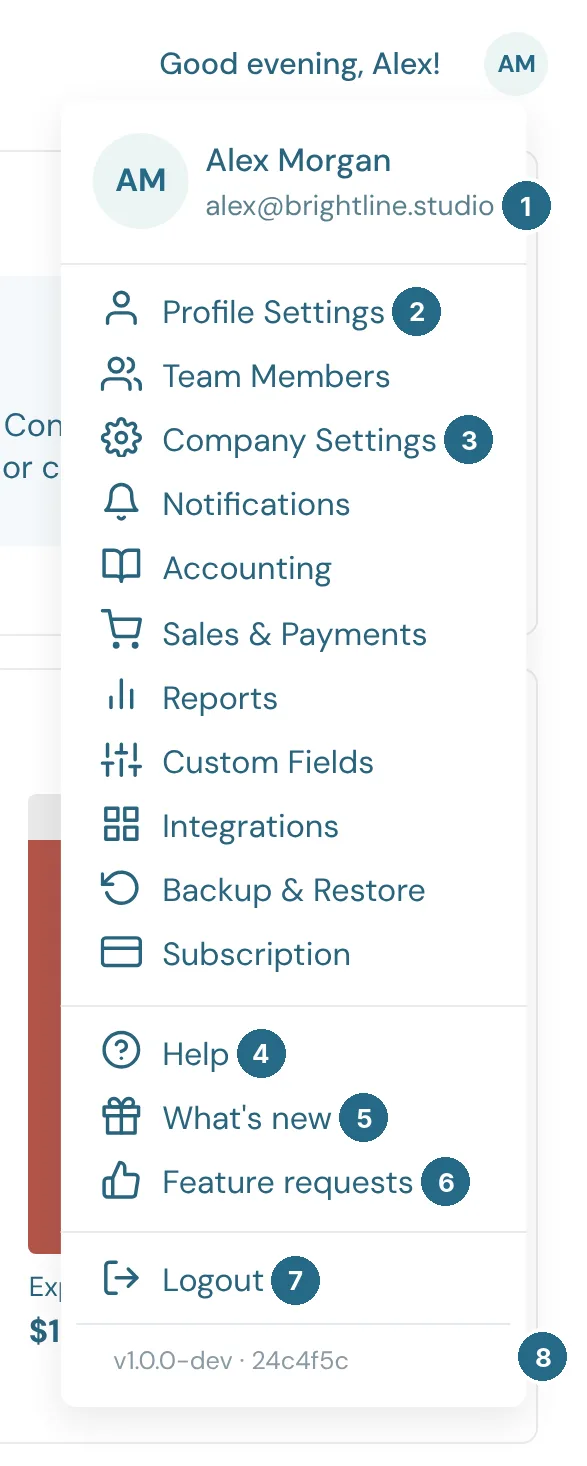
- Your name and sign-in email.
- Profile Settings: your own name, picture, password, passkeys and two-step sign-in. See Profile.
- Team Members, Company Settings and the other settings pages, down to Subscription. Notifications opens the Notifications tab of your Inbox. Which ones you see depends on your role in the company.
- Help opens the Help page, with these docs and a way to contact support. See Help.
- What's new opens the changelog in a new tab. A dot appears here, and on your initials, after each new release until you open it.
- Feature requests: ask for something and vote on other people's ideas. See Feature requests.
- Logout signs you out on this browser.
- The version of WizeBooks you're using. Include it when you contact support.
Bank & card accounts
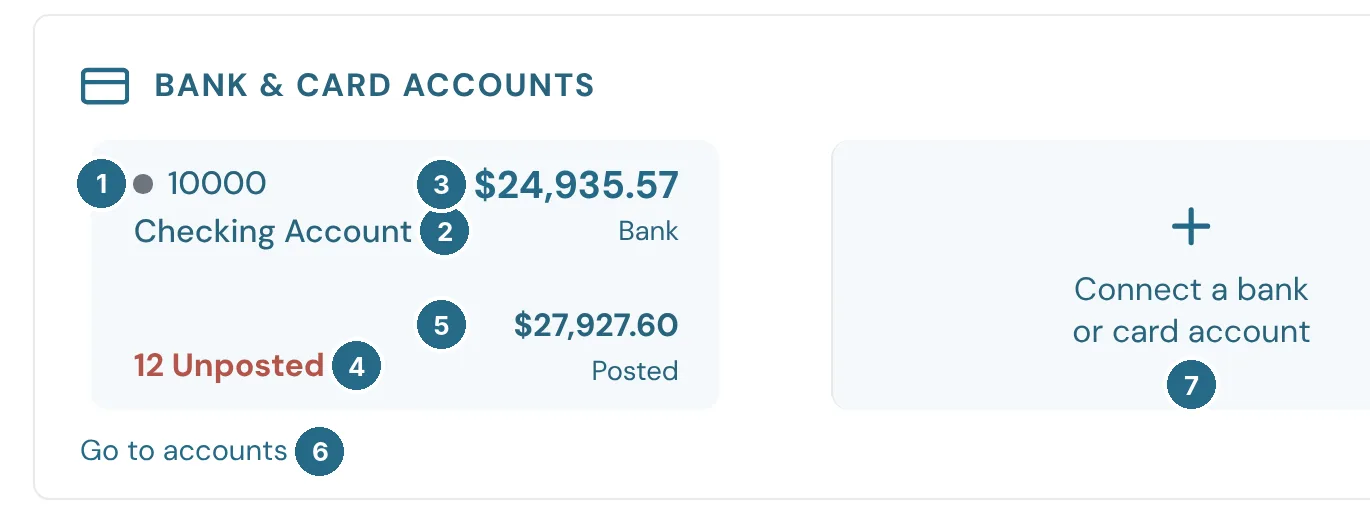
- The dot is the bank feed: green for a bank connection that's working, red for one that needs attention (such as a new login), grey for an account you fill by uploading statements. Hover over it for the details. Then the account number.
- The account's name. Click anywhere on the tile to open that account on the Accounts page.
- The bank balance: what the bank says, including transactions you haven't reviewed yet. Under it, the type: Bank or Credit Card.
- Unposted: bank transactions waiting for you. Red when some are waiting, green when there are none.
- Posted: the balance in your books.
- Go to accounts opens the Accounts page.
- Connect a bank or card account adds another account (see Connect your bank).
The tiles show balances as of today. With more accounts than fit, arrows at each end scroll through them.
Cash flow
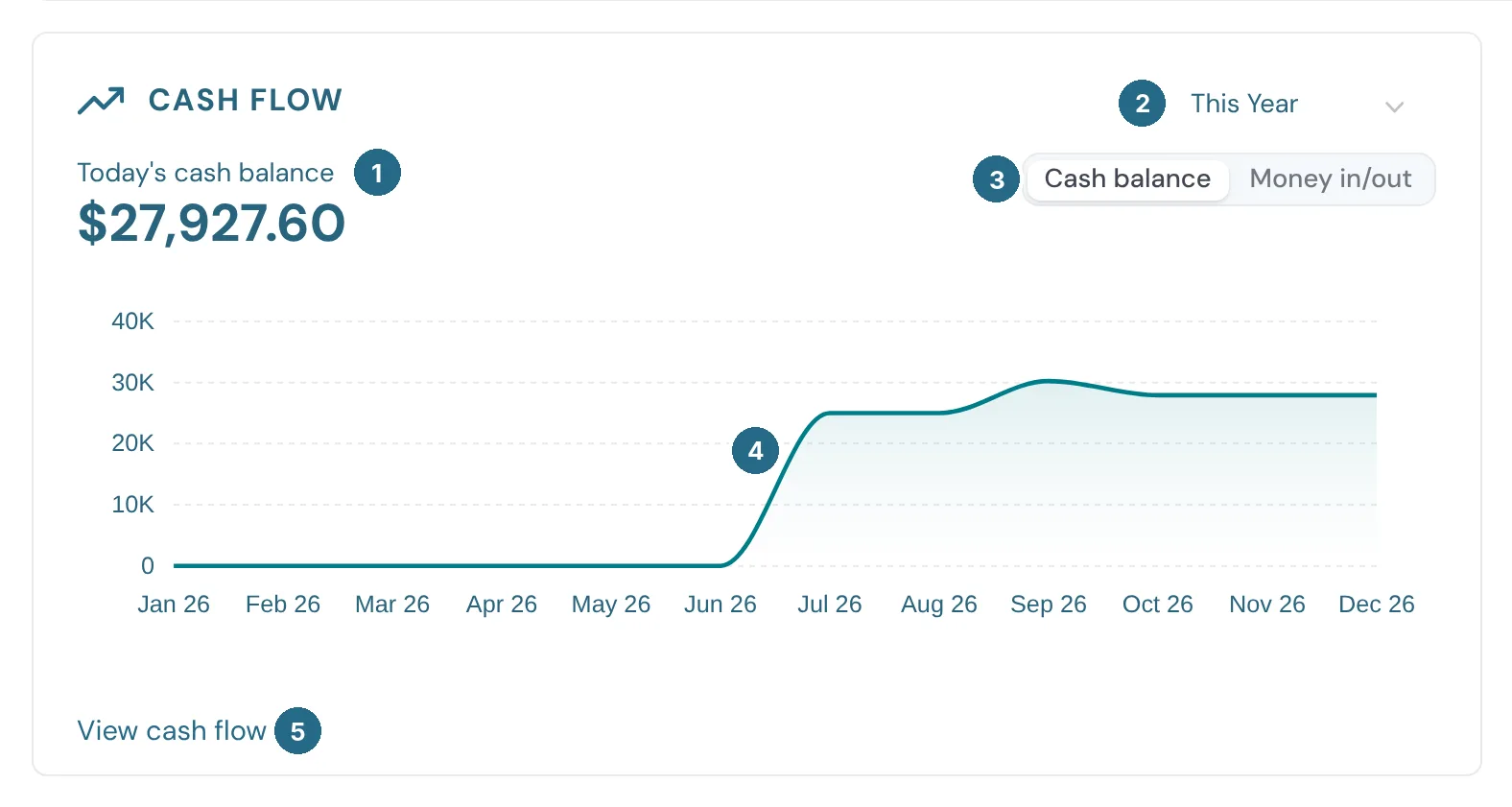
- Today's cash balance: the money in all your bank accounts, in your books.
- The period: This Month, Last Month, This Quarter, Last Quarter, This Year or Last Year.
- Cash balance draws the balance over the period. Money in/out shows what came in and went out instead.
- The chart. Hover over it for the figure on each date.
- View cash flow opens the Statement of Cash Flows report.
Profit & loss
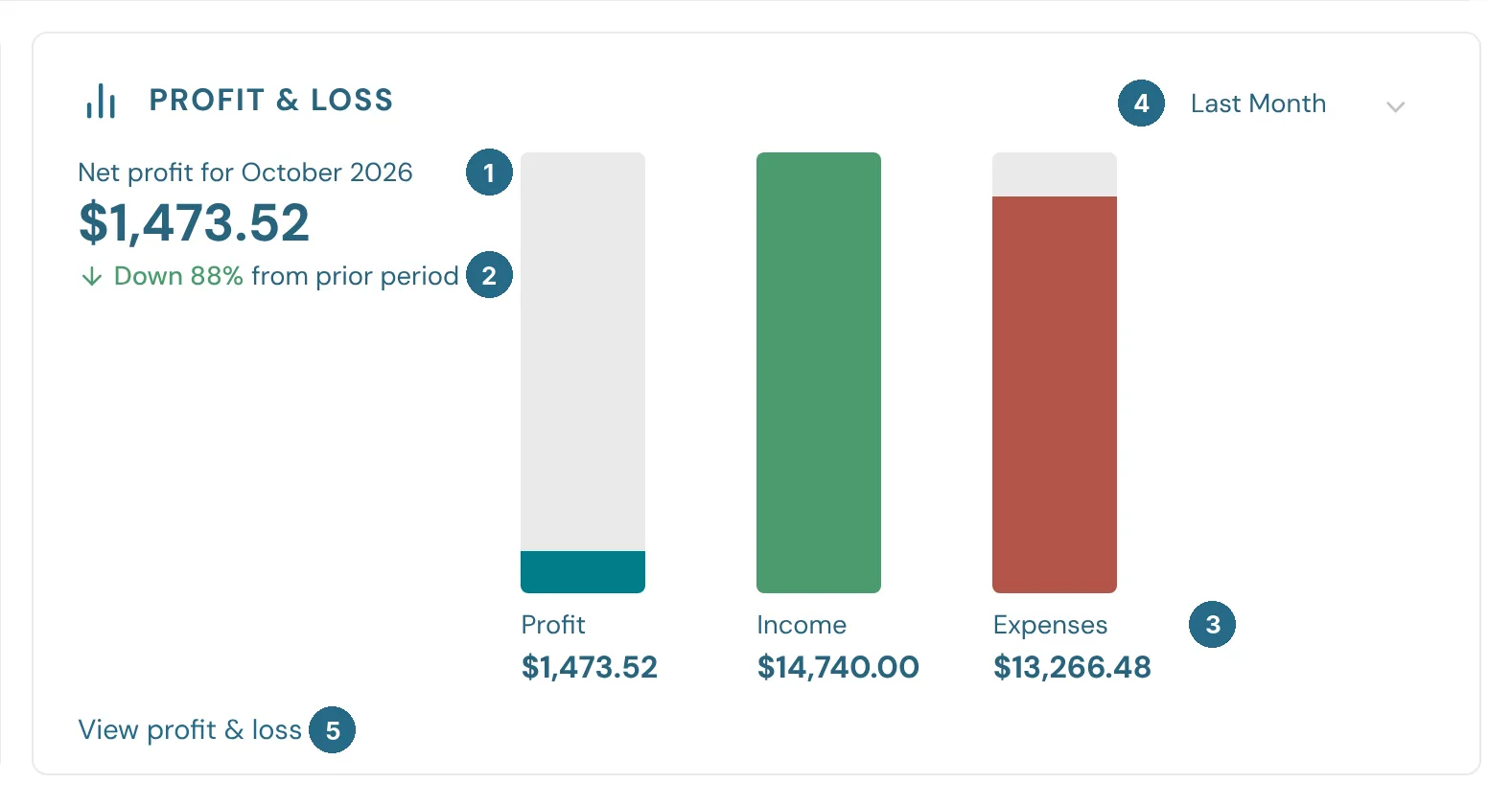
- Net profit for the period: income minus expenses.
- How that compares with the period before, as a percentage up or down.
- Bars for Profit, Income and Expenses, with their amounts underneath.
- The period, with the same choices as Cash flow.
- View profit & loss opens the Profit and Loss report.
Invoices
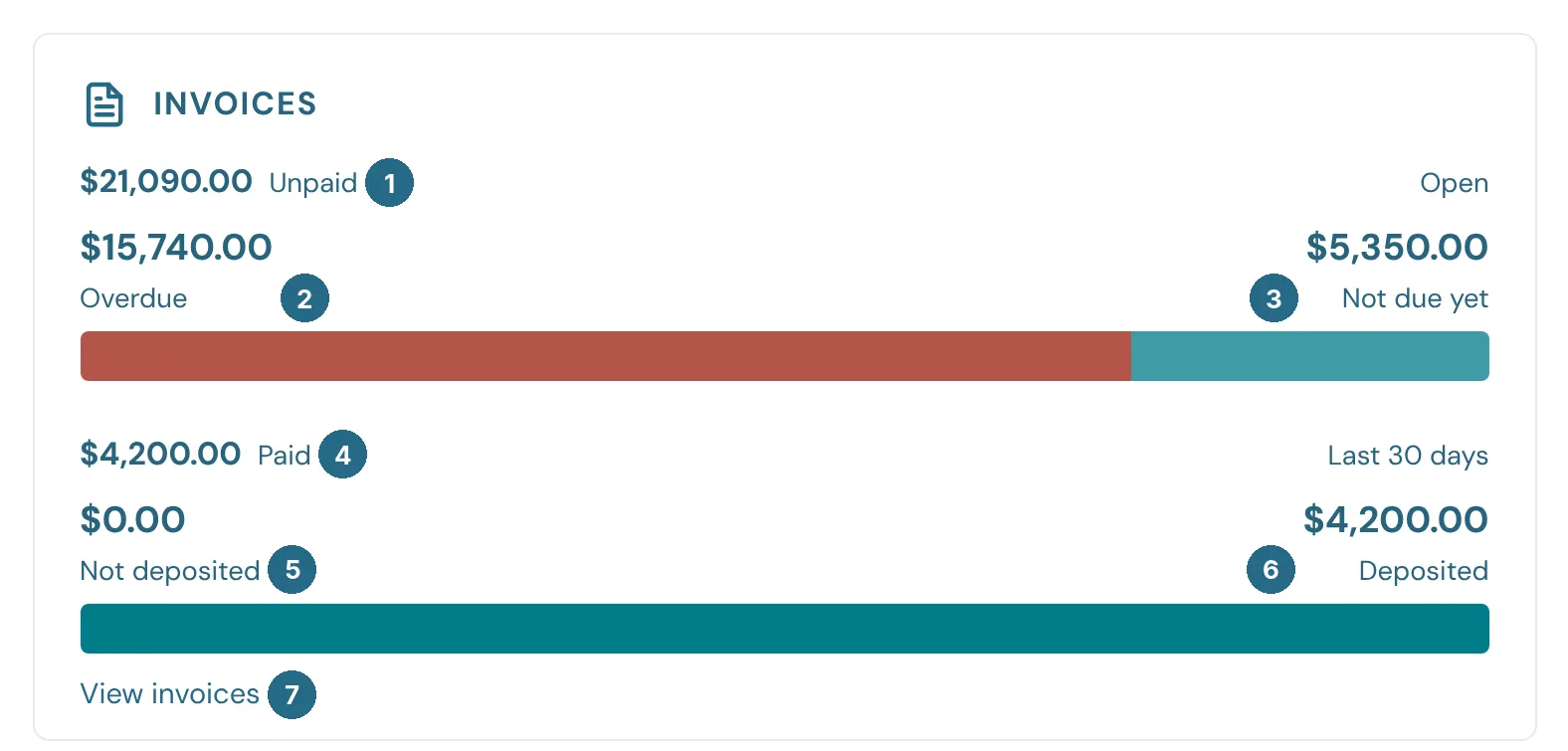
- Unpaid: everything customers still owe on open invoices.
- Overdue: the part that's past its due date (the red bar).
- Not due yet: the part that isn't due yet.
- Paid: invoice payments received in the last 30 days.
- Not deposited: payments received but not yet in a bank account, such as checks waiting to go to the bank. They're held in Undeposited Funds until you record the deposit.
- Deposited: payments that have reached a bank account.
- View invoices opens Invoices.
Expenses
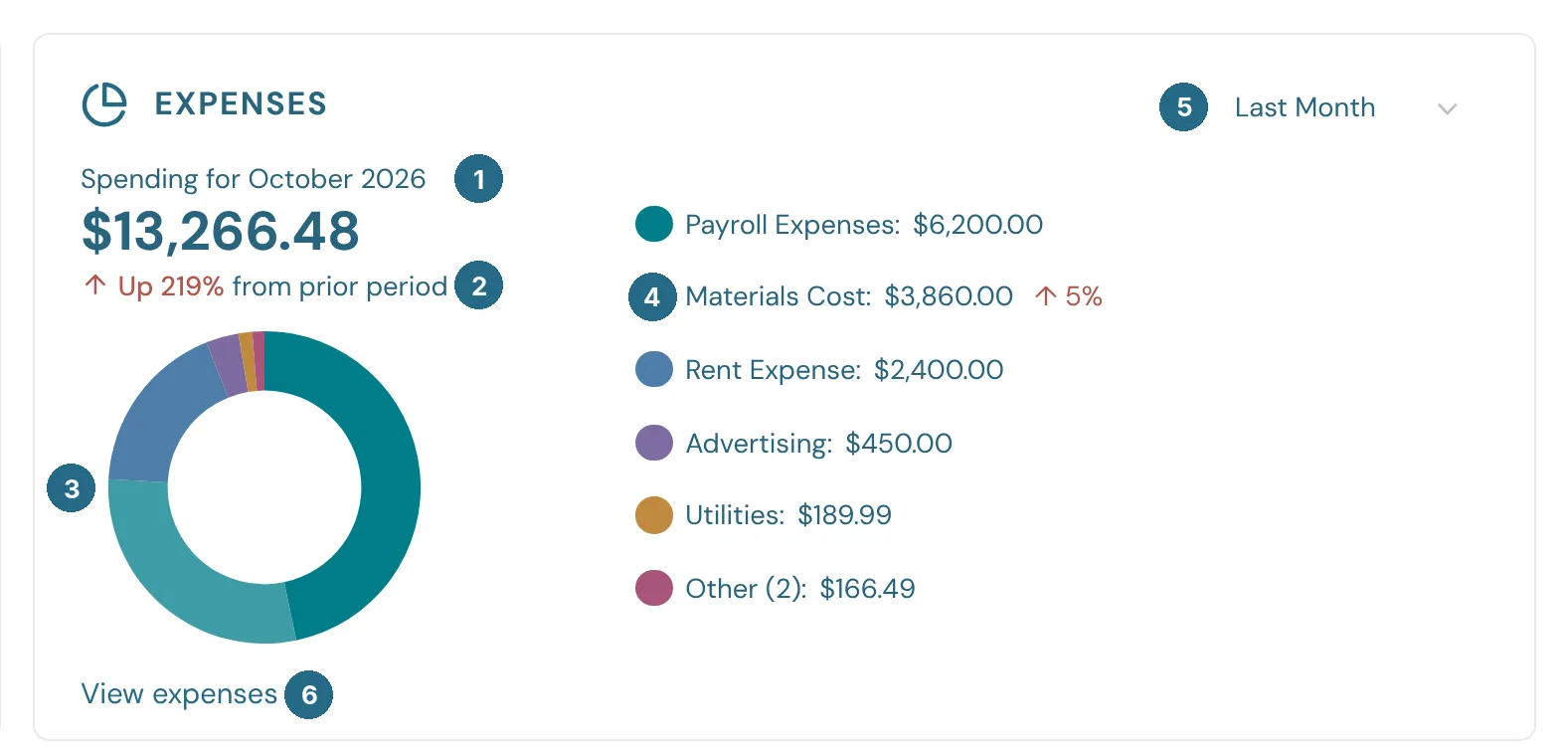
- Spending for the period.
- How that compares with the period before.
- The ring shows your biggest expense accounts. Hover over a slice to see its name and amount in the middle.
- The five biggest accounts, with everything else added up as Other. A red or green arrow shows how much an account went up or down since the period before.
- The period, with the same choices as Cash flow.
- View expenses opens the Expenses by Vendor Summary report.
Accounts receivable and Accounts payable

- Total: what customers owe you (left card), and what you owe vendors (right card), as of today.
- The bar splits the total by how late it is. Hover over a part for its amount.
- The ages: Current (not due yet), 1–30, 31–60, 61–90 and 91+ days past due.
- View A/R ageing opens the Accounts Receivable Aging Summary.
- View A/P ageing opens the Accounts Payable Aging Summary.
The report links open in a new browser tab unless your company has turned that off in Company Settings › Browser tabs.
Updated in v1.0.0