
Import from QuickBooks
Bring an existing QuickBooks Online company into WizeBooks, with every month's totals checked.
In the app: Settings › Integrations › QuickBooks
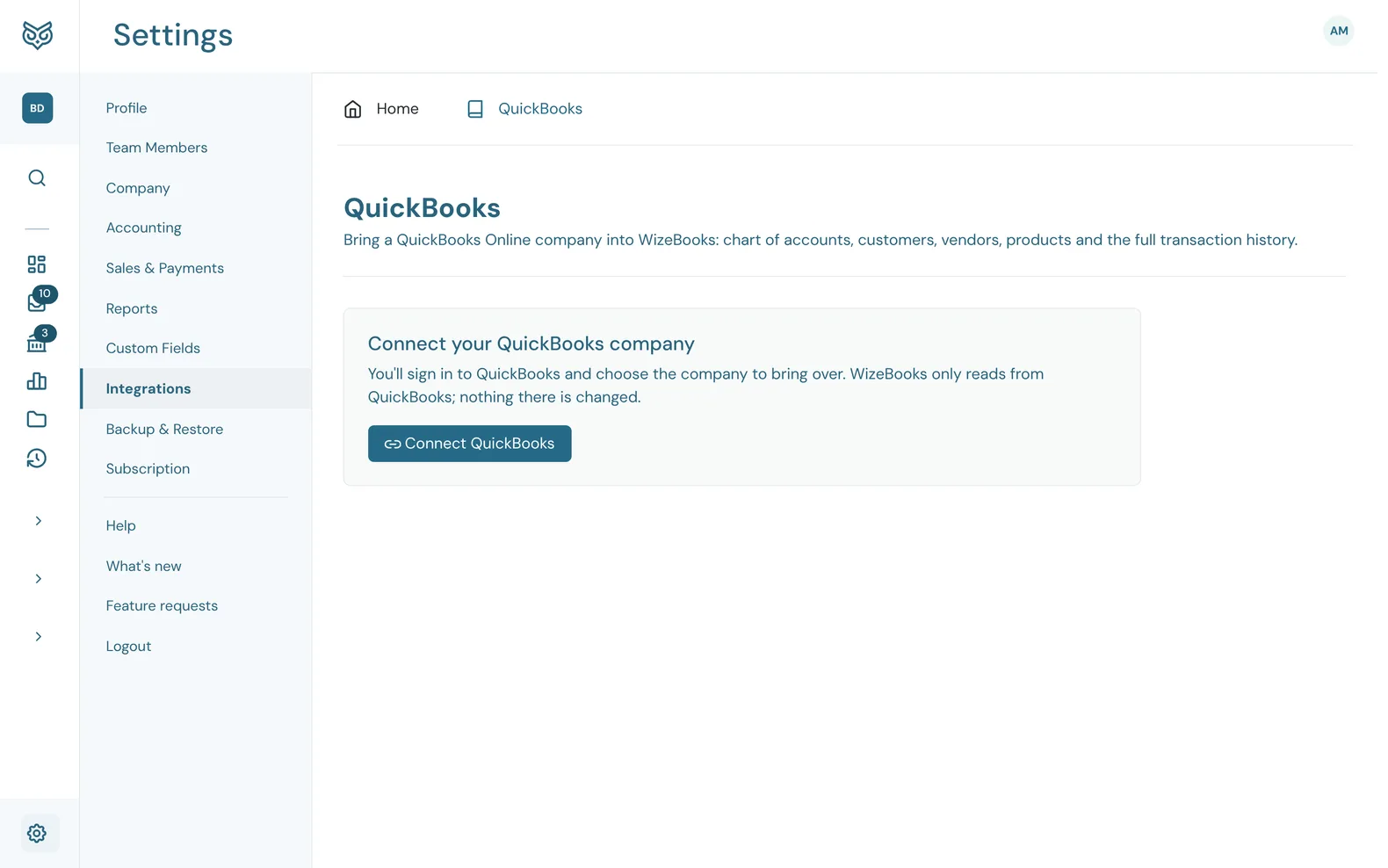
WizeBooks can copy your QuickBooks Online company: the chart of accounts, customers, vendors, products and your full transaction history, with QuickBooks' own amounts. It only reads from QuickBooks; nothing there is changed.
There are four steps, all on one page: connect QuickBooks, pull its data, import it into your books, and finish the migration. Owners and admins run it. Everyone else sees "Ask an owner or admin of this company to connect QuickBooks."
To get there, go to Settings › Integrations and choose Set Up on the QuickBooks Online card, or open the QuickBooks tab.
1. Connect QuickBooks
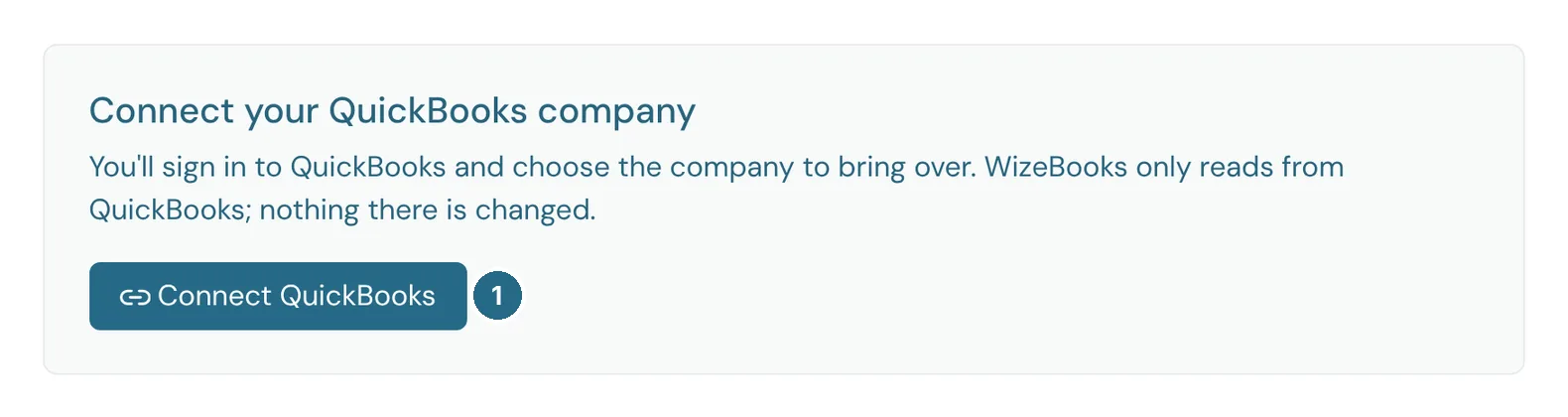
- Connect QuickBooks opens QuickBooks' own sign-in. Sign in, choose the company to bring over, and you're sent back here.
Once connected, the card shows the QuickBooks company's name, its company ID and the date it was connected.
2. Pull your data
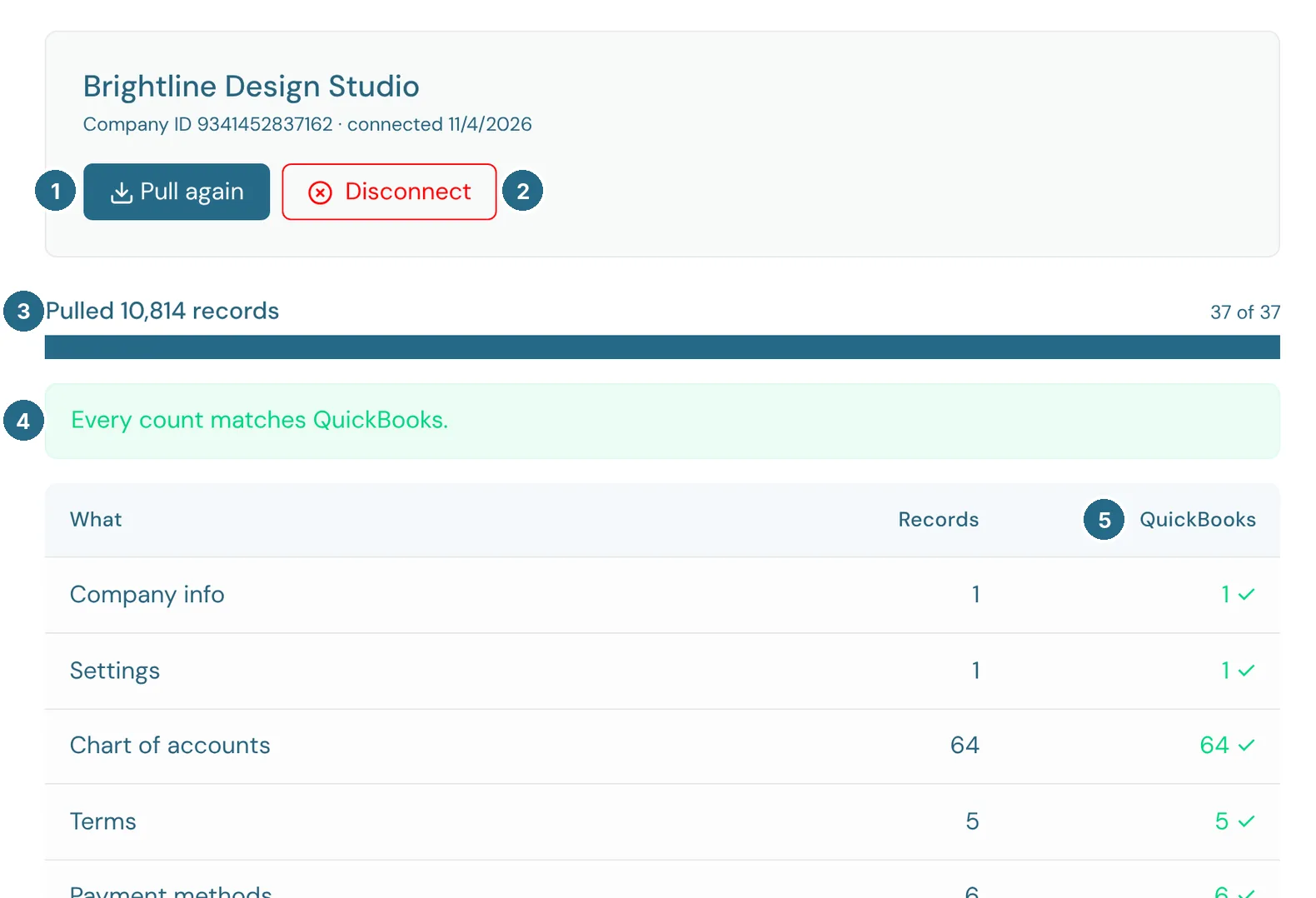
- Pull data from QuickBooks reads everything from QuickBooks into WizeBooks, ready to import. Nothing is added to your books yet. After a pull it says Pull again, which reads QuickBooks afresh, for example after you've added something there.
- Disconnect stops WizeBooks reading from this QuickBooks company. Anything already pulled or imported stays.
- The progress line shows what is being pulled and how many of the 37 kinds of record are done. When it's finished it shows how many records were pulled.
- When the pull is done, WizeBooks asks QuickBooks how many of each kind of record it has and compares. Every count matches QuickBooks. means nothing was missed. If any count is different, the page names it: pull again, and if it repeats, tell us.
- The table lists each kind of record with the number pulled (Records) and QuickBooks' own count, ticked when they match.
The pull keeps going on its own: you can leave the page, or close it, and come back to see how far it got. If it stops, Resume carries on from where it was.
3. Import into WizeBooks
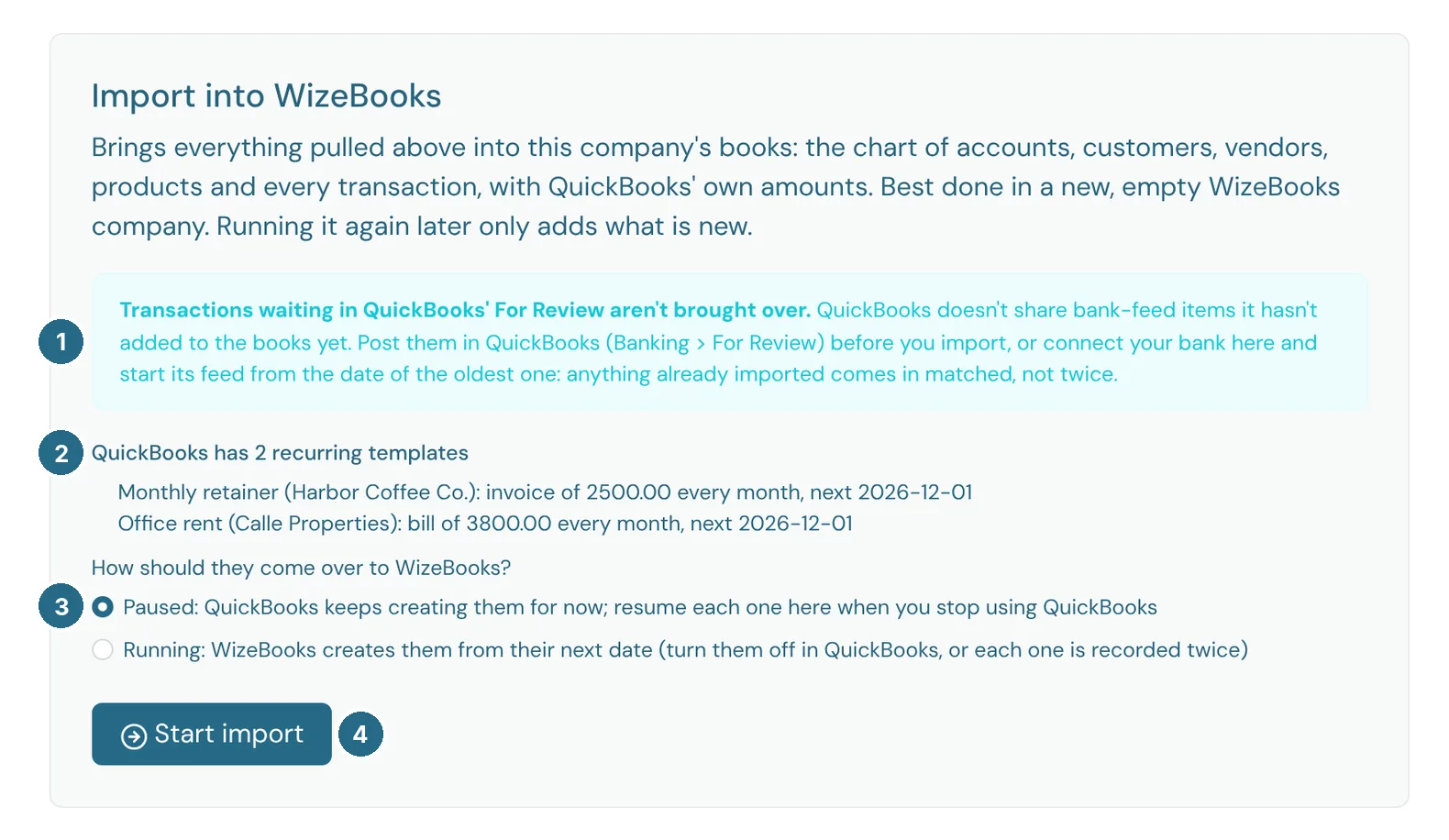
- Transactions waiting in QuickBooks' For Review aren't brought over. QuickBooks doesn't share bank-feed items it hasn't added to the books yet. Post them in QuickBooks (Banking › For Review) before you import, or connect your bank in WizeBooks and start its feed from the date of the oldest one: anything already imported comes in matched, not twice.
- If QuickBooks has recurring templates, they're listed with who they're for, the amount, how often they repeat and the next date.
- Choose how they come over. Paused (the default) leaves QuickBooks creating them for now: resume each one in WizeBooks when you stop using QuickBooks. Running has WizeBooks create them from their next date, so turn them off in QuickBooks or each one is recorded twice.
- Start import brings everything pulled into this company's books.
If the QuickBooks company uses more custom fields than your plan includes, the page says which plan the migration needs, with a button to upgrade and import. Cancel migration throws away what was pulled and imports nothing; QuickBooks stays connected, so you can pull again any time.
If this company already has its own books
The import is best done in a new, empty WizeBooks company. If this company already has transactions, customers, vendors or products, importing on top would duplicate anything entered in both, so WizeBooks asks where the import should go.
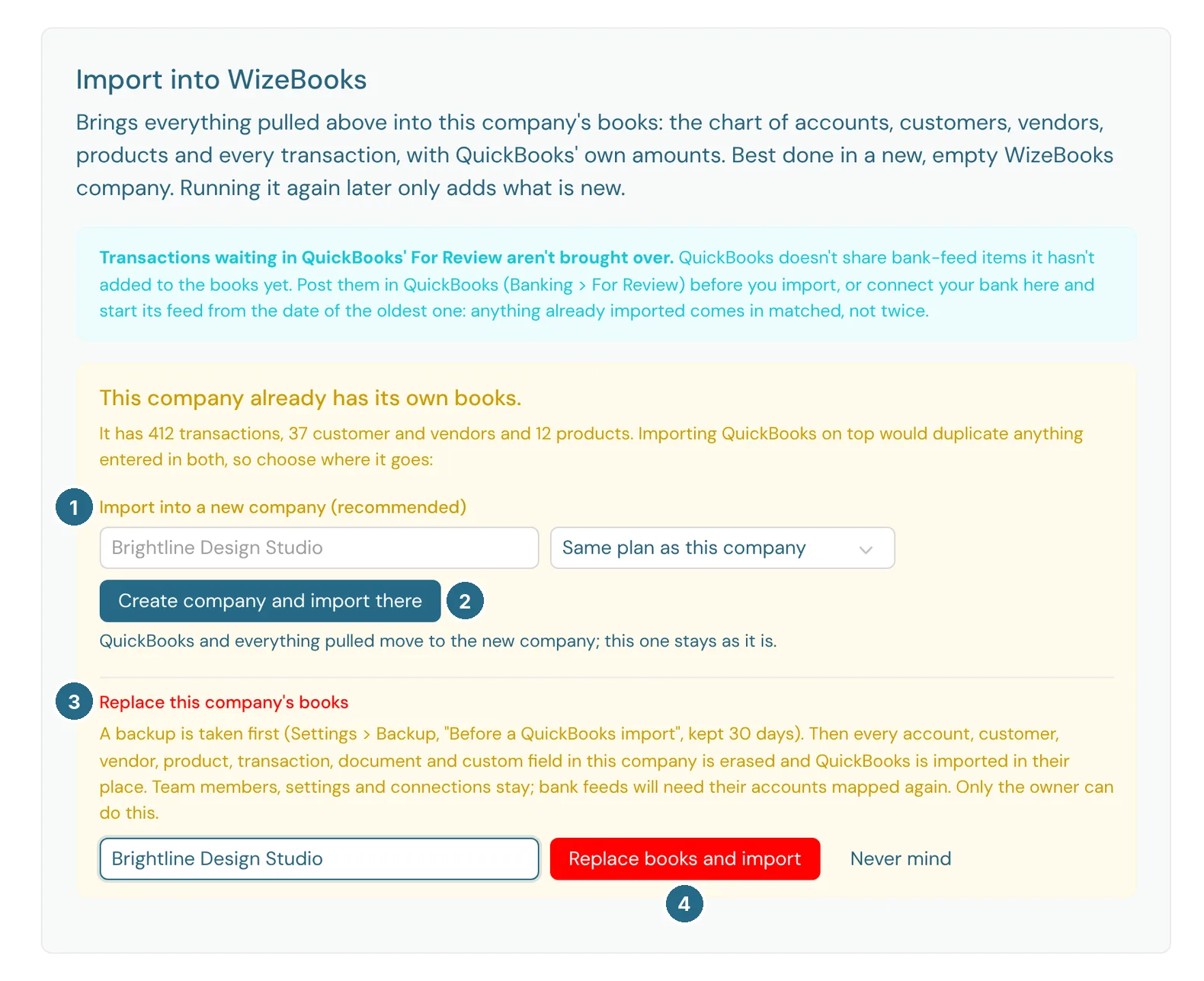
- Import into a new company (recommended): give the new company a name and choose its plan (or keep the same plan as this company).
- Create company and import there moves QuickBooks and everything pulled to the new company. This company stays as it is.
- Replace this company's books instead… erases this company's books and imports QuickBooks in their place. A backup is taken first (Settings › Backup & Restore, labelled "Before a QuickBooks import", kept 30 days). Every account, customer, vendor, product, transaction, document and custom field is erased. Team members, settings and connections stay, and bank feeds need their accounts mapped again. Only the owner can do this.
- Type the company's name to confirm, then choose Replace books and import. Never mind goes back.
While it imports
The import runs in steps, from the chart of accounts through to attachments, and like the pull it keeps going if you leave the page. If it stops, Resume carries on. The table shows, for each kind of record, the number brought in (Added) and:
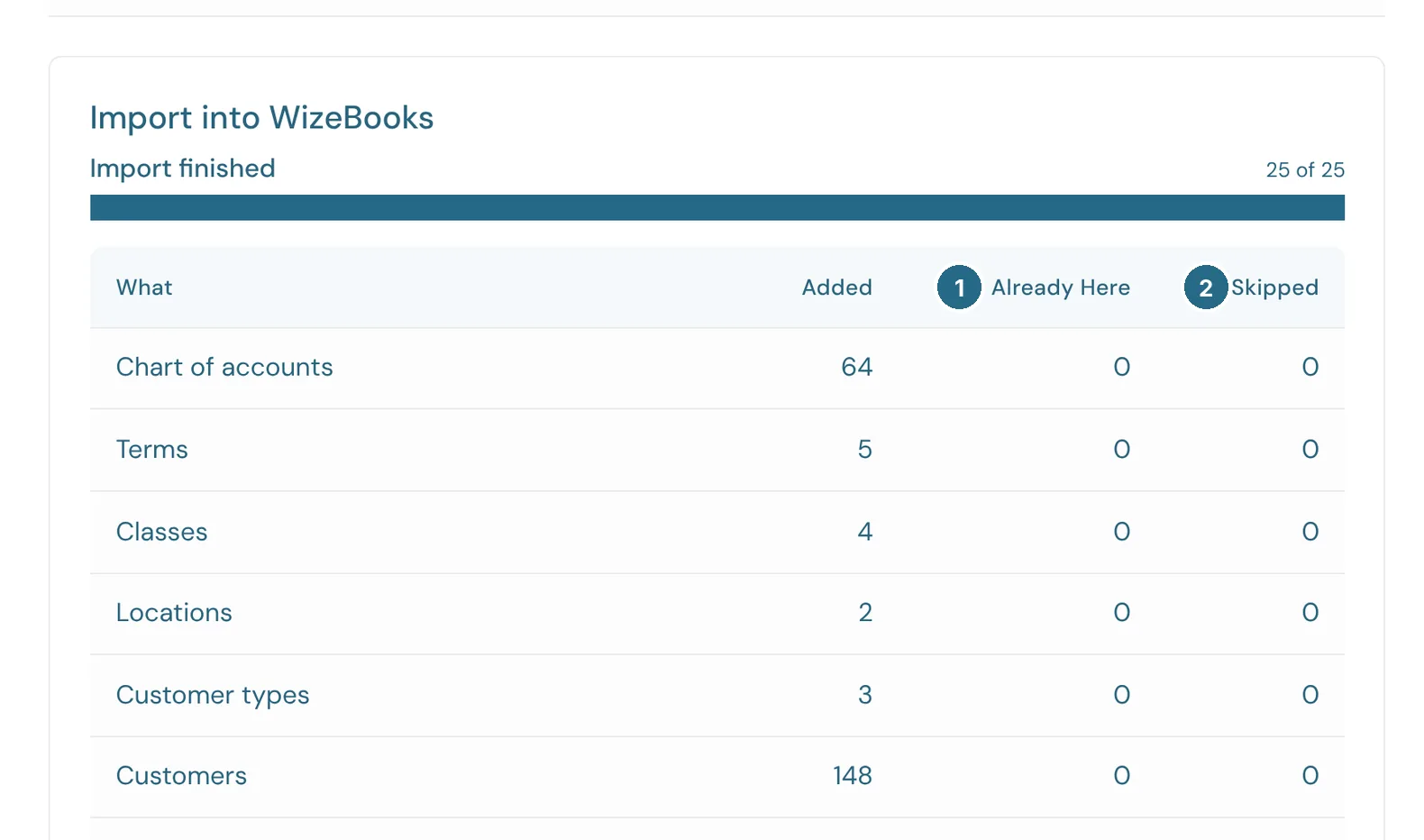
- Already Here: records that were already in WizeBooks, so they were matched rather than added twice.
- Skipped: records that couldn't be brought in. Show notes from the import, below the table, says why.
4. Check the totals
When the import is done, WizeBooks compares your new books with QuickBooks.
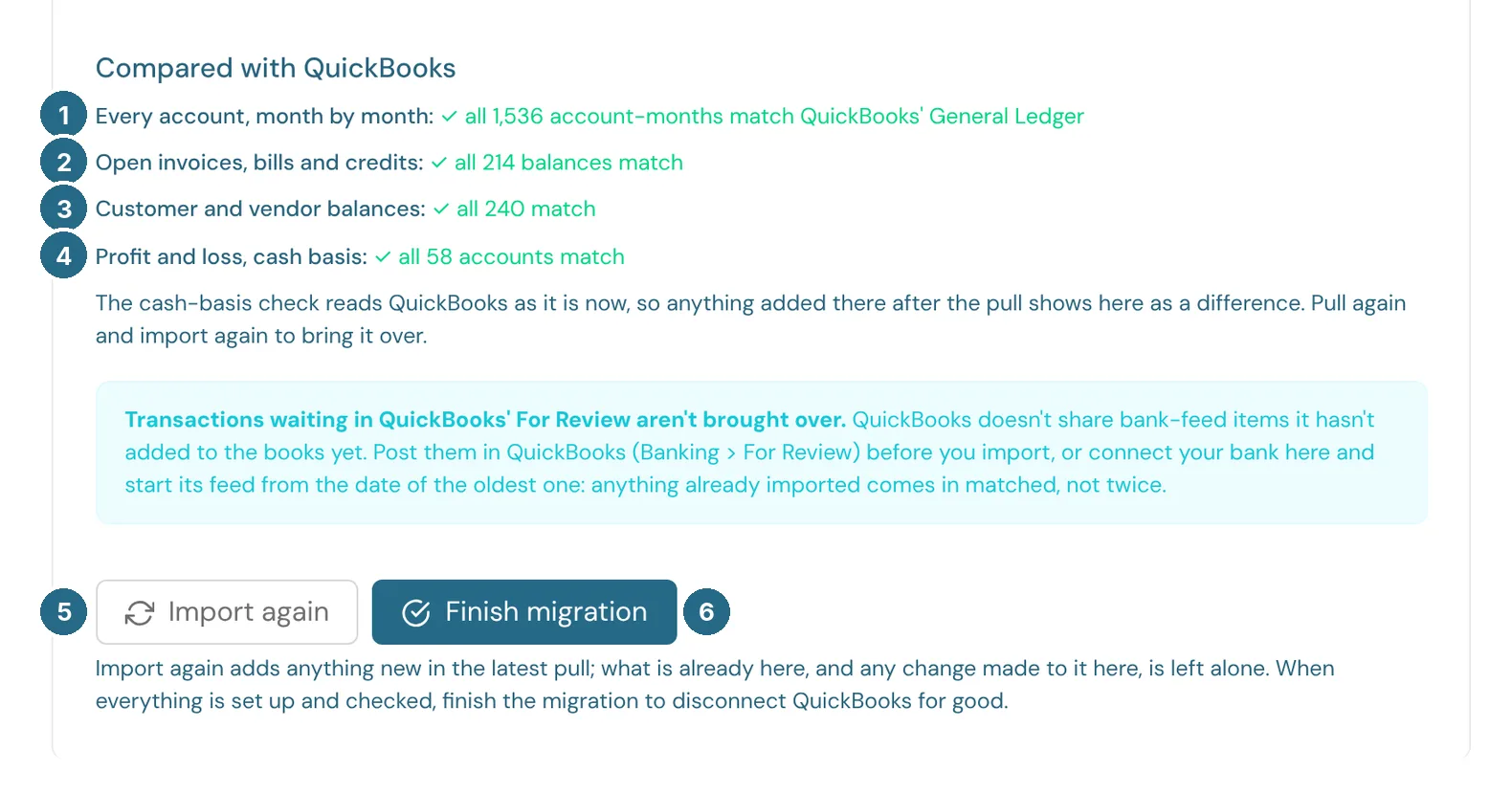
- Every account, month by month: each account's total for each month against QuickBooks' General Ledger.
- Open invoices, bills and credits: what is still owed on each one.
- Customer and vendor balances: each customer's and vendor's balance.
- Profit and loss, cash basis: each account on a cash-basis Profit & Loss. This check reads QuickBooks as it is now, so anything added there after the pull shows here as a difference: pull again and import again to bring it over.
- Import again adds anything new in the latest pull. What is already here, and any change you've made to it in WizeBooks, is left alone.
- Finish migration closes QuickBooks out once everything is set up and checked.
A green tick means every one matches. If any differ, the line says how many, and you can open it to see each one with the QuickBooks and WizeBooks amounts side by side.
5. Finish the migration
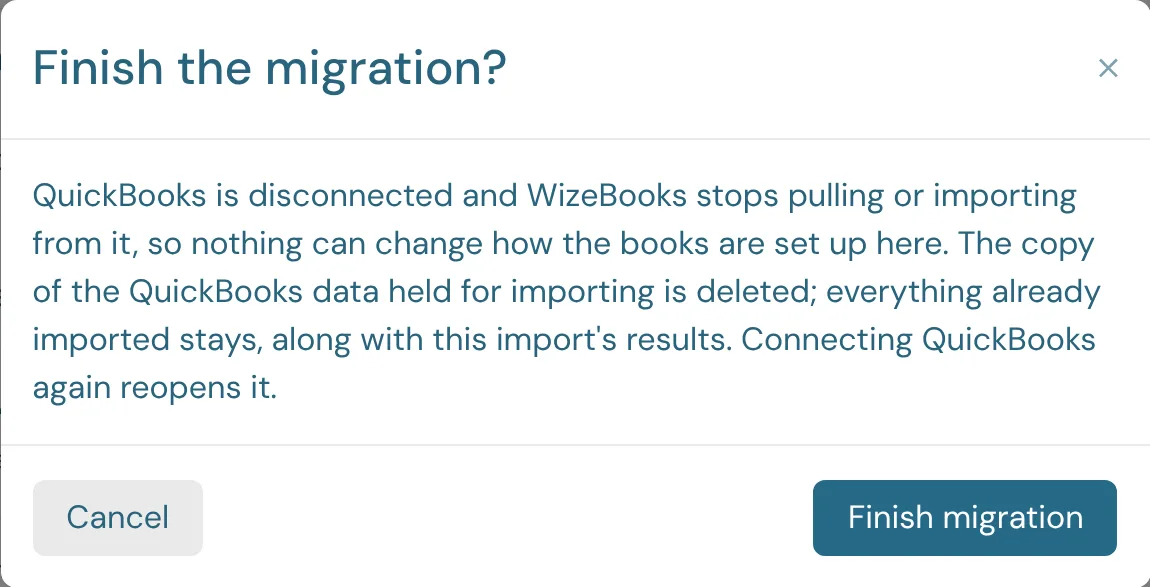
Finishing disconnects QuickBooks, and WizeBooks stops pulling or importing from it, so nothing can change how your books are set up. The copy of the QuickBooks data held for importing is deleted. Everything already imported stays, along with the import's results.

- Connect QuickBooks again to reopen the migration connects again if you need to bring something else over later.
Updated in v1.0.0