
Vendor credit
Credits from vendors for returns or refunds, used against future bills.
In the app: Purchases › Vendors › Vendor Credit
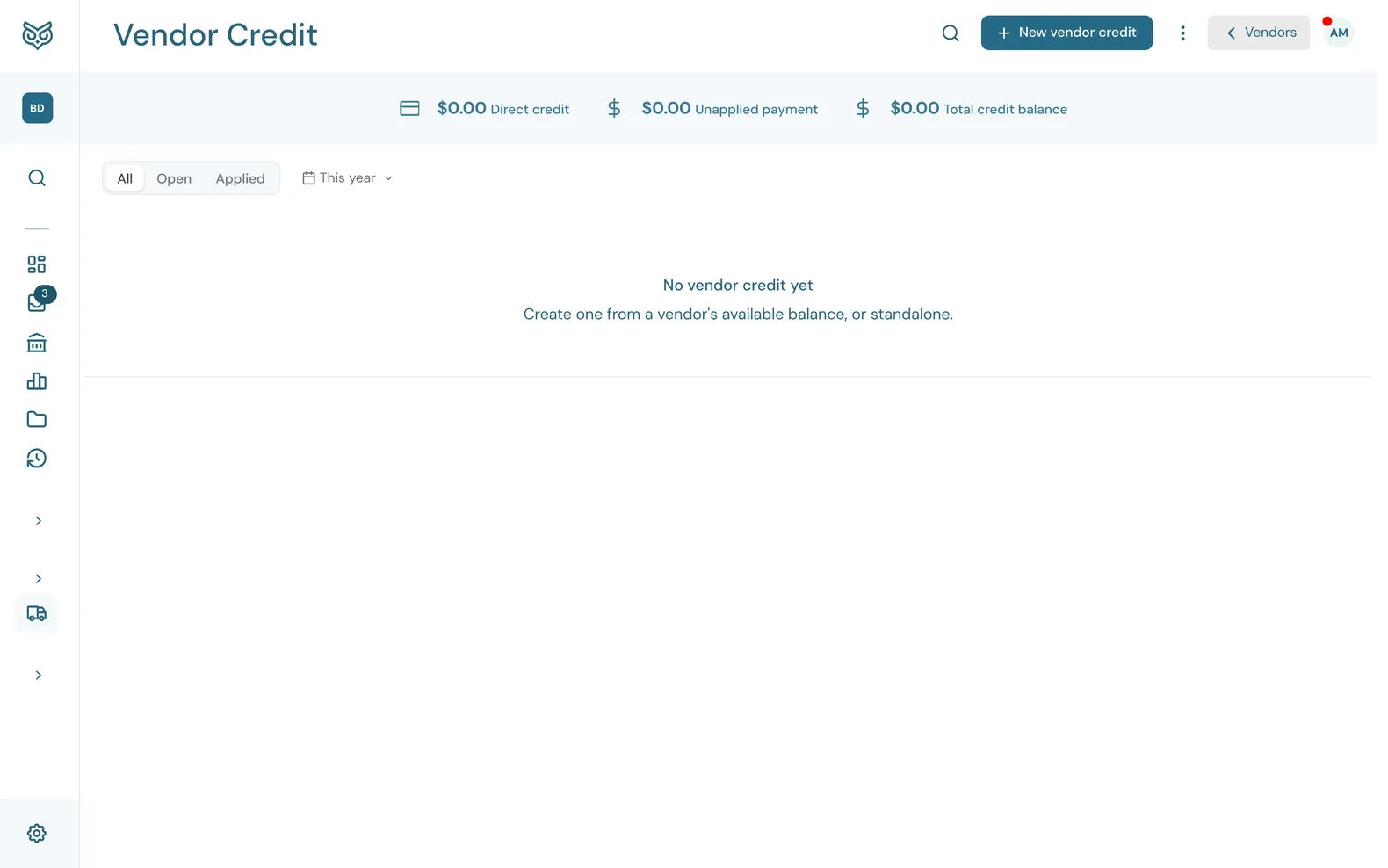
A vendor credit is money a vendor owes you back, such as for a return or an overcharge. You use it to pay down a bill instead of paying cash.
Vendor Credit isn't in the menu. Open it with the receipt icon at the top of the Vendors page, or start a new credit from + New › Vendor credit, or from a vendor's own page with Add credit.
The top of the page

- Search filters the list as you type.
- New vendor credit opens a blank credit (see Entering a credit).
- More options: print or export the list, show or hide the stat band, and choose columns, page size and row height.
- ‹ Vendors goes back to the Vendors list.
- The stat band: Direct credit (credits you entered), Unapplied payment (payments to a vendor that weren't matched to a bill) and the Total credit balance of both.
The list

- All, Open (credit left to use) and Applied (used up).
- The date filter sets the range. It starts at This year.
- Type: Direct Credit for a credit you entered, or Unapplied Payment for an overpayment.
- Status: Open while some credit is left, Applied once it is used up.
- Remaining Credit: what's still there to use.
- The row's ⋮ menu (below).
No., Vendor, Date and Total fill in the rest. Click a row to open the credit.
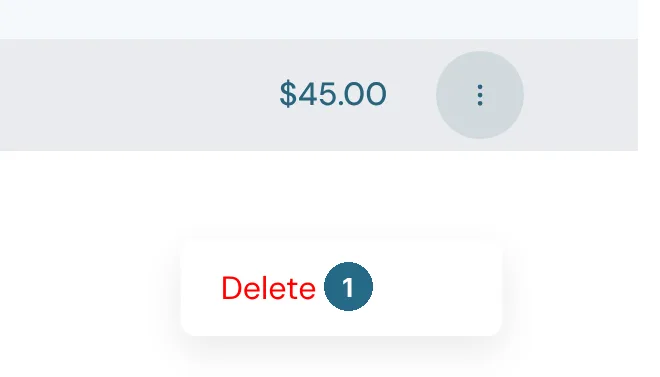
- Delete removes a credit that hasn't been applied to anything.
Entering a credit
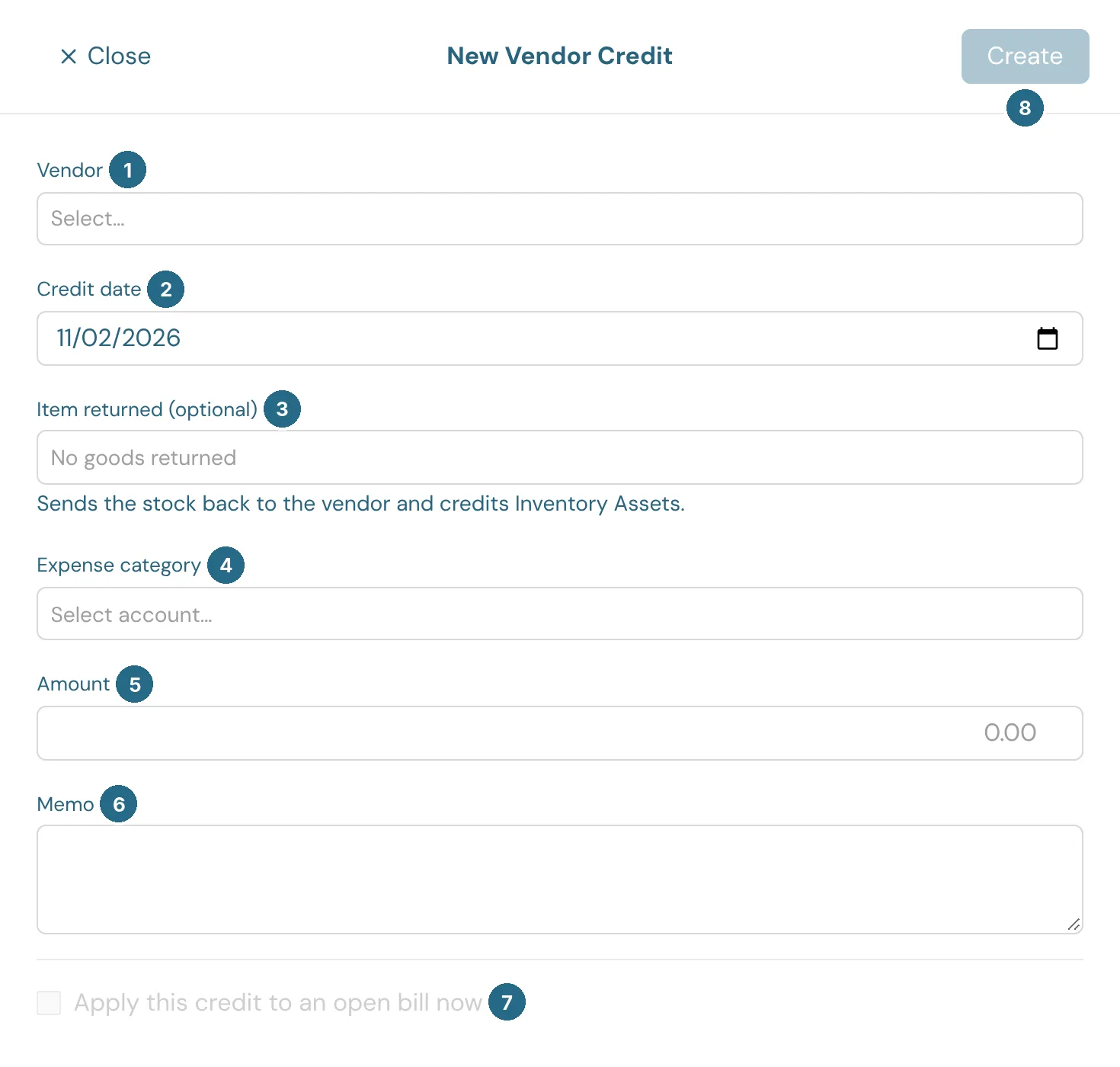
- Vendor: who owes you the credit.
- Credit date: the date it posts.
- Item returned (optional): for an inventory item you sent back. It takes the stock off your shelf and out of Inventory Assets.
- Expense category: the account the credit reduces, such as the one the original bill posted to.
- Amount: the credit's value.
- Memo: a note for your records.
- Tick Apply this credit to an open bill now to choose one of the vendor's open bills and lower its balance straight away.
- Create saves the credit.
Using a credit later
A credit with something left can be used whenever you like:
- Open the credit, choose one of the vendor's open bills and the amount, and click Apply credit.
- Open the bill and click Apply credit at the top.
- On the vendor's page, choose Create › Apply credit.
The amount can't be more than the credit left or the bill's balance. To cancel a bill entered by mistake, open it and choose More › Reverse with a vendor credit.
Updated in v1.0.0