
Profile
Your own name, sign-in, security and the emails you get.
In the app: Settings › Profile
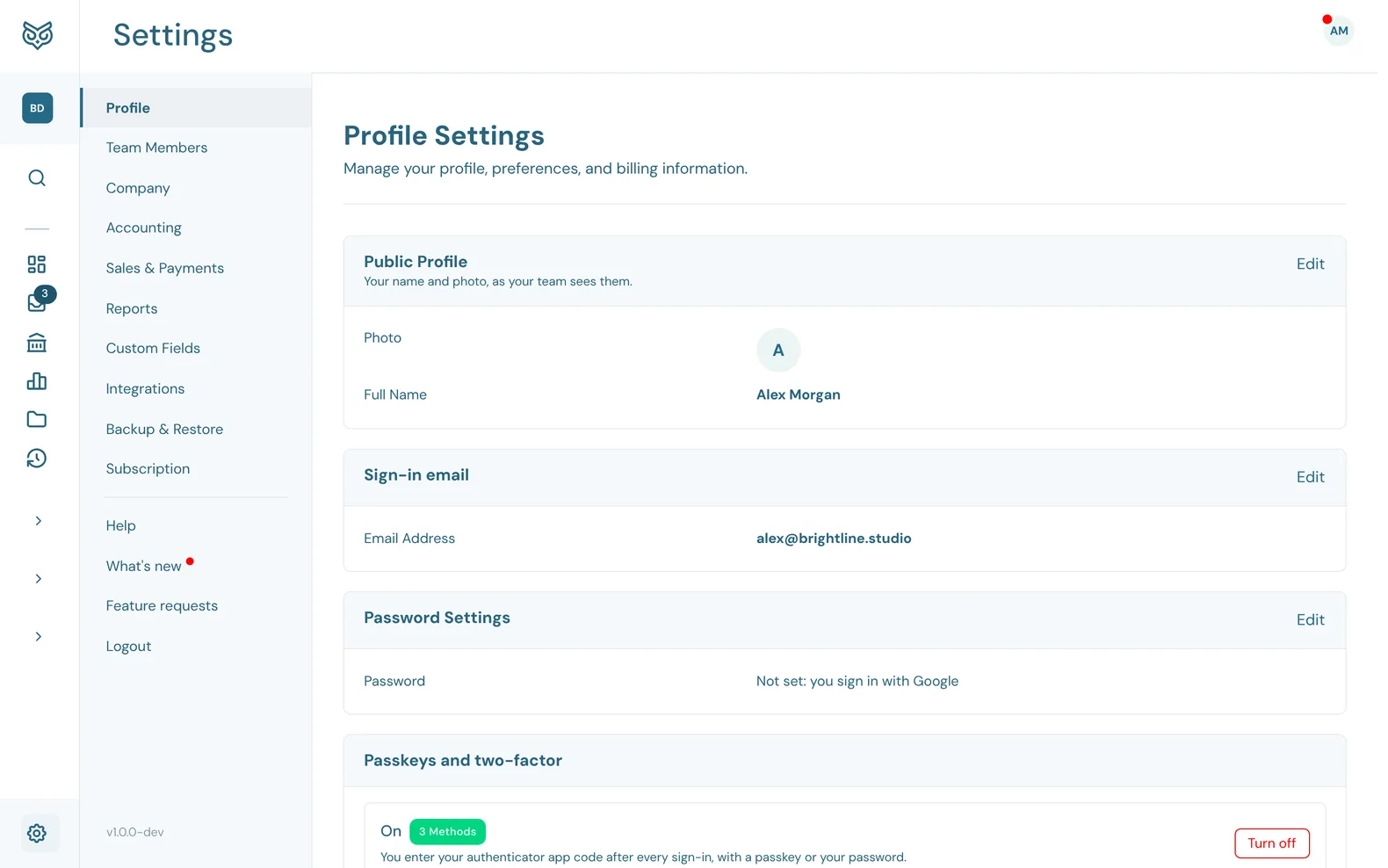
Profile Settings are yours alone: nothing here changes anything for the rest of your team. Open Settings from your avatar at the top right of any page. Each card has its own Edit, which turns its rows into fields, and Save.
The Settings menu on the left lists every section, and below Subscription it has the same links as the avatar menu: Help, What's new, Feature requests and Logout. Your WizeBooks version is at the bottom of that menu.
Your profile and sign-in
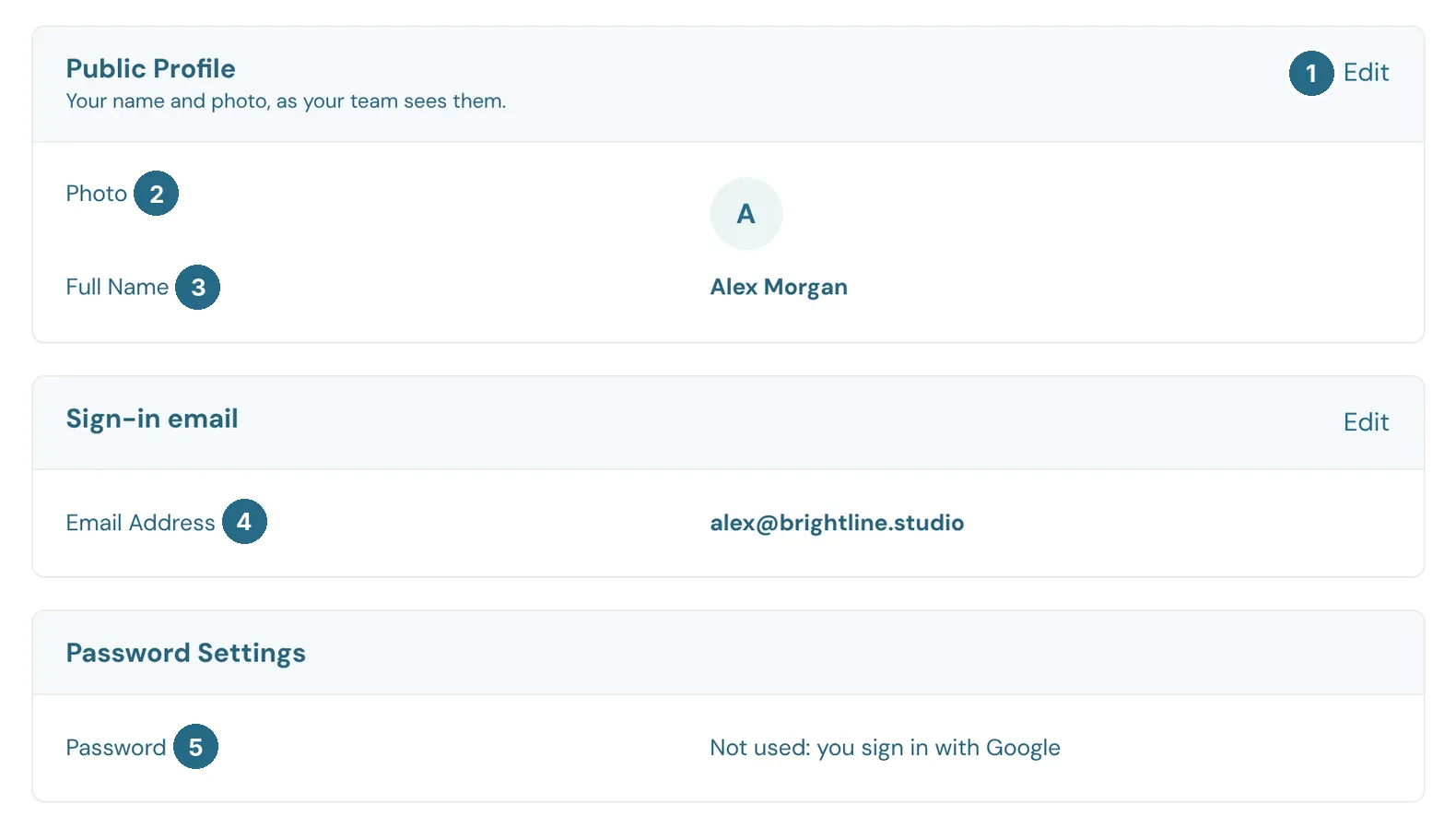
- Edit opens the card's fields.
- Photo: your picture, as your team sees it.
- Full Name: your name, as your team sees it.
- Email Address: the email you sign in with and receive WizeBooks emails at.
- Password: change it here. If you sign in with Google, it shows that no password is used.
Passkeys and two-factor
Extra protection for your login.
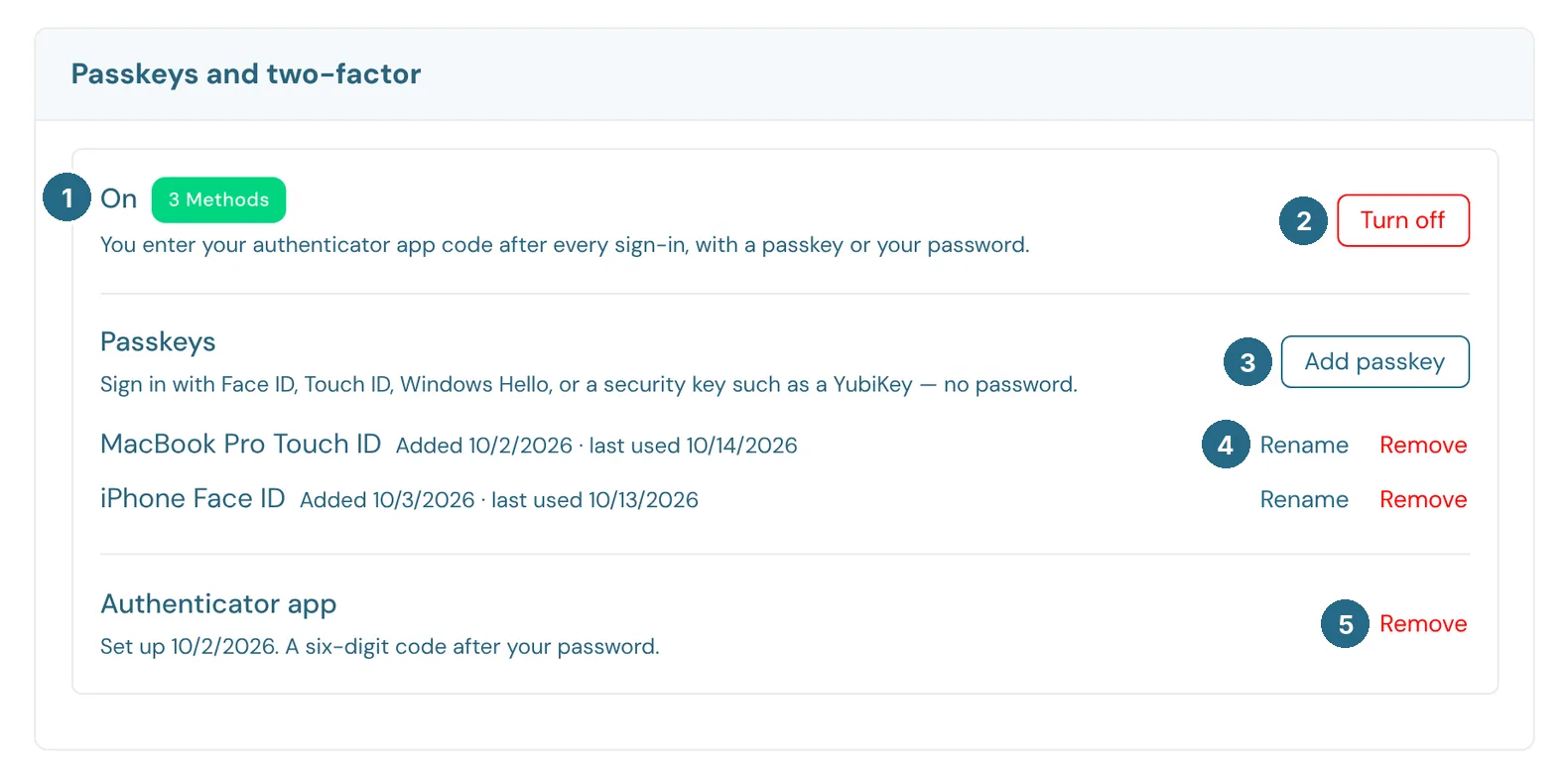
- On shows two-factor is on, and how many methods you have.
- Turn off removes every passkey and the authenticator app, so signing in needs only your password or Google. If your company requires two-factor, this button isn't there.
- Add passkey adds one: Face ID, Touch ID, Windows Hello or a security key such as a YubiKey, with no password.
- Rename gives a passkey a name you'll recognise. Remove deletes it.
- Remove on the Authenticator app stops asking for its six-digit code. When there's no app yet, you can set one up here, such as Google Authenticator.
Recent sign-ins
Every sign-in to your login in the last 365 days, and what to do if one wasn't you.
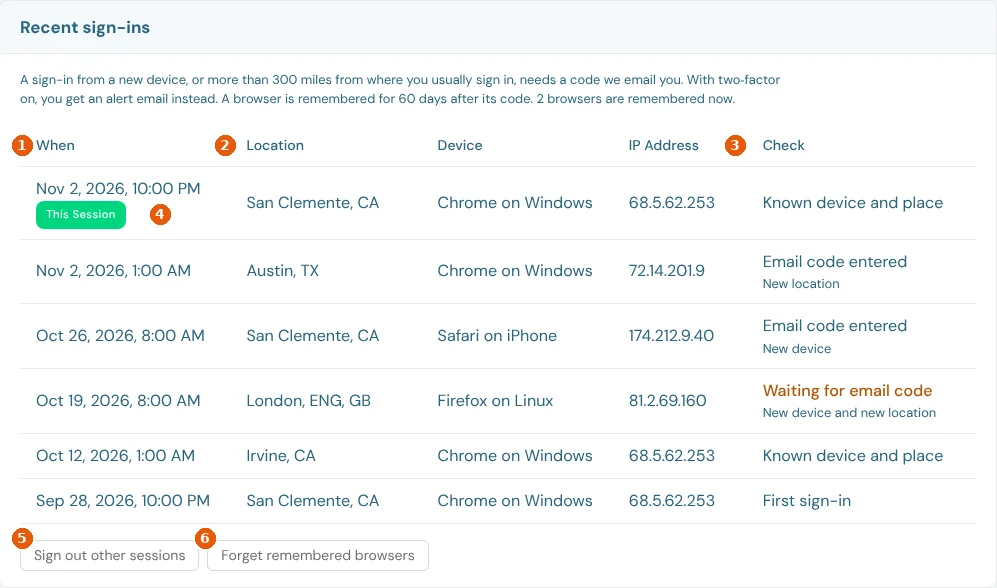
- When: the date and time of each sign-in, newest first. Show more lists older ones.
- Location, Device and IP address: where the sign-in came from (a city worked out from the internet address, so it can be off by a few miles, or further on a phone network or VPN) and which browser it used.
- Check: how the sign-in was checked. Known device and place needed nothing extra. Email code entered means it came from a new device or a new location and the emailed code was entered. Two-factor, alert sent means your authenticator app or passkey was used, so we sent an alert email instead of a code. Waiting for email code is a sign-in that stopped at the code screen.
- This session marks the browser you're using now.
- Sign out other sessions signs out every other browser and device on your login. This one stays signed in.
- Forget remembered browsers makes every browser, this one included, enter an emailed code the next time it signs in.
Signing in from a new device or place
WizeBooks asks for a six-digit code, emailed to your sign-in address, when you sign in on a browser it hasn't seen in the last 60 days, or from more than 300 miles from anywhere you've signed in during the last year. This is always on.
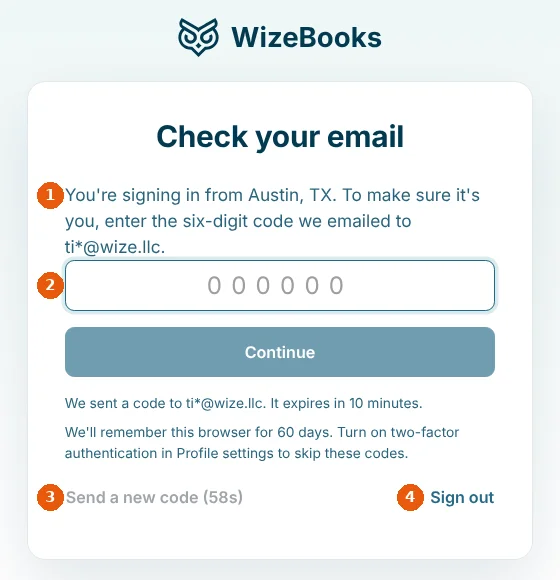
- Where the sign-in is coming from, and the address the code went to.
- Code: type or paste the six digits. It signs you in as soon as the sixth digit is in. The code lasts 10 minutes and allows 5 tries.
- Send a new code sends another after a minute.
- Sign out leaves without signing in.
After the code, that browser is remembered for 60 days. With an authenticator app or passkey turned on (see Passkeys and two-factor above), you're never asked for an emailed code. You get an alert email instead: New sign-in location when it's more than 300 miles from your usual places, or New device signed in for a browser we haven't seen. If a code or alert arrives and it wasn't you, change your password straight away, then use Sign out other sessions.
Session and linked accounts
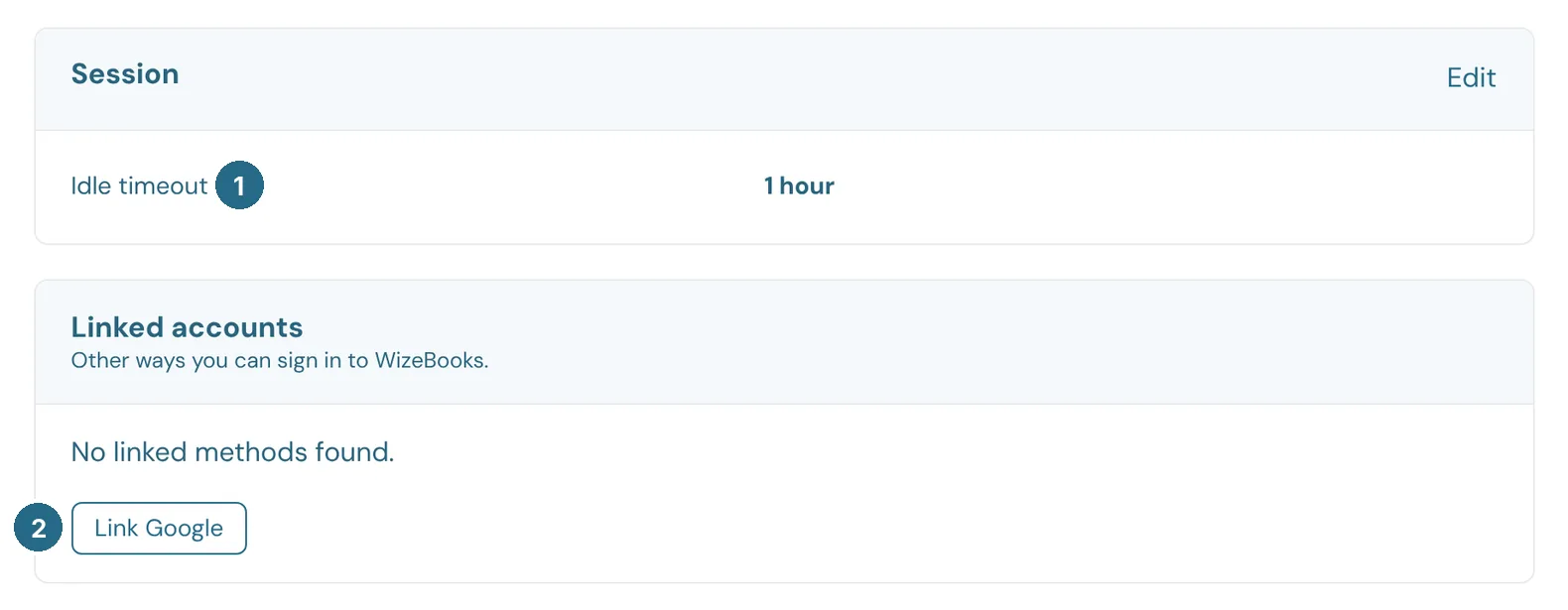
- Idle timeout: how long WizeBooks waits while you're inactive before signing you out: 30 minutes, 1, 2 or 3 hours. It can't be longer than your company allows (see Company).
- Link Google lets you sign in with your Google account too.
Notifications
The emails WizeBooks sends you, company by company. Turning one off here affects only you.
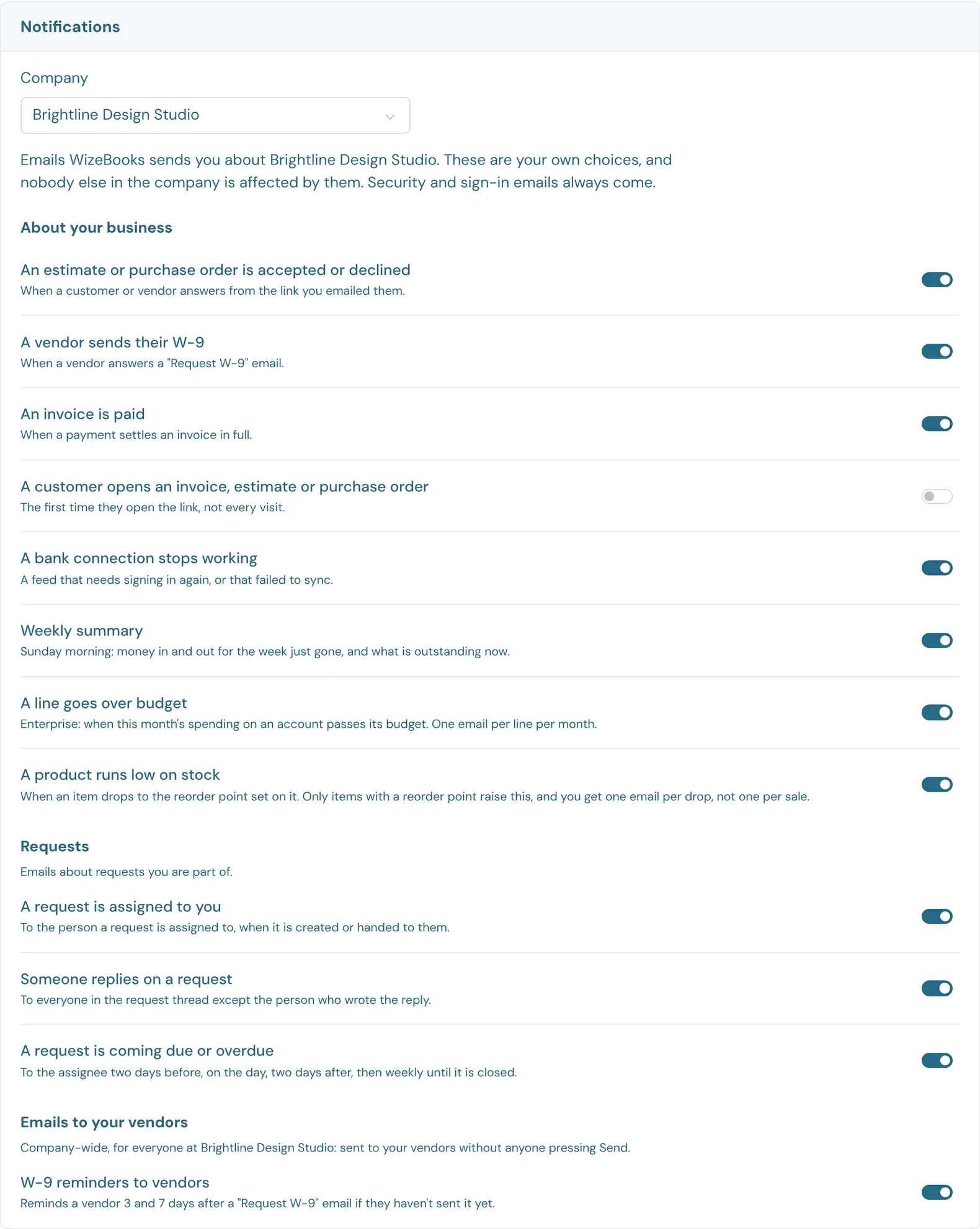
- Company: if you're in more than one company, such as an accountant with several clients, pick the company to set. It starts on the one you have open.
- Each email has its own switch.
- About your business: an estimate or purchase order is accepted or declined, a vendor sends their W-9, an invoice is paid, a customer opens an invoice, estimate or purchase order, a bank connection stops working, the Weekly summary (Sunday morning: money in and out for the week, and what's outstanding), a line goes over budget (Enterprise), and a product runs low on stock.
- Requests: a request is assigned to you, someone replies on a request, and a request is coming due or overdue.
- Emails to your vendors (owners and admins only): W-9 reminders to vendors reminds a vendor 3 and 7 days after a Request W-9 email they haven't answered. This one is for the whole company, not just you.
If you have a custom role, you only see the emails your role allows. An email about a part of the app your role hides, such as bank connections when Accounts is hidden, isn't listed and isn't sent to you. A note says how many are left out.
Emails about your account's security, sign-ins, invitations and billing are always sent.
Danger Zone
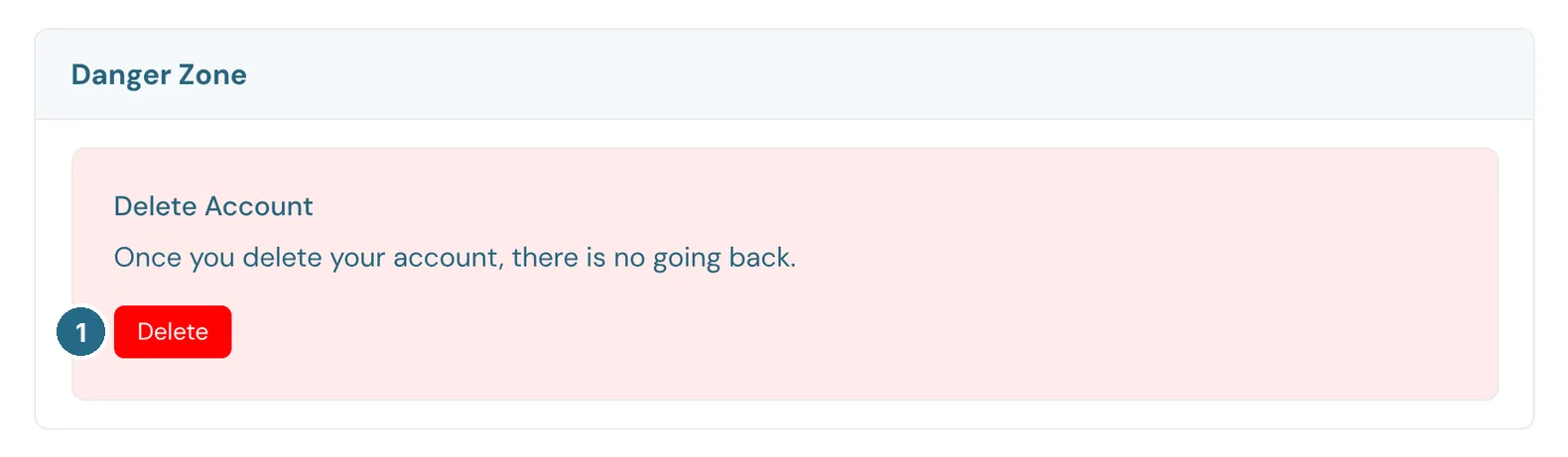
- Delete deletes your login. There is no going back.
Updated in v1.0.0