
Purchases
Bills
What you owe your vendors, when it's due, and paying it.
In the app: Purchases › Bills
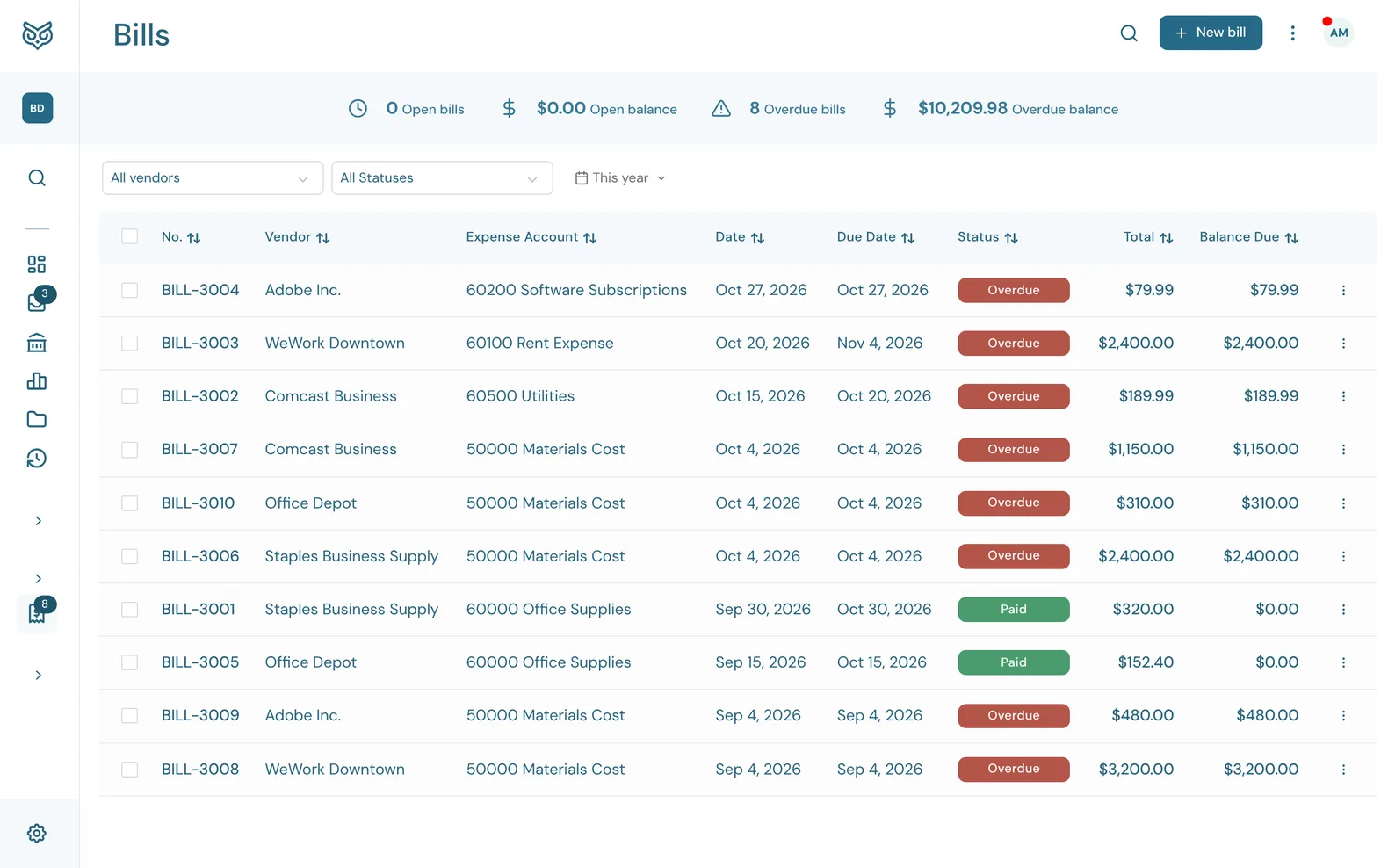
A bill is a vendor's invoice to you: something you owe and will pay later. The number beside Bills in the menu counts overdue bills.
The top of the page

- Search filters the list as you type.
- New bill opens a blank bill (see Entering a bill).
- More options: print or export the list, show or hide the stat band, and choose columns, page size and row height.
- The stat band: Open bills and Open balance (not yet due), and Overdue bills and Overdue balance (past their due date).
The list
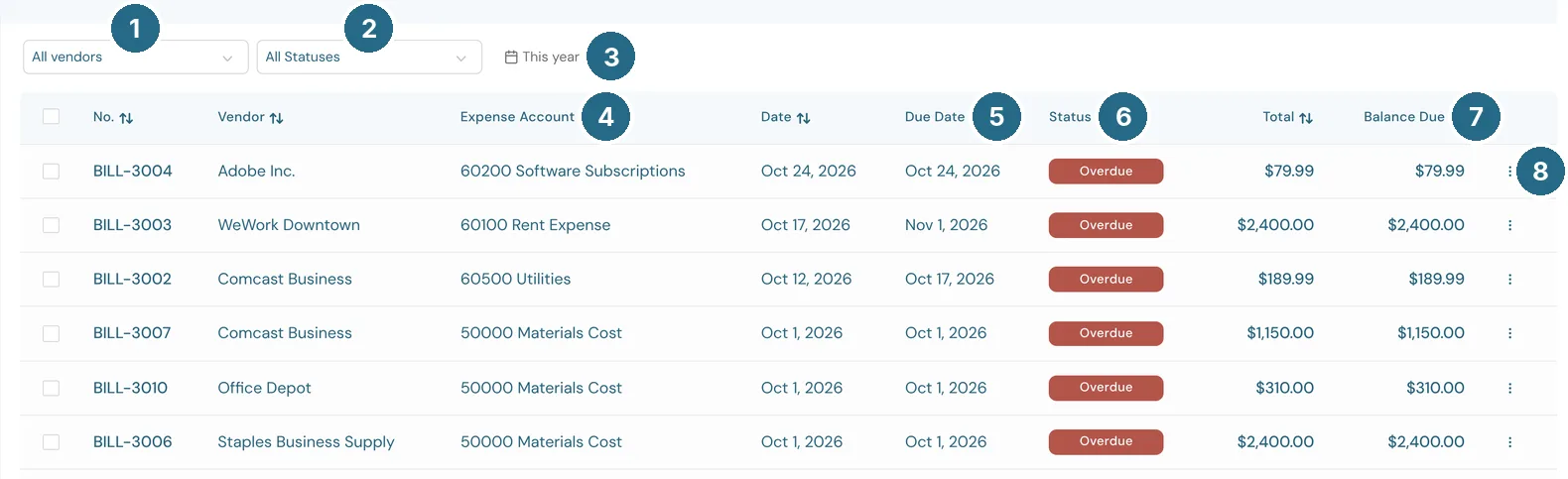
- All vendors: one vendor's bills only.
- All Statuses: Overdue (with how many), Open, Paid or Void.
- The date filter sets the range. It starts at This year.
- Expense Account: where the bill posts. A bill split across accounts shows them all.
- Due Date: when it's due, set by the bill's terms.
- Status: Open, Partial (part paid), Overdue, Paid or Void.
- Balance Due: what's still owed on it.
- The row's ⋮ menu (below).
No., Vendor, Date and Total fill in the rest. Click a row to open the bill.
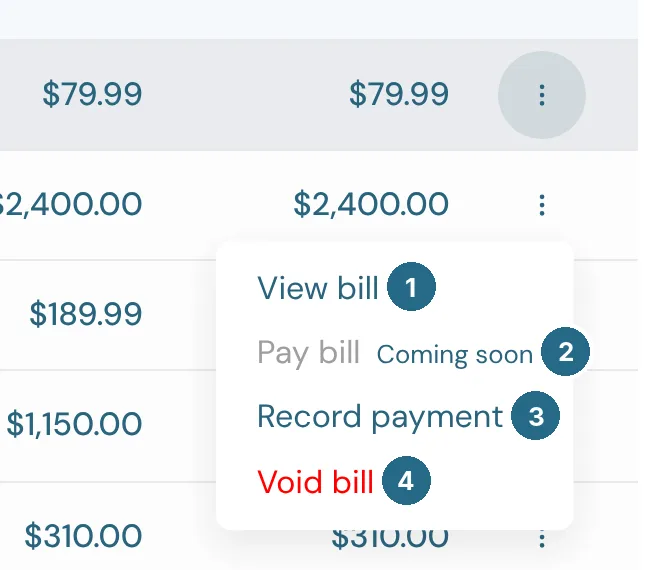
- View bill opens it.
- Pay bill: paying a bill by ACH from WizeBooks is coming soon, so it reads Coming soon and can't be picked yet.
- Record payment records a payment you made some other way, such as a check or a card.
- Void bill cancels it, after asking you to confirm. A voided bill stays on file but counts for nothing.
Record payment only shows while money is owed.
An open bill

- Apply credit uses a vendor credit from this vendor to pay down the bill.
- Bill Pay · Coming soon: paying the bill by ACH from WizeBooks is on its way. Until then, pay it the way you usually do and record it with Record payment.
- Record payment records a payment made another way: the amount, the date, the account it came out of, a check number and a memo.
- More (below).
- Save saves your changes.
Payment history, at the top left, lists the payments made on this bill. Back to bill returns to it.
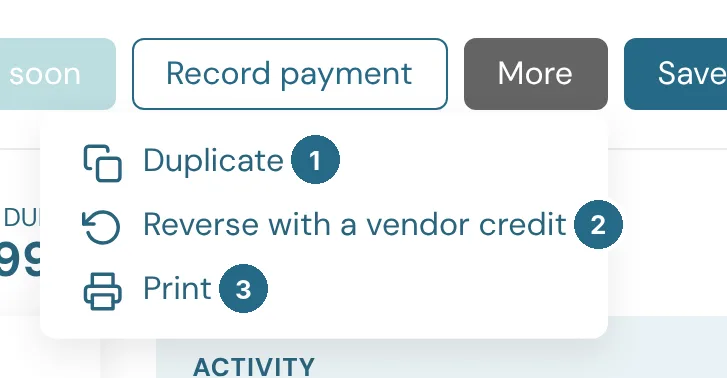
- Duplicate opens a new bill with the same vendor and lines, dated today.
- Reverse with a vendor credit opens a vendor credit for the bill's total, already set to apply to it if it's still owed. Use it when a bill was entered by mistake or the vendor cancels it.
- Print prints the bill.
Entering a bill
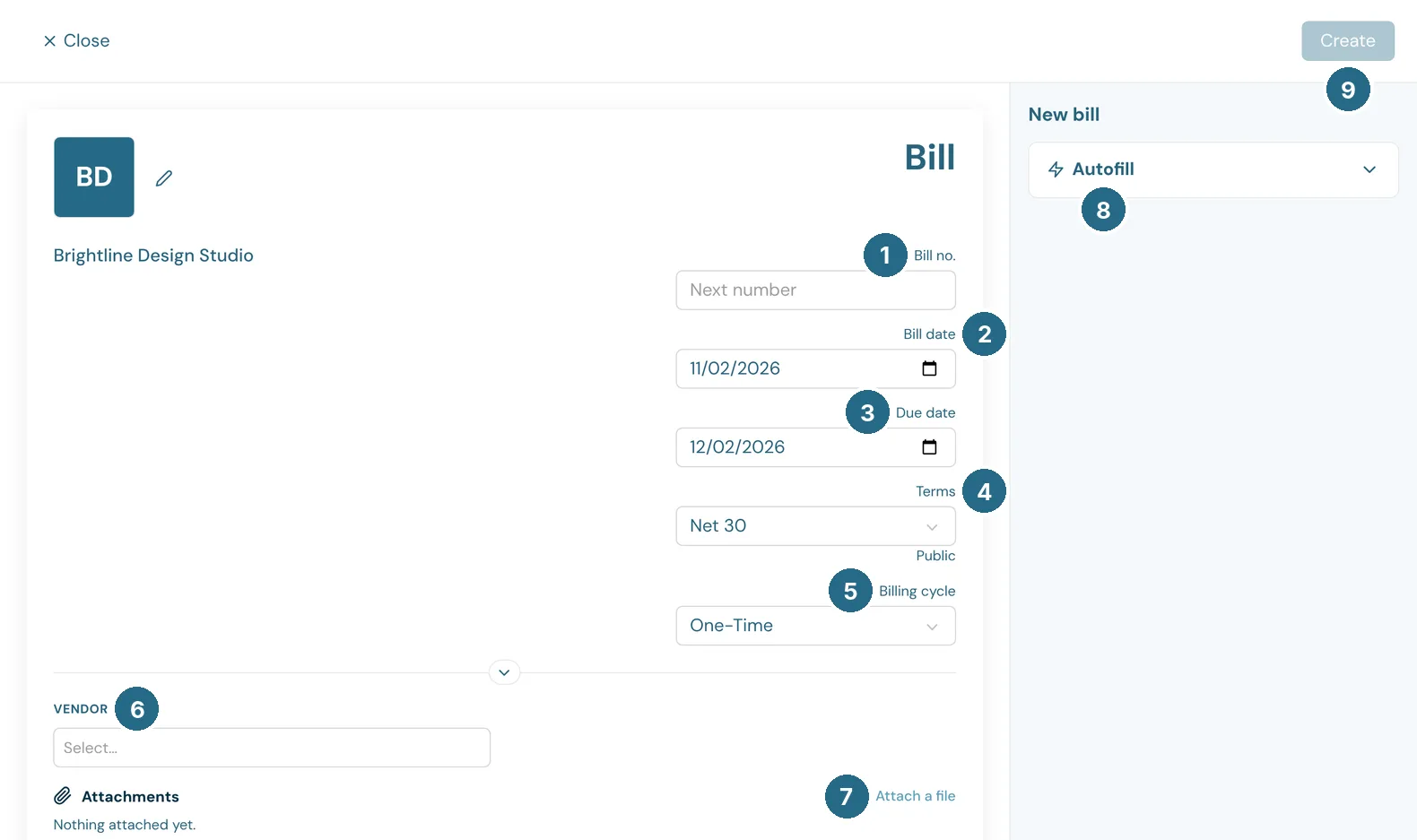
- Bill no.: the vendor's invoice number.
- Bill date: the date on the vendor's invoice.
- Due date: worked out from the terms. You can change it.
- Terms: Due on receipt, Net 15, Net 30 or Net 60. The vendor's own terms fill in when you pick them. Public or Private below says whether the terms print on documents; change it under Custom fields.
- Billing cycle: One-Time, or Monthly, Quarterly or Yearly to make it a recurring bill.
- Vendor: who sent it. Their default expense category fills in on the lines.
- Attach a file: keep the vendor's PDF with the bill.
- Autofill reads the vendor's bill from a file, a photo or pasted text and fills in the vendor, dates, bill number and lines for you to check. Undo puts the form back. A file you read is attached to the bill when you save.
- Create saves the bill.
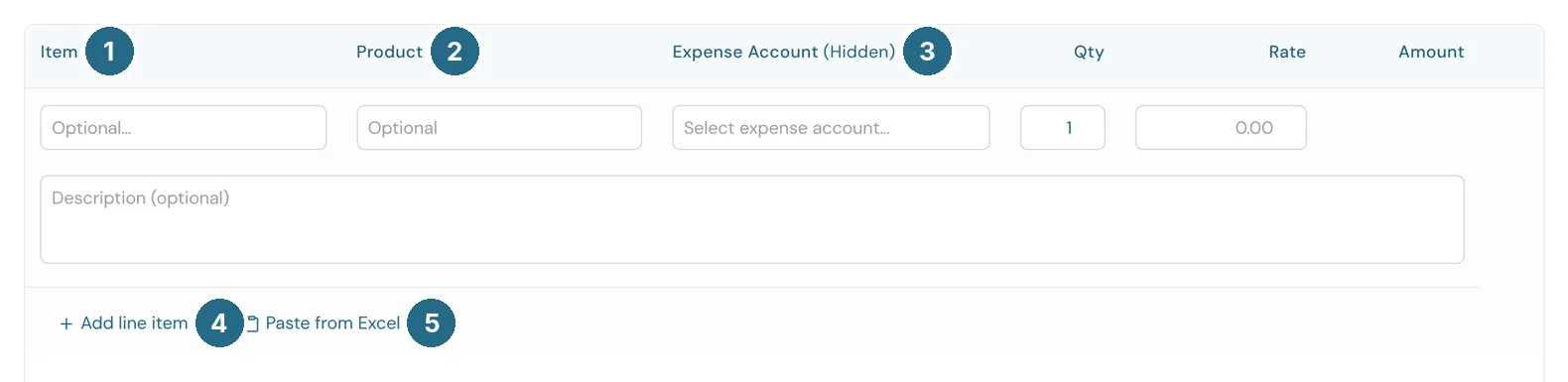
- Item: for inventory you're restocking, pick the product here. Saving the bill receives the stock and posts its cost to the product's inventory asset account. Only inventory products are offered. Leave it empty for anything else.
- Product: a free-text name for what you bought.
- Expense account (hidden): where the line posts. "Hidden" means it never shows on a copy anyone outside your company sees.
- Add line item adds a line.
- Paste from Excel pastes many lines at once, copied from a spreadsheet.
Each line also takes a Qty, Rate and description, and the Amount works itself out.
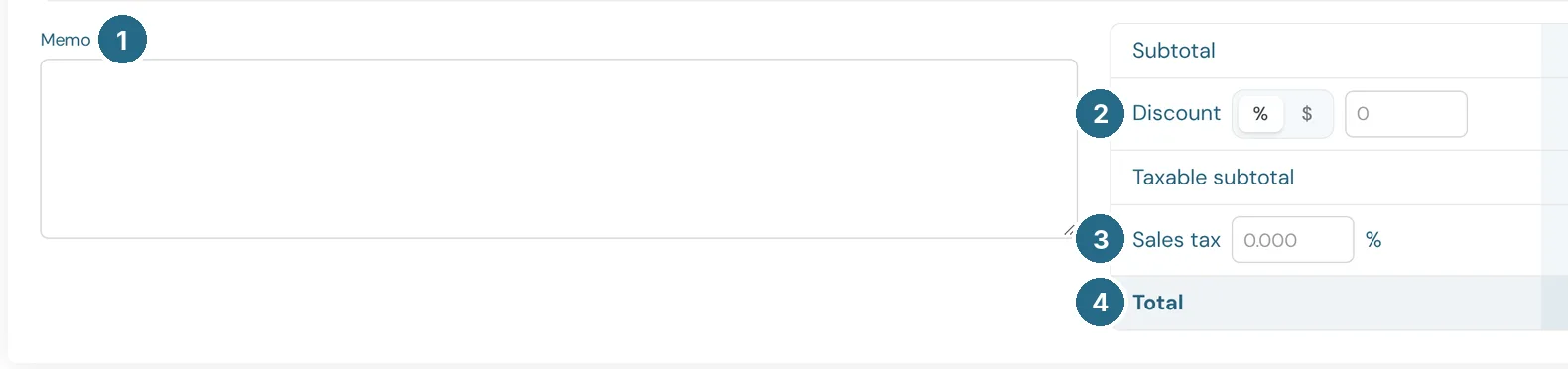
- Memo: a note for your records.
- Discount: a percentage or a dollar amount off the bill.
- Sales tax: the tax rate the vendor charged.
- Total: what you owe.
Updated in v1.0.0