
Reconcile
Check your books against each bank and card statement, line by line.
In the app: Accounting › Reconcile
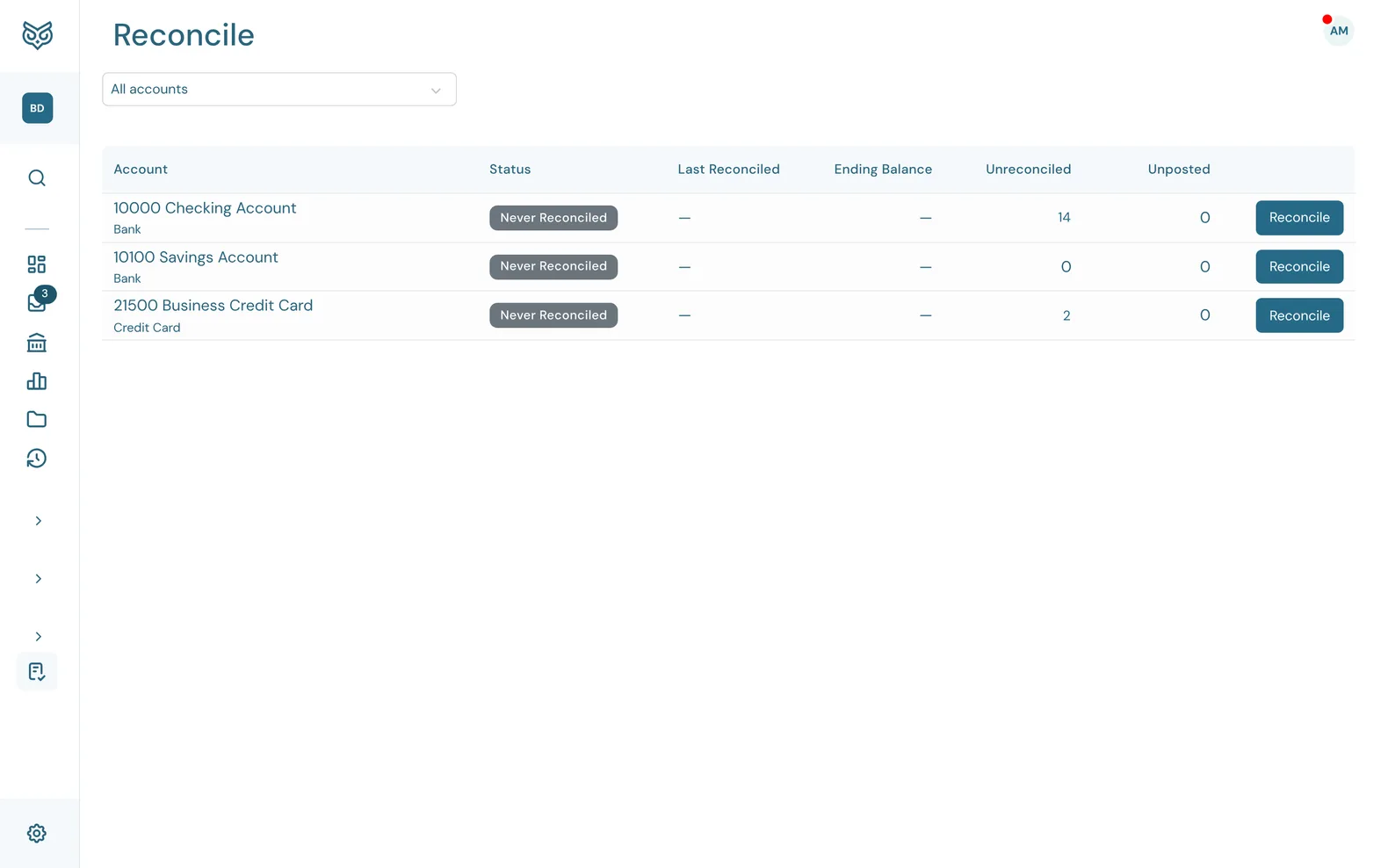
Reconciling proves that your books match the bank. Do it each month for every bank and credit card account, once the statement arrives.
All accounts
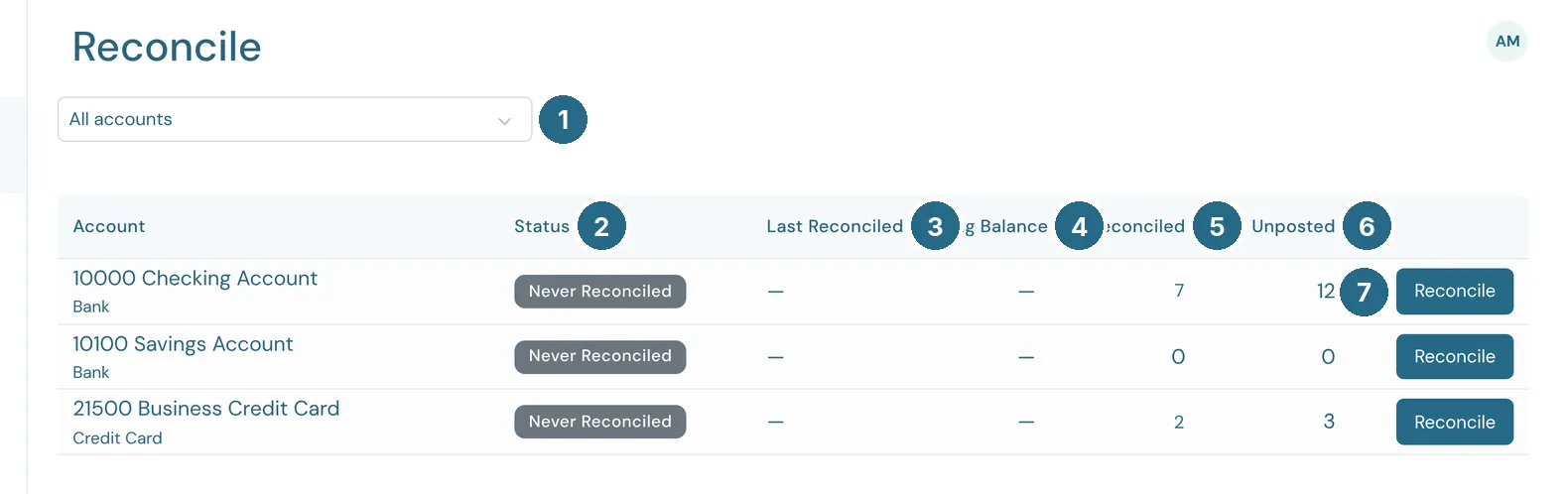
- The account picker. All accounts lists them all. Pick one to start reconciling it. Accountants can widen the list to every company they work with.
- Status: Up to date, Due, Behind, In progress or Never reconciled.
- Last Reconciled: the ending date of the last statement you reconciled.
- Ending Balance: that statement's ending balance.
- Unreconciled: posted transactions not yet ticked off against a statement.
- Unposted: bank transactions still waiting to be posted.
- Reconcile starts that account.
Starting a reconciliation
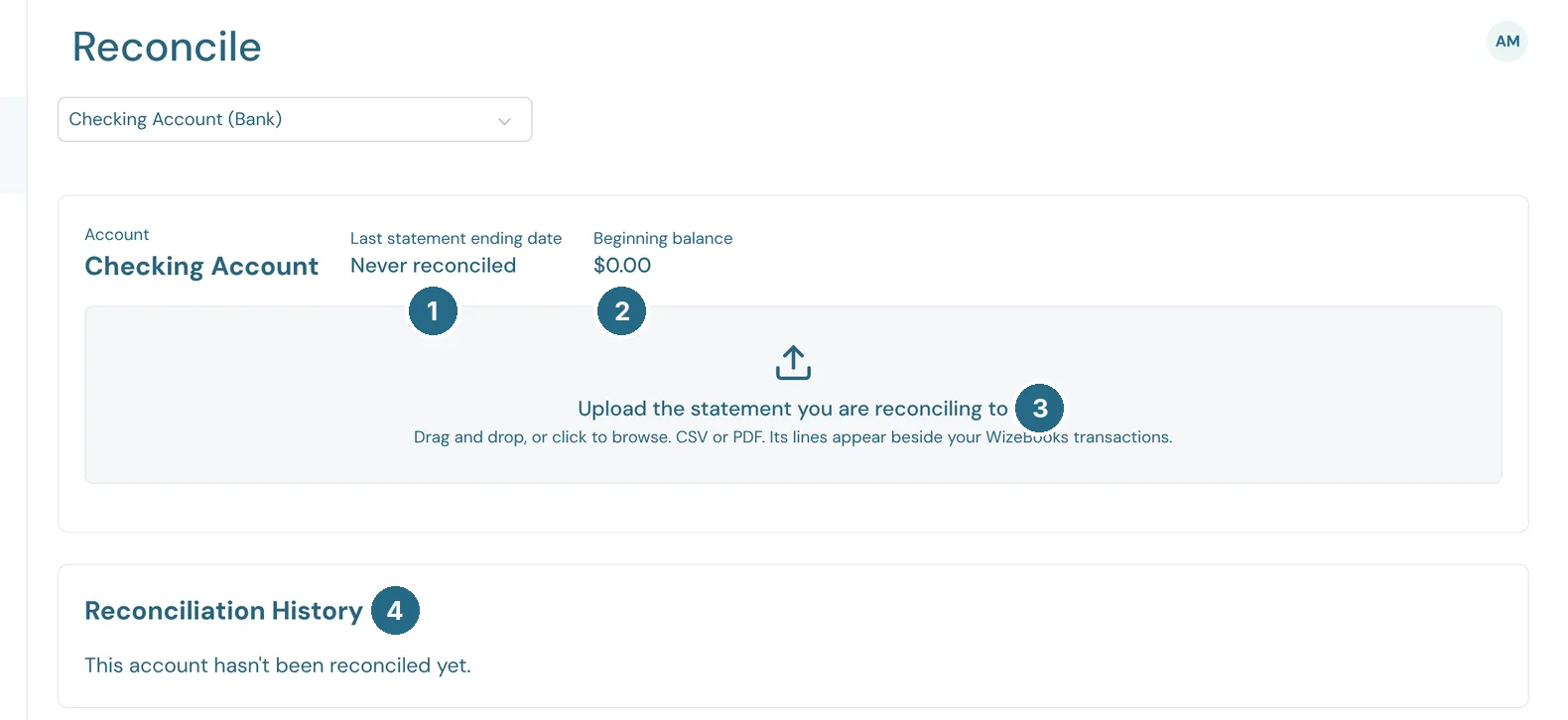
- Last statement ending date: where the last reconciliation finished, or Never reconciled.
- Beginning balance: the balance this statement should start from, which is the last one's ending balance.
- Upload the statement you're reconciling to: drag a CSV or PDF in, or click to browse. Its lines appear beside your WizeBooks transactions.
- Reconciliation History lists every finished reconciliation with View report. The most recent one also has Undo.
Once the file is in, check what WizeBooks read from it:
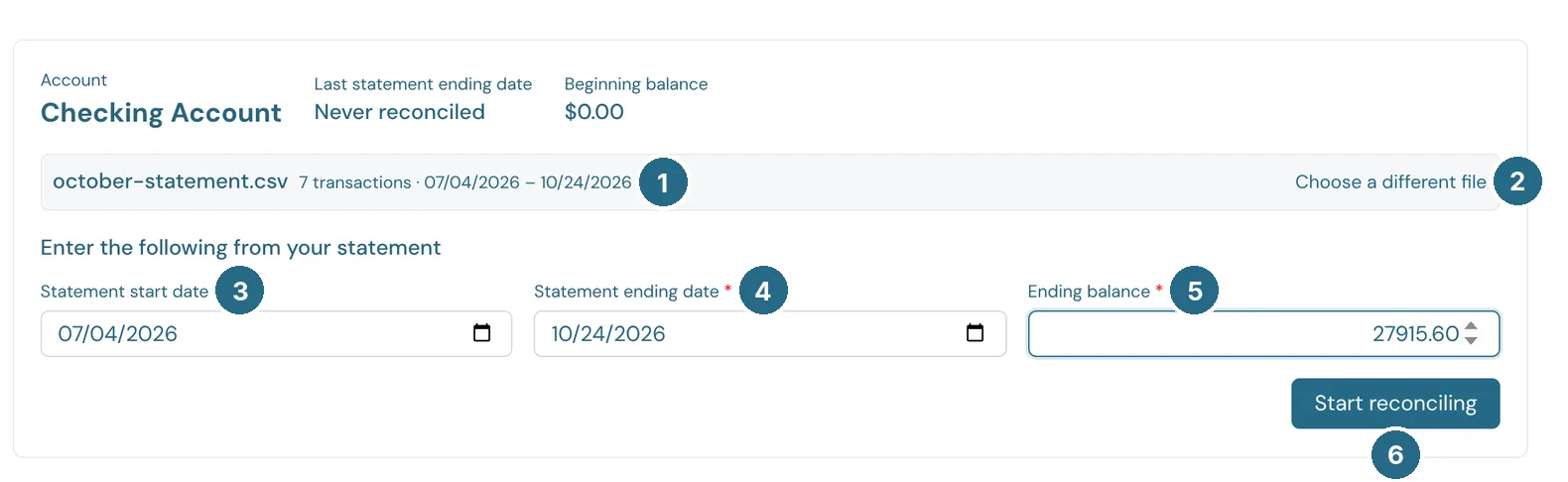
- The file, how many transactions it holds and the dates they cover.
- Choose a different file swaps it.
- Statement start date.
- Statement ending date.
- Ending balance: the closing balance printed on the statement.
- Start reconciling opens the reconciliation. If the account still has unposted transactions dated on or before the ending date, post or exclude them first.
The reconciliation bar

- ending: the statement's ending balance.
- cleared: the balance from what you've ticked. Hover over it for the breakdown.
- difference: the gap between the two. It turns green at $0.00.
- Edit info changes the statement's ending date or ending balance.
- Cancel discards this reconciliation's ticks and matches. Nothing in your books changes.
- Finish now marks every ticked transaction Reconciled. It works once the difference is $0.00.
- Full screen hides the menu and title bar to fit more rows. Esc brings them back.
When there are unticked transactions that cancel each other out, an Offsetting pairs button appears here too.
Your transactions
Your WizeBooks transactions are on the left and the statement's lines are on the right.
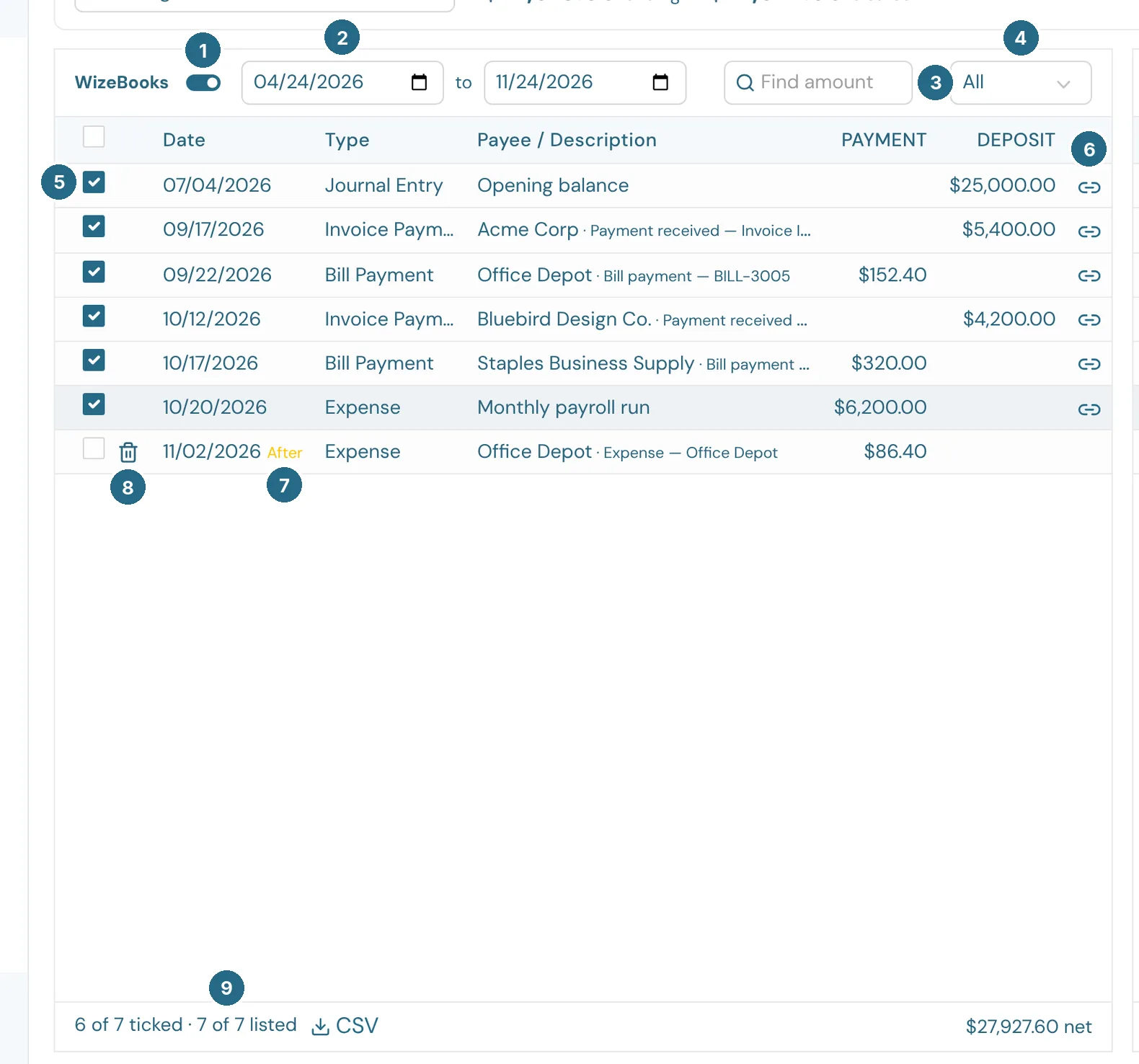
- The date range switch. On, the list shows only transactions dated From to To. Off, it shows every unreconciled transaction.
- From and to: the dates listed.
- Find amount searches for an amount on both sides at once.
- Show: All, or just Payments, or just Deposits (Charges on a credit card).
- The tick box. Tick each transaction that appears on the statement. The box in the heading ticks every transaction shown.
- The link icon: this transaction is matched to a statement line.
- After: dated after the statement ending date, so it probably belongs on next month's statement.
- The bin, next to an unticked, unmatched transaction: a duplicate? It deletes it, or moves it to Excluded if it came from your bank.
- How many are ticked and listed, with CSV to download them and the net total.
Your progress saves as you go, so you can leave and come back.
The statement side
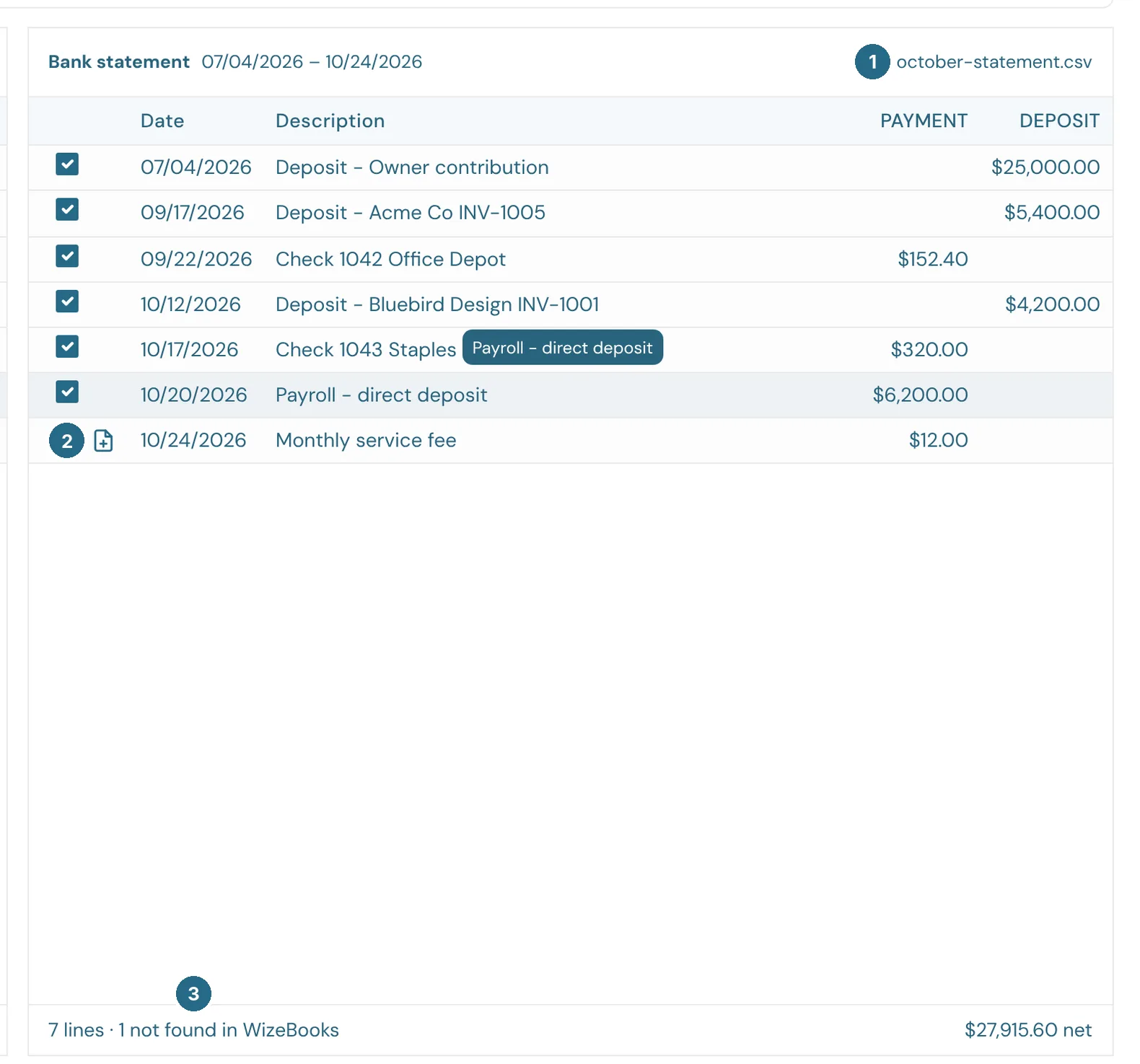
- The statement file these lines came from.
- Add expense (or Add income), on a line with no match: adds the missing transaction to your books, with its date, payee, account and memo.
- How many lines the statement has and how many are not found in WizeBooks.
Click a statement line to find its match on the left. Click a matched line to unmatch it.
Reconciled transactions are protected: you can't exclude or unpost one until the reconciliation is undone.
Updated in v1.0.0