
Accounting
Bank rules
Sort bank and card transactions automatically by their description or amount.
In the app: Accounting › Bank Rules
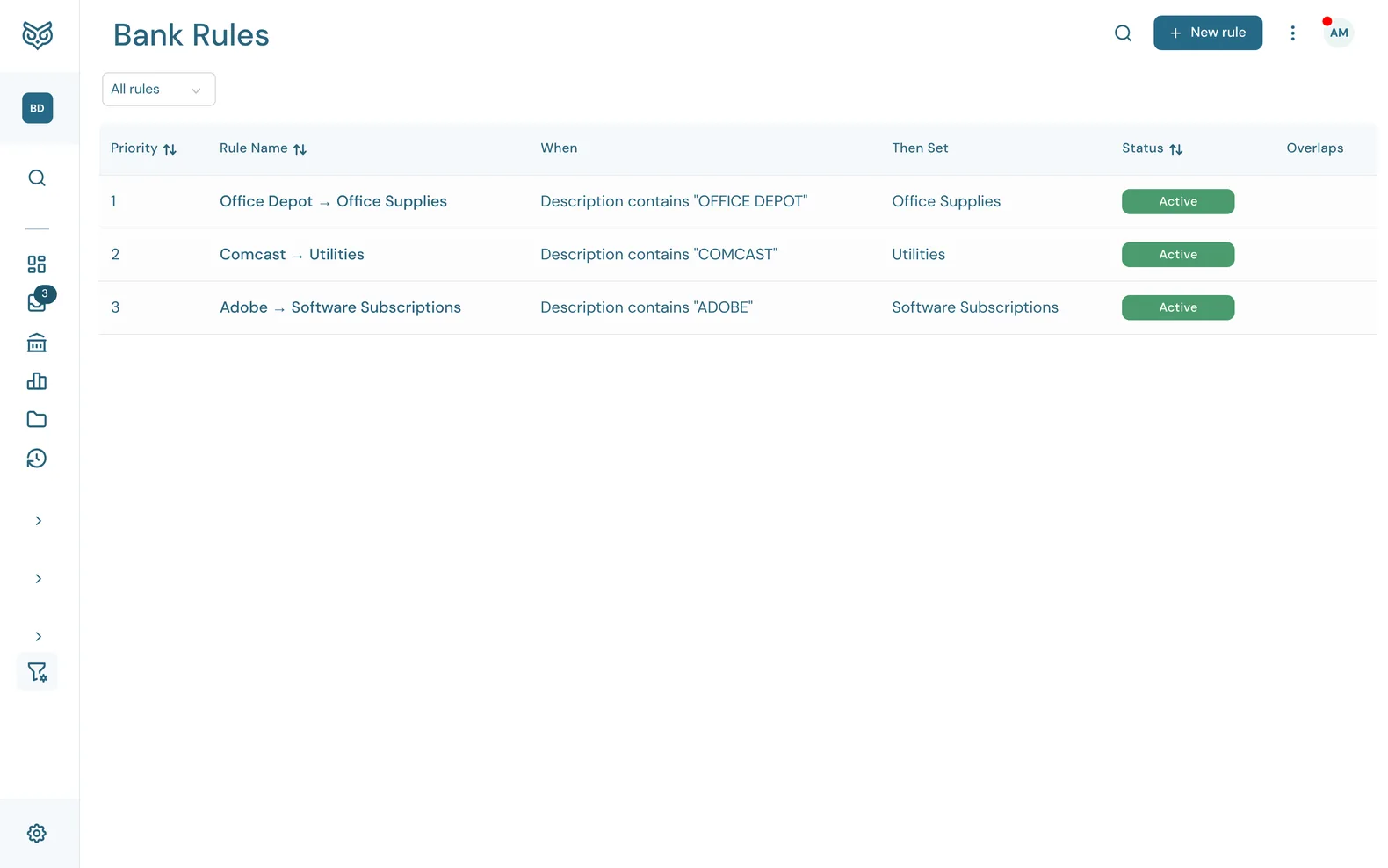
A bank rule fills in the account and payee for bank transactions that match it, so you don't categorize the same thing by hand every month. Rules run on new transactions as they come in from your bank.
The list
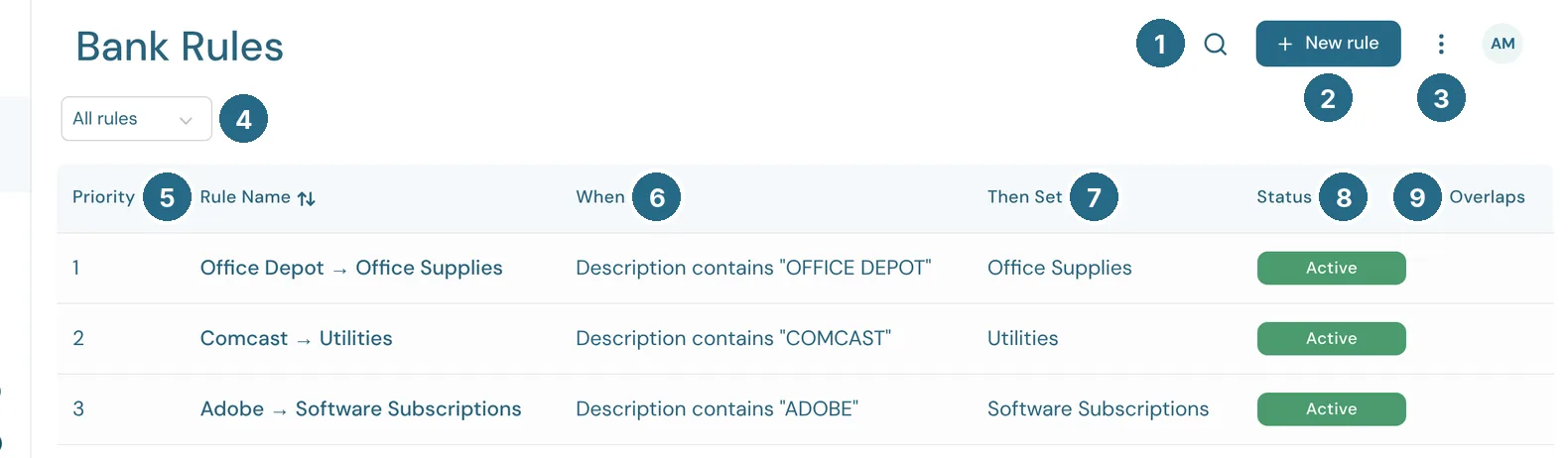
- Search finds a rule by name.
- New rule opens a blank rule (see Creating a rule). You can also make one straight from a transaction in the Accounts register.
- More options: print, export, and which columns to show.
- The filter: All rules, Active, Inactive, No payee or No category (rules that set only half of what they could), Auto-post and Overlapping.
- Priority: the order rules are checked in. Lowest number first, and the first rule that matches wins.
- When: what a transaction must match.
- Then Set: what the rule fills in.
- Status: Active or Inactive.
- Overlaps: other active rules that could match the same transactions. Worth fixing, since only the higher priority rule will ever apply.
Creating a rule
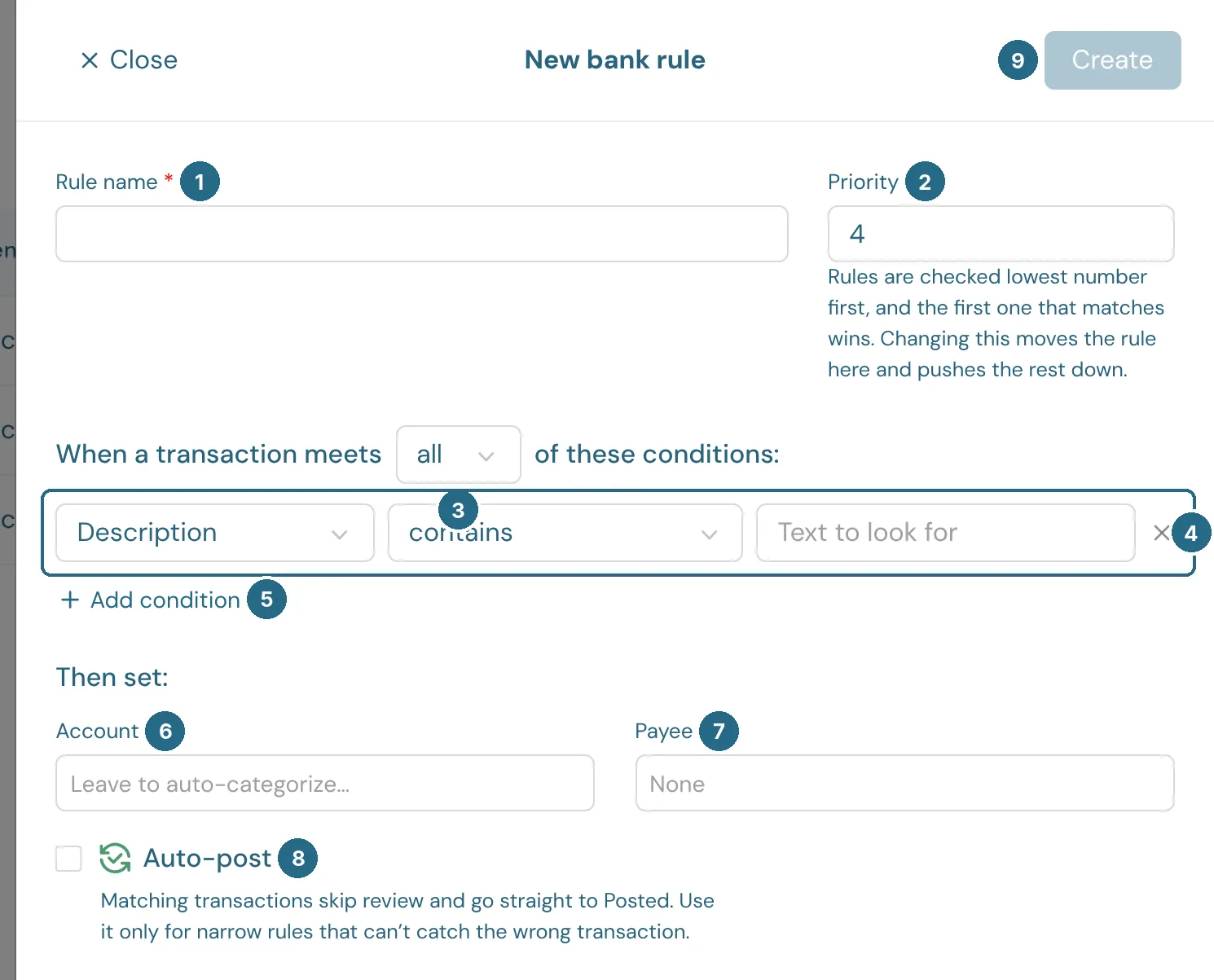
- Rule name: a name you'll recognise in the list.
- Priority: where the rule sits in the order. Changing it moves the rule there and pushes the rest down.
- all or any: whether a transaction must meet every condition or just one.
- A condition: Description or Amount, then how to compare, then the text or amount. A description contains, doesn't contain, is exactly or starts with the text, ignoring capitals. An amount equals, is greater than or is less than the figure, whether money is coming in or going out. The × removes the condition.
- Add condition adds another.
- Account: the account to post matching transactions to. Left empty, WizeBooks auto-categorizes the transaction as usual.
- Payee: the vendor or customer to set.
- Auto-post: matching transactions skip review and go straight to Posted. Use it only for narrow rules that can't catch the wrong transaction, such as one exact subscription. It needs an account, and it leaves alone anything that looks like a duplicate or is already in your books, anything dated in a closed period, and anything you've already changed by hand.
- Create saves the rule.
If you use custom fields on expenses, the rule can set those too.
Updated in v1.0.0