
Invoices
Bill customers, send invoices, and record what they pay.
In the app: Sales › Invoices
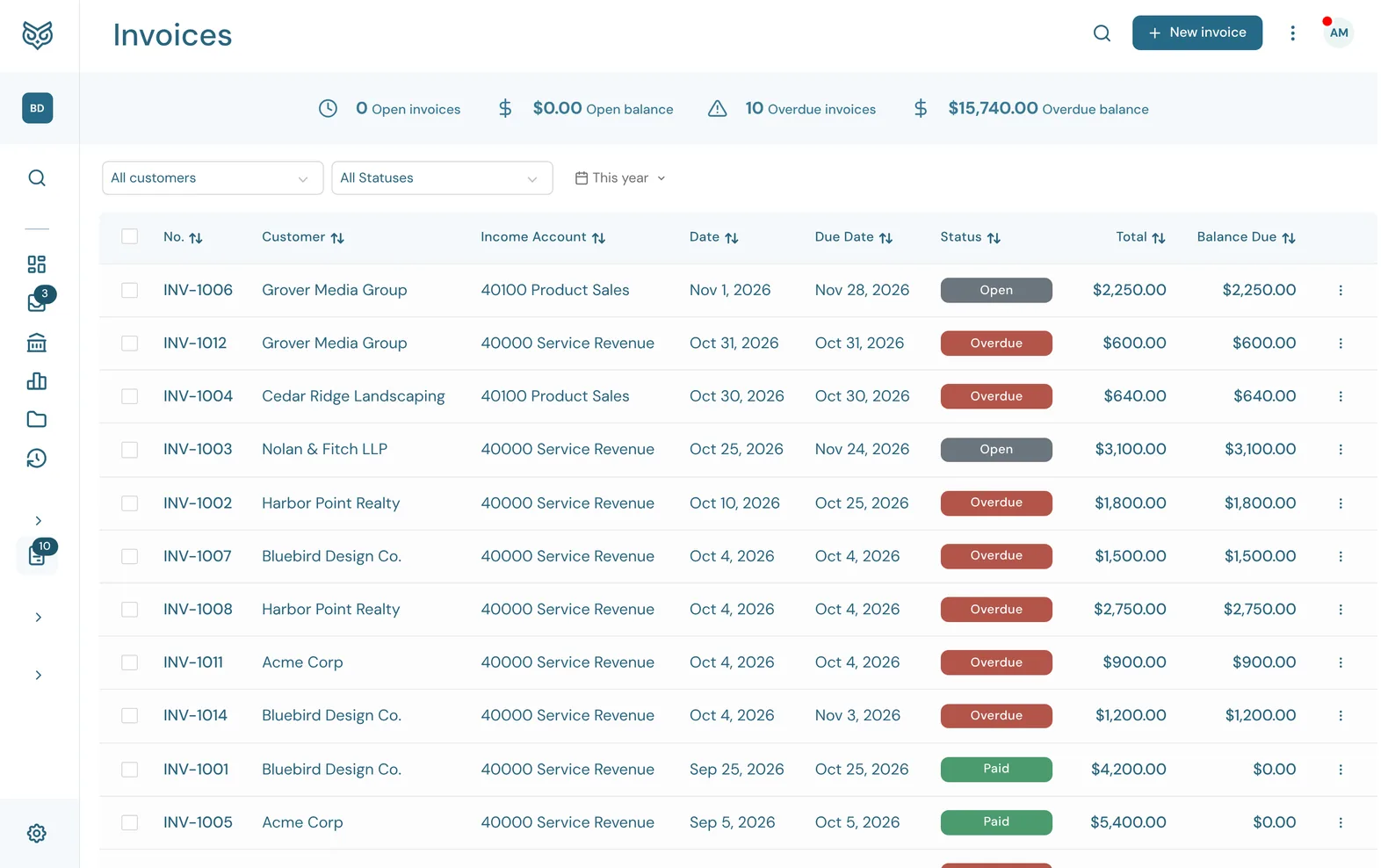
The Invoices page lists every invoice with its status and what's still owed. The number beside Invoices in the menu counts the overdue ones.
The top of the page

- Search filters the list as you type.
- New invoice opens a blank invoice (see Creating an invoice).
- More options: print or export the list, show or hide the stat band, and choose columns, page size and row height. See Working with lists.
- The stat band: Open invoices and Open balance (sent, not yet due), and Overdue invoices and Overdue balance (past their due date with money owing). Drafts aren't counted: an unsent invoice isn't owed yet.
The list
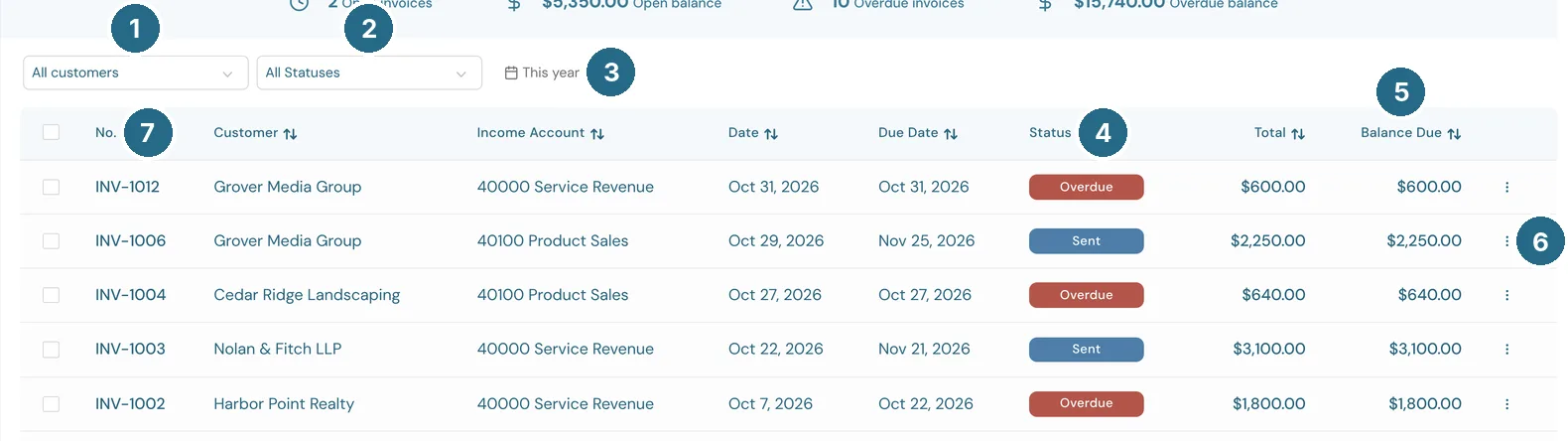
- All customers: show one customer's invoices only.
- All Statuses: show only Overdue, Draft, Sent, Paid or Void invoices.
- The date filter sets the range of invoice dates. It starts at This year.
- Status, as a coloured tag (below).
- Balance Due: what's still owed. It's the total less any payments and credits.
- The row's ⋮ menu (below).
- No.: the invoice number. Click anywhere on the row to open the invoice.
The other columns are Customer, Income Account (the account its lines post to), Date, Due Date and Total. Tick rows to use Batch actions.
Statuses
- Draft: saved but not sent. A draft doesn't touch your books until it's sent.
- Sent: sent and not yet due.
- Partial: some of it has been paid.
- Overdue: past its due date with money still owed.
- Paid: paid in full.
- Void: cancelled. A voided invoice stays on file but counts for nothing.
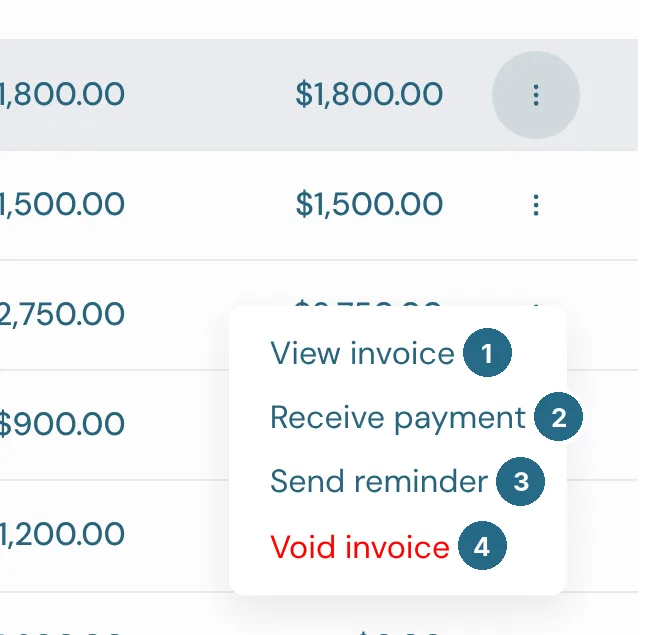
- View invoice opens it.
- Receive payment records money the customer paid (see Receiving a payment).
- Send reminder emails the customer a nudge with a link to the invoice and the balance still owed. It's there for any invoice that's been sent and isn't paid or void.
- Void invoice cancels it, after asking you to confirm.
An open invoice
Opening an invoice shows it as a form you can edit, with its actions across the top.

- Preview shows the invoice exactly as the customer will see it, including edits you haven't saved yet.
- Send reminder emails the customer a reminder, as in the row menu.
- More (below).
- Receive payment records a payment. It's shown while money is owed on a sent invoice.
- Save saves your changes. Close, at the top left, leaves without saving (it asks first if you've changed anything).

- The invoice's status.
- Balance due: what's still owed, updated as you edit the lines.
- Activity: when the invoice was created, sent, viewed by the customer and paid.
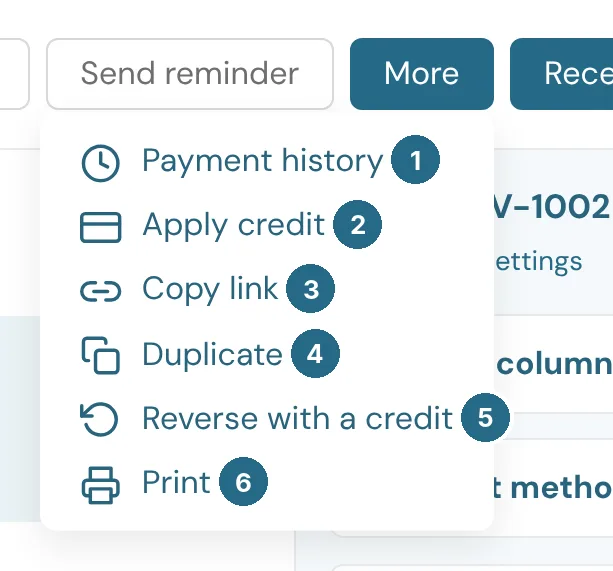
- Payment history lists the payments and credits applied to this invoice. Back to invoice returns to the form.
- Apply credit uses credit you owe this customer to pay down this invoice.
- Copy link copies the invoice's own web address, to send the customer yourself. The page lets them view the invoice.
- Duplicate starts a new invoice dated today, with the same customer and lines.
- Reverse with a credit starts a customer credit for the invoice's full amount, set to clear whatever is still owed on it. Use it instead of voiding when the invoice was already sent or paid.
- Print prints the invoice.
Duplicate and Reverse are greyed out while you have unsaved changes. Save first.
Creating an invoice
New invoice opens a blank invoice.
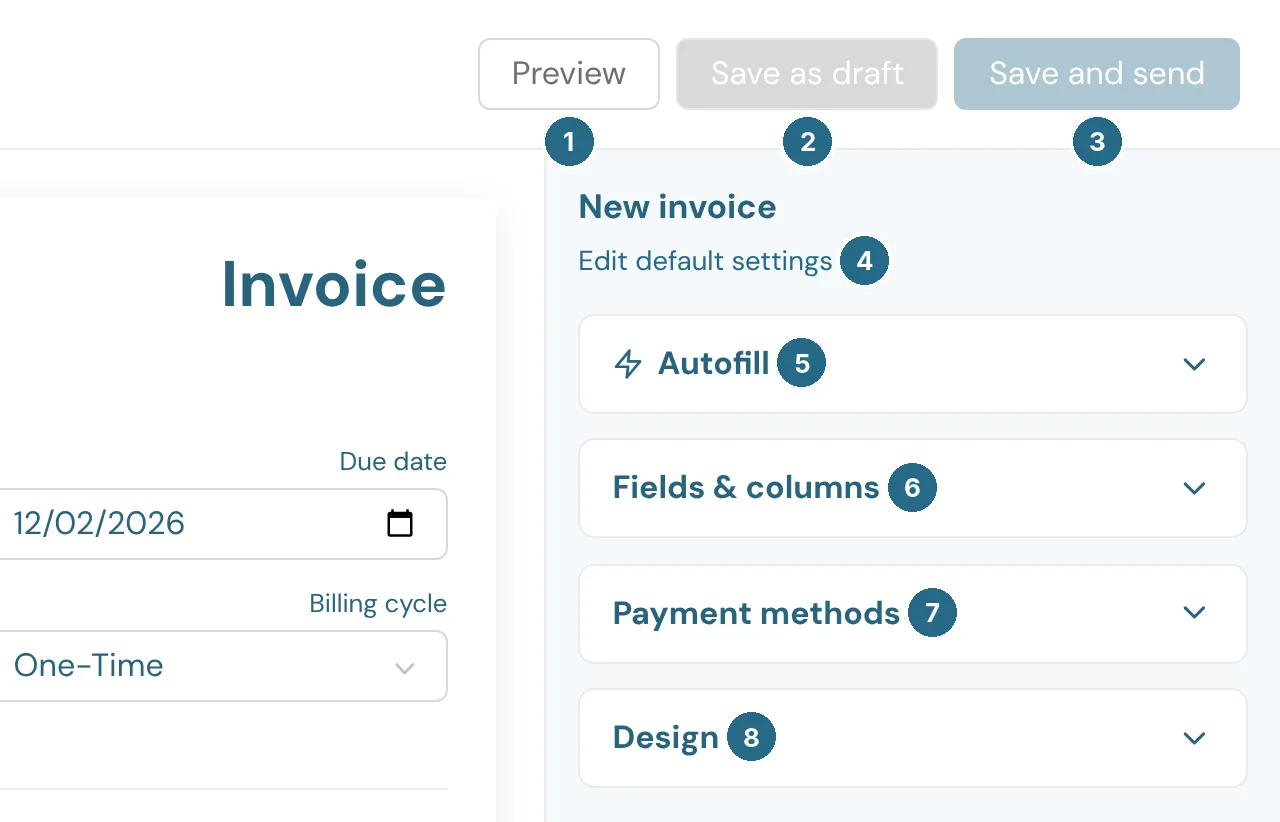
- Preview shows the invoice as the customer will see it.
- Save as draft keeps it without sending.
- Save and send saves it and emails it to the customer.
- Edit default settings opens Sales settings, where the defaults for every new invoice live.
- Autofill fills the invoice in from a file, a photo or pasted text, such as a quote you wrote elsewhere. Check what it filled in, then save. Undo puts the form back.
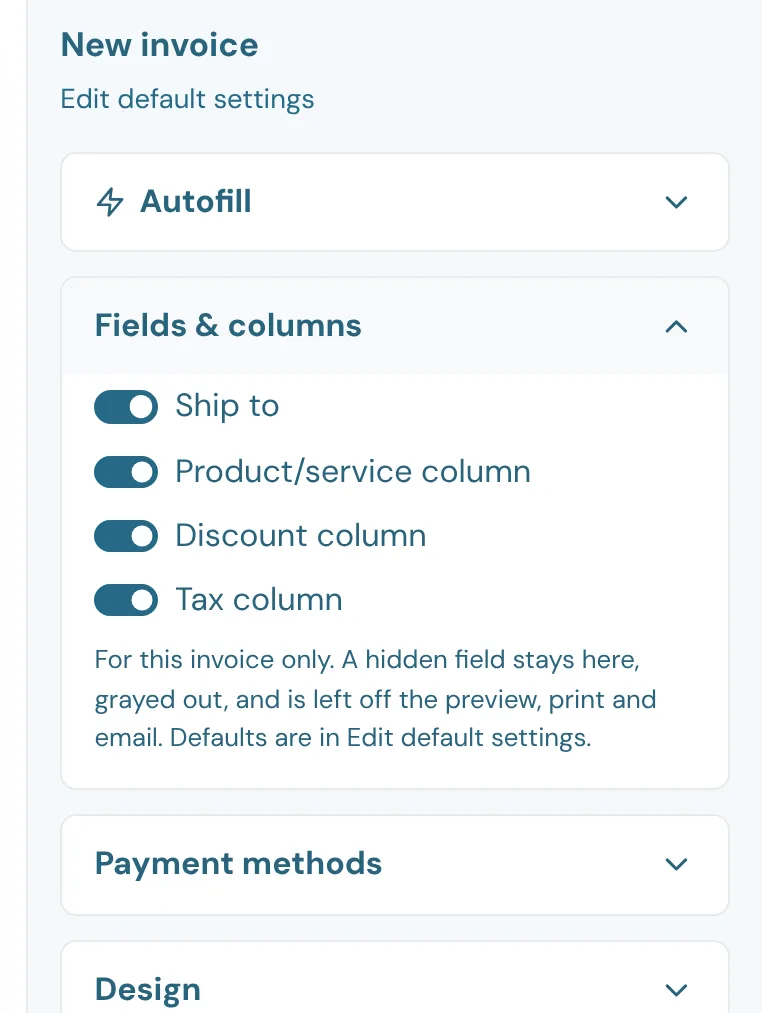
- Fields & columns shows or hides Ship to, the Product/service column, the Discount column and the Tax column on this invoice only. A hidden field stays on the form, greyed out, and is left off the preview, print and email.
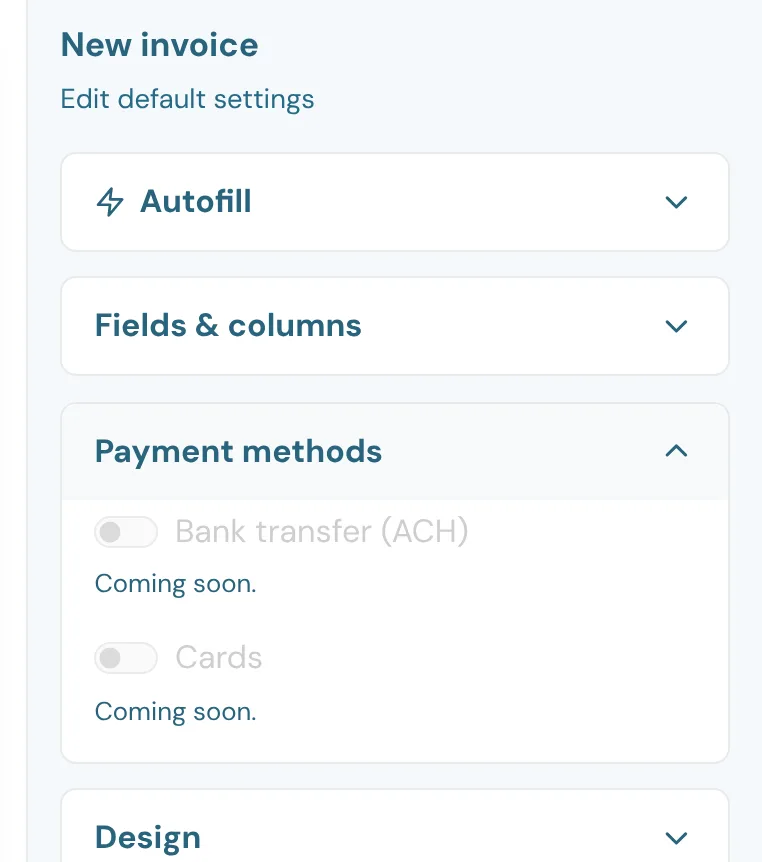
- Payment methods: paying online, by Bank transfer (ACH) or by Cards, is coming soon.
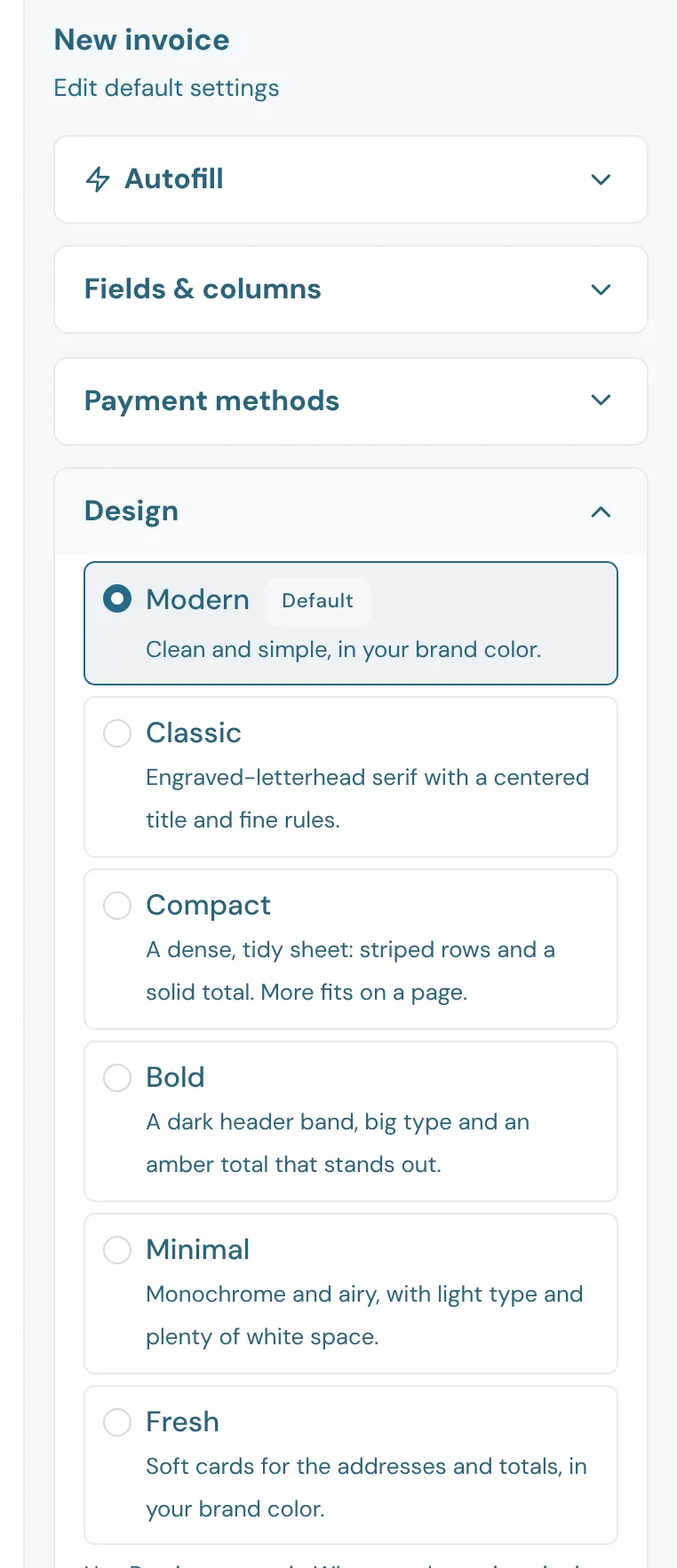
- Design picks the invoice's look: Modern (the default), Classic, Compact, Bold, Minimal or Fresh.
The heading
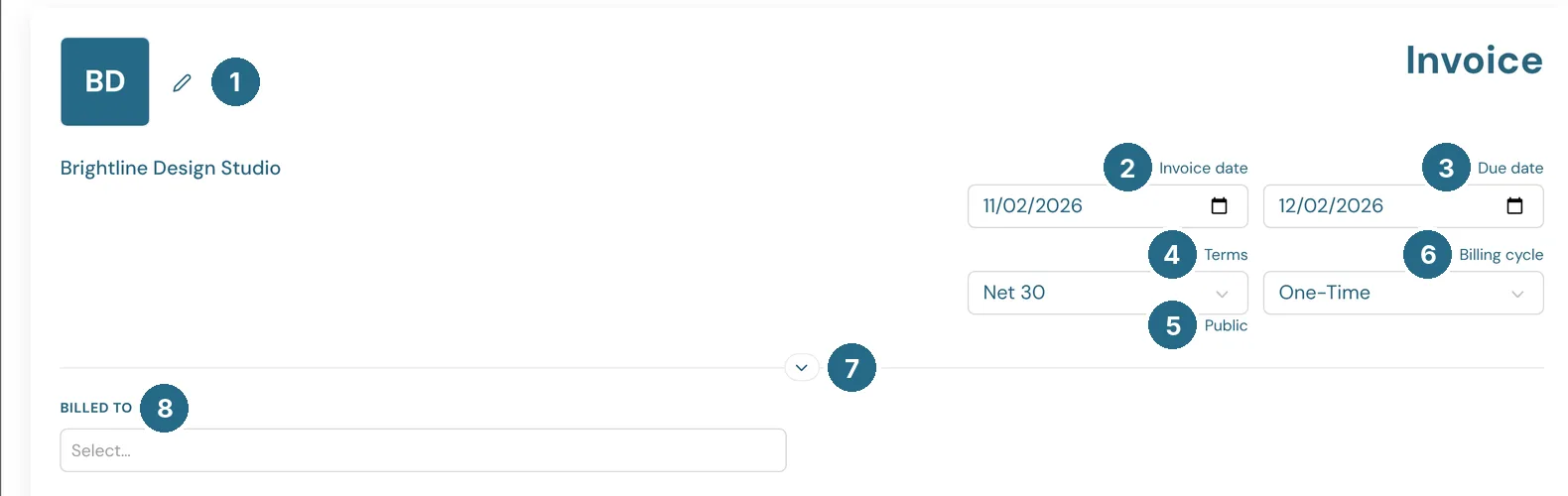
- The pencil beside your logo edits your company's name, logo and address, as printed on every invoice.
- Invoice date: today, unless you change it.
- Due date: worked out from the terms. Change it and the terms follow.
- Terms: Due on receipt, Net 15, Net 30 or Net 60. Picking a customer brings in their own terms, if they have some.
- Public or Private says whether the terms are printed on the customer's copy. Set it in Custom fields.
- Billing cycle: One-Time for a single invoice, or Monthly, Quarterly or Yearly to turn it into a subscription.
- The arrow shows more fields: the billing and shipping addresses and any custom fields.
- Billed to: the customer. Type to find them, or add a new one from the list.
The lines
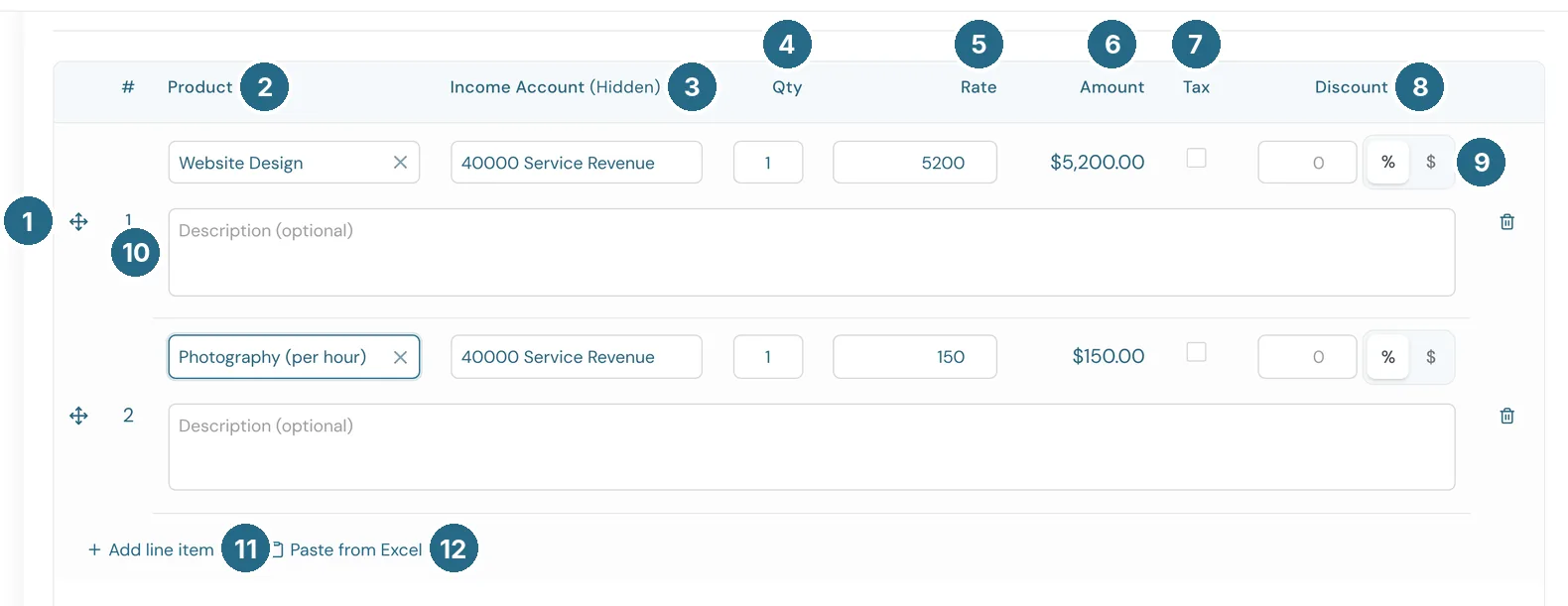
- The handle drags a line up or down.
- Product: pick a product or service and its description, rate and income account fill in. It's optional: you can just type a description.
- Income Account: where the line's income is posted. "(Hidden)" means the customer doesn't see this column.
- Qty: how many.
- Rate: the price of one.
- Amount: quantity times rate.
- Tax: tick lines that sales tax applies to.
- Discount: a discount on this line.
- % or $ sets whether the discount is a percentage or an amount.
- Description: what the customer reads for this line.
- Add line item adds a line.
- Paste from Excel pastes many lines at once from a spreadsheet.
The bin at the right of a line deletes it.
The totals
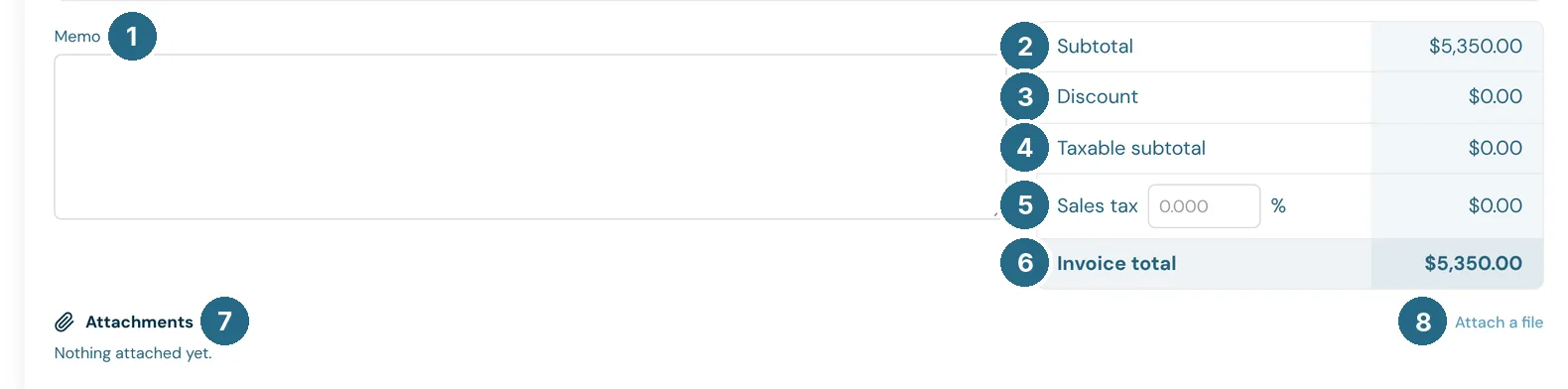
- Memo: a note printed on the invoice.
- Subtotal: all the lines added up.
- Discount: the line discounts added up.
- Taxable subtotal: the lines ticked for tax.
- Sales tax: type the rate as a percentage, and the tax is worked out on the taxable subtotal.
- Invoice total: what the customer owes.
- Attachments: files kept with the invoice, such as a signed quote.
- Attach a file adds one. Files are uploaded when you save.
Receiving a payment
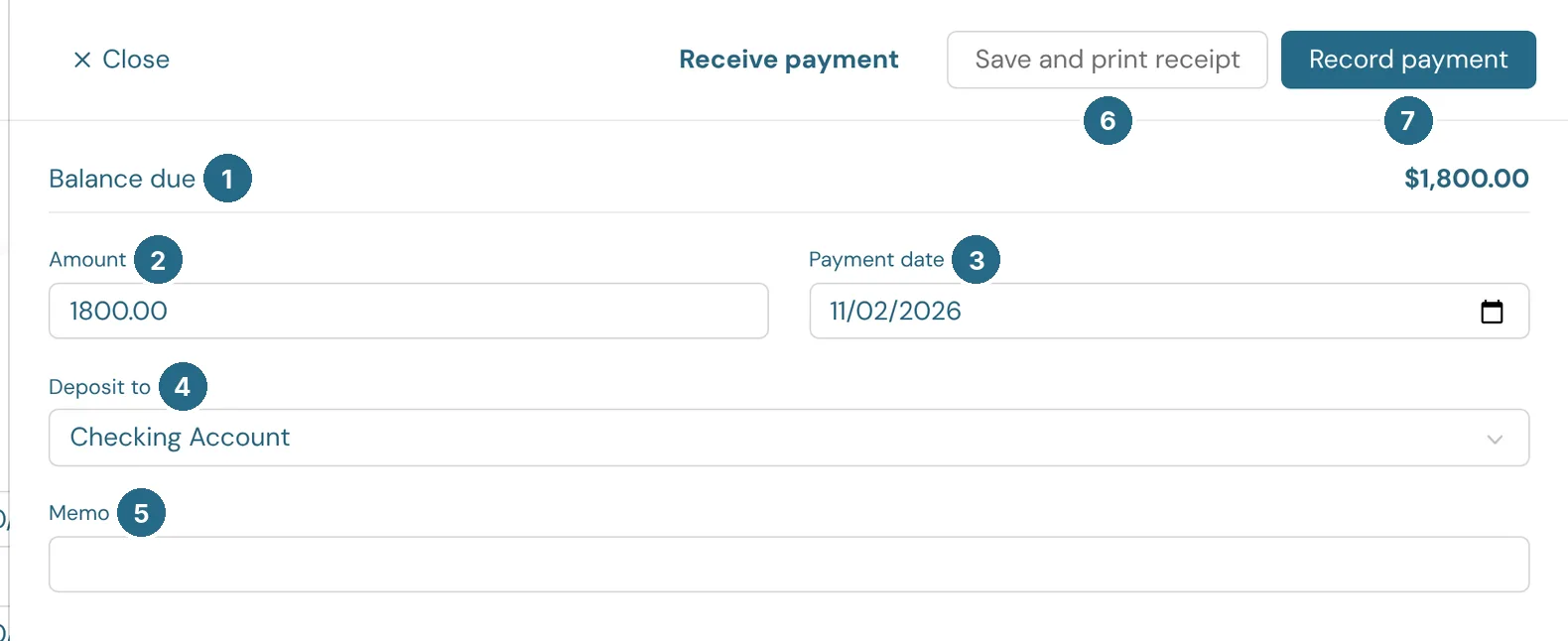
- Balance due: what's owed on the invoice.
- Amount: what they paid. It starts at the full balance. Enter less for a part payment.
- Payment date: when you received it.
- Deposit to: the bank account it went into. If your company uses Undeposited Funds, that's offered too, for payments you'll bank together later.
- Memo: a note, such as a check number.
- Save and print receipt records it and opens a receipt to print for the customer.
- Record payment records it.
If a matching deposit from your bank feed is already categorized, WizeBooks offers to use it instead, so the payment isn't counted twice.
Updated in v1.0.0