
Chart of accounts
Every account in your books, grouped by type, with its balance.
In the app: Accounting › Chart of Accounts
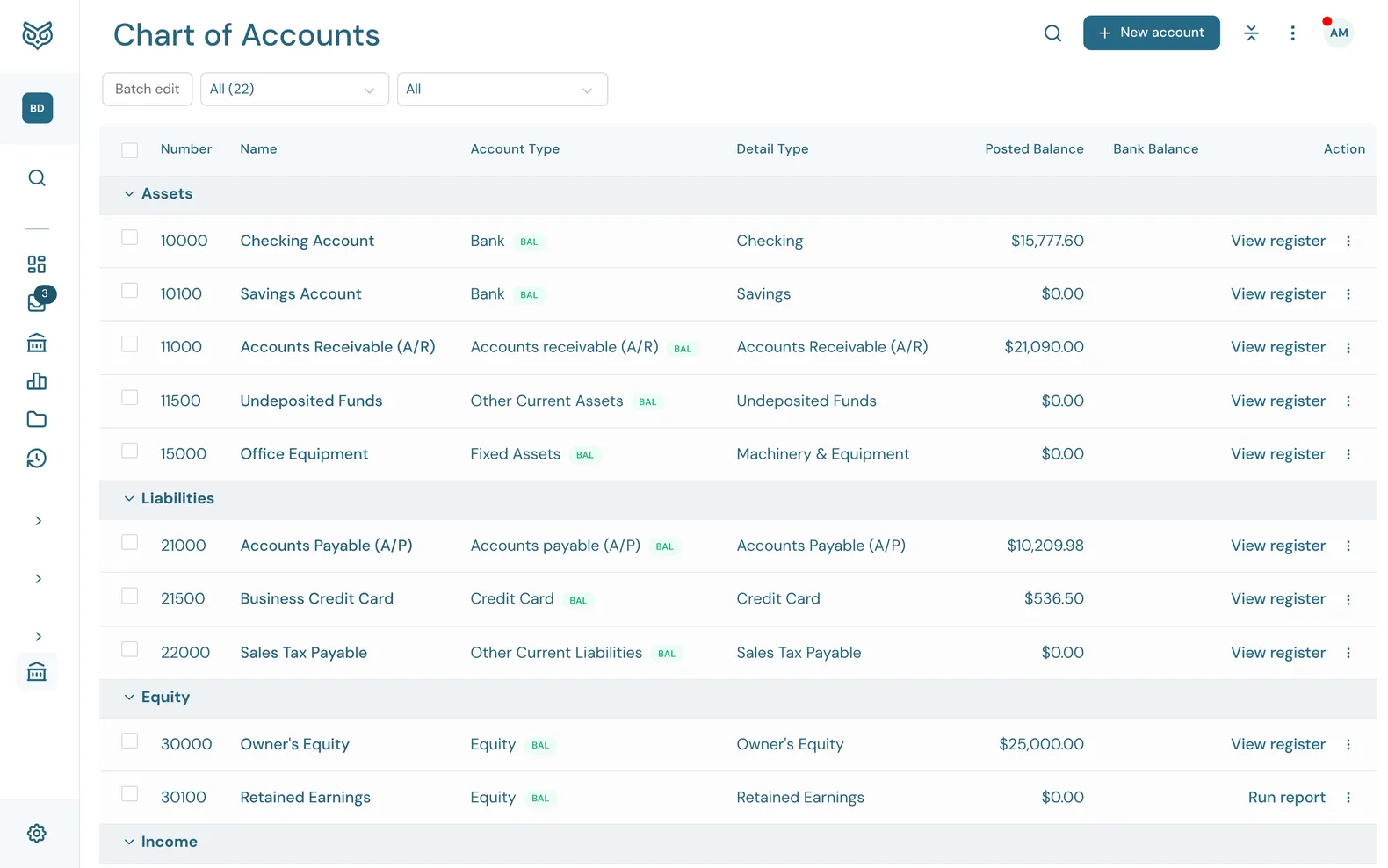
The chart of accounts is the list of buckets your money is sorted into: bank and card accounts, what customers owe you, what you owe, equity, income and expenses. New companies start with a simple set of accounts that suits most small businesses, and you can add, rename or hide any of them.
The top of the page

- Batch edit turns the list into a form, so you can rename or renumber many accounts at once. Save changes saves them all.
- The account type filter: All, or one type such as Bank, Credit Card, Income or Expenses. The number shows how many accounts are listed.
- The second filter narrows it further: Accounts w/ Unposted or Accounts w/ Excluded transactions, Only Locked Accounts, Only Unlocked Accounts, Only Parent Accounts, Only Subaccounts or Only Inactive Accounts.
- Search finds an account by name or number.
- New account adds one (see Adding an account).
- Collapse all folds or opens every section at once.
- More options: Print, Export to Excel, Export to CSV, Import accounts, Download accounts (CSV), Show inactive, and which columns to show and how tall rows are.
The list
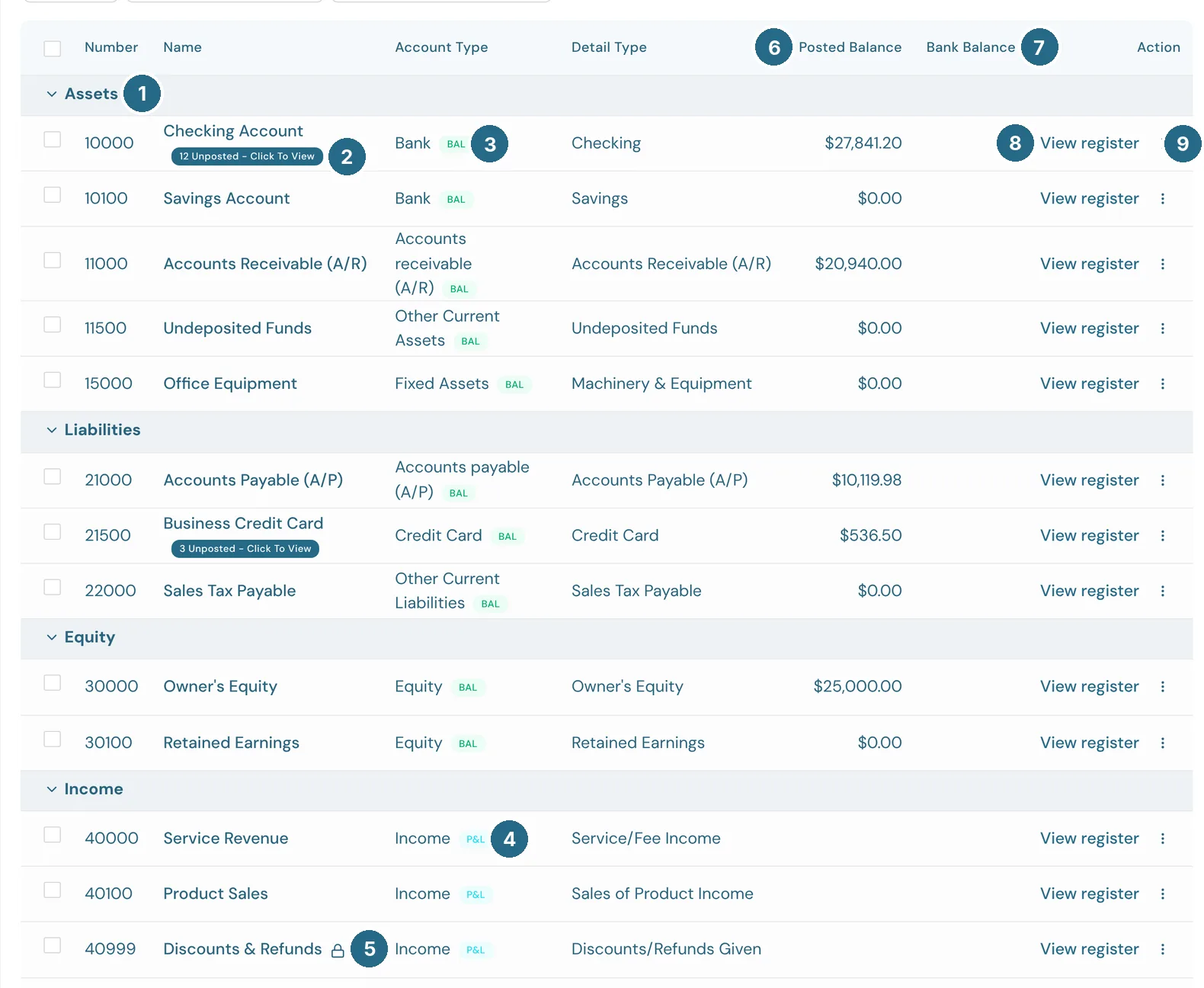
- A section heading: Assets, Liabilities, Equity, Income, Cost of Goods Sold and Expenses. Click it to fold the section.
- Unposted – click to view: this account has bank transactions waiting to be posted. The badge opens its register showing just those.
- BAL marks a balance sheet account.
- P&L marks a profit and loss account.
- The lock shows a locked account (see the row menu below).
- Posted Balance: the account's balance in your books. For Retained Earnings it's every earlier fiscal year's profit plus anything posted to it (see Retained Earnings and Net Income).
- Bank Balance: what the bank last reported, for a connected account.
- View register opens the account's register, every transaction that touched it, in a new tab. On Retained Earnings this reads Run report and opens the Balance Sheet.
- The row's ⋮ menu (below).
Number, Name, Account Type and Detail Type fill in the rest.
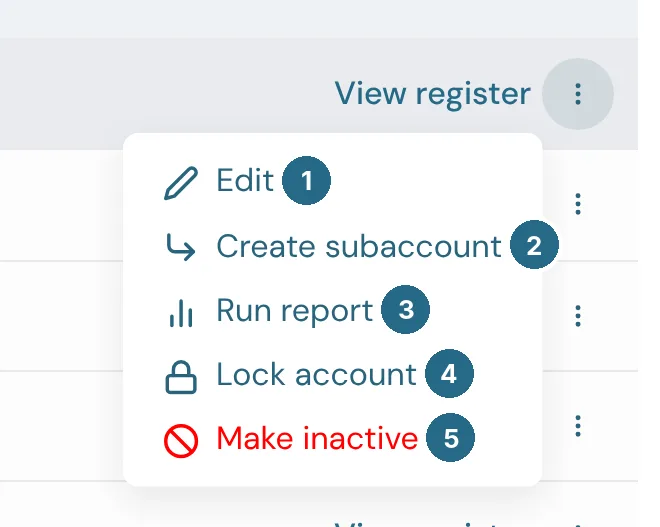
- Edit opens the account's details.
- Create subaccount adds an account filed under this one, of the same type.
- Run report opens the General Ledger report for just this account, in a new tab.
- Lock account stops the account being edited, made inactive or picked by hand in the register, Reclassify or a reconciliation until it's unlocked. Invoices, bills and payments that WizeBooks posts still reach it. On a locked account this reads Unlock account.
- Make inactive hides the account from lists and pickers. Its history stays.
Adding an account
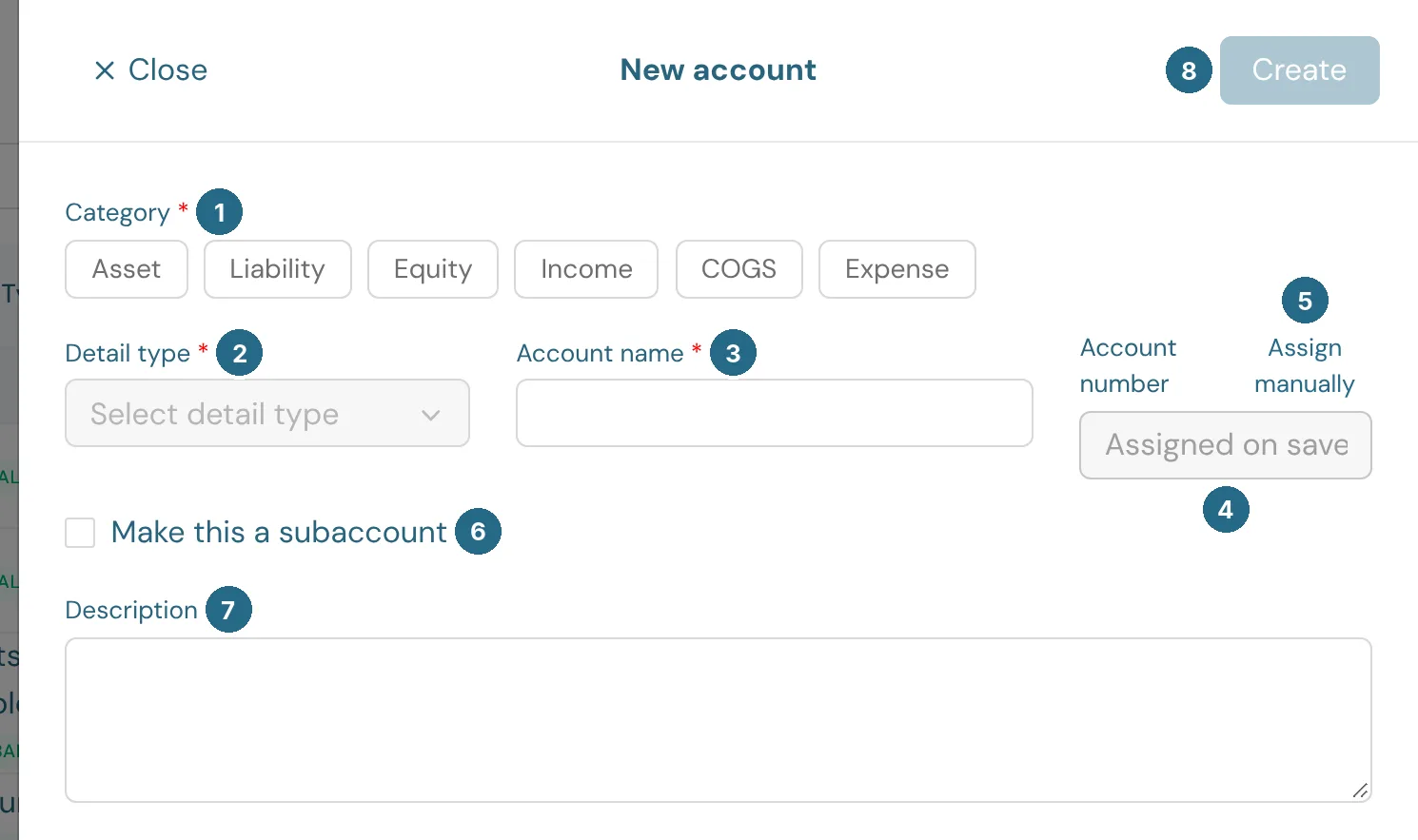
- Category: Asset, Liability, Equity, Income, COGS or Expense.
- Detail type: the kind of account within that category, such as Checking, Credit Card or Rent or Lease. It decides where the account appears on reports.
- Account name: the name you'll see everywhere.
- Account number: given the next free number in its range when you save.
- Assign manually lets you type your own number instead.
- Make this a subaccount files it under a parent account of the same type.
- Description: a note on what belongs in the account.
- Create saves it.
Bank and credit card accounts also take the last four digits of the real account, to match statements against.
Expense, COGS and other expense accounts have a 1099 box. Pick the box that payments to 1099 vendors on this account belong in, such as 1099-NEC Box 1 for Contract Labor. See 1099s.
Updated in v1.0.0