
Products
The products and services you sell, ready to pick on invoices and bills.
In the app: Sales › Products
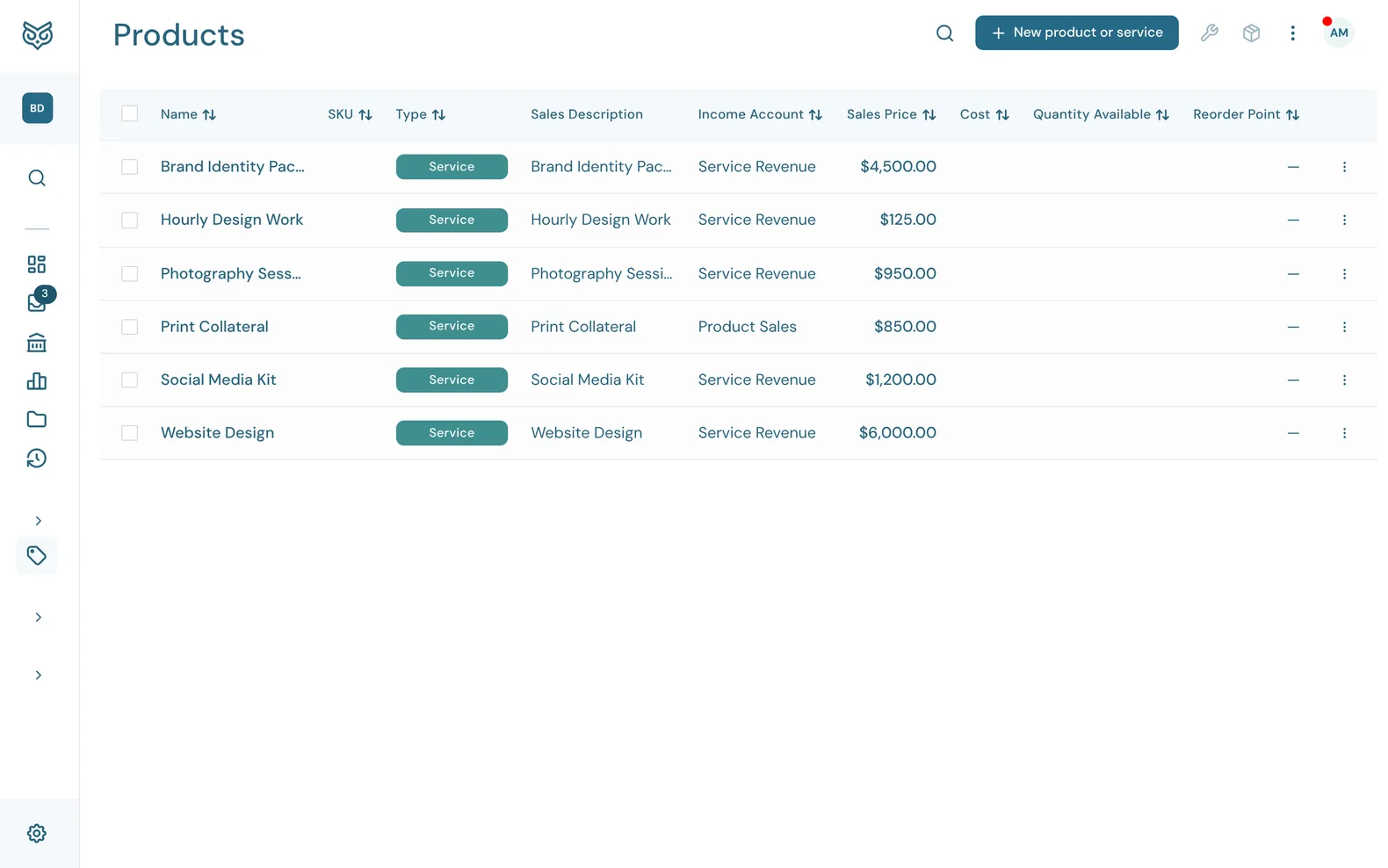
Products and services fill in the description, price and accounts on your forms. Pick one on an invoice line and the rest of the line fills itself in.
The top of the page
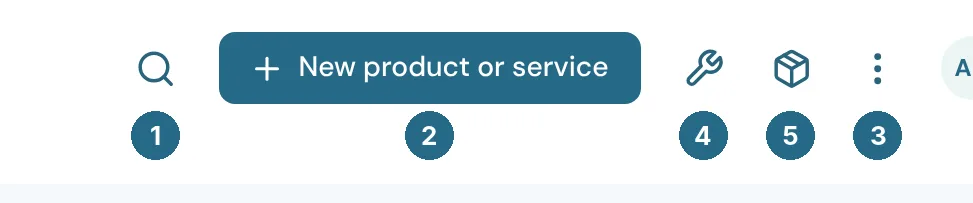
- Search filters the list as you type.
- New product or service opens a blank product (see Adding a product). Its menu also has Import products and services (see Importing products).
- More options: print or export the list, and choose columns, page size and row height.
- Parts (wrench) opens the list of parts that go into assemblies.
- Bundles (box) opens the list of products sold together as one.
Parts and bundles are on the Enterprise plan. On other plans the buttons read (Enterprise) and show what the plan adds.
The list
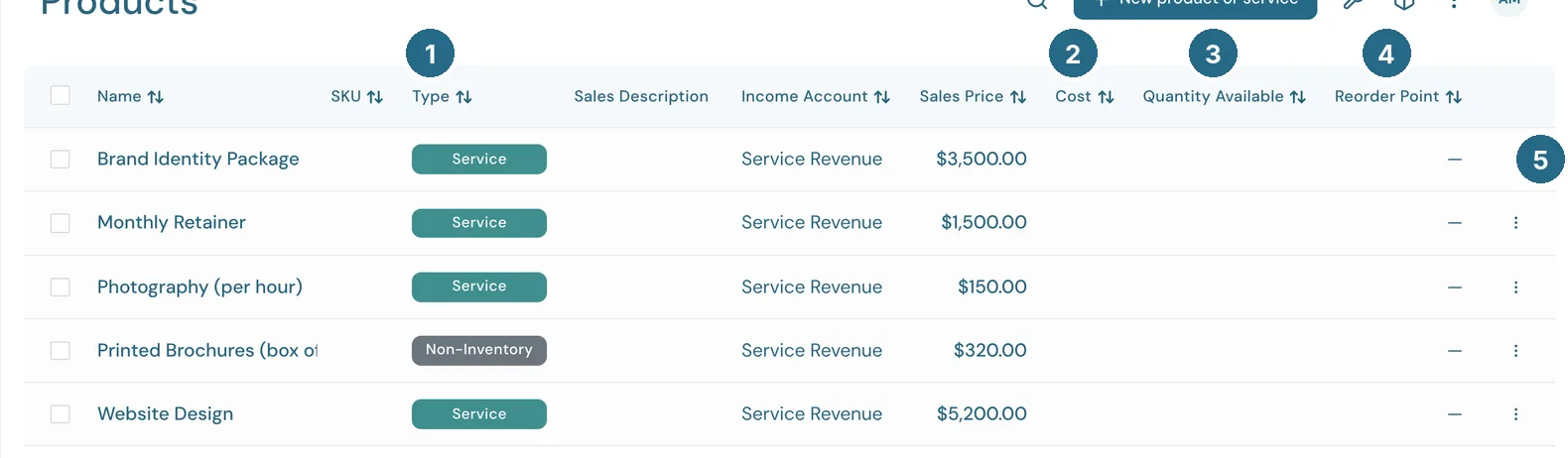
- Type: Service, Non-inventory, Inventory or Bundle.
- Cost: what one unit costs you. For inventory this is the average cost of what's on hand.
- Quantity Available: inventory on hand and not yet promised on open invoices. Blank for services and non-inventory items.
- Reorder Point: WizeBooks emails you when the quantity available drops to it.
- The row's ⋮ menu (below).
Name, SKU, Sales Description, Income Account and Sales Price fill in the rest. Click a row to open the product.
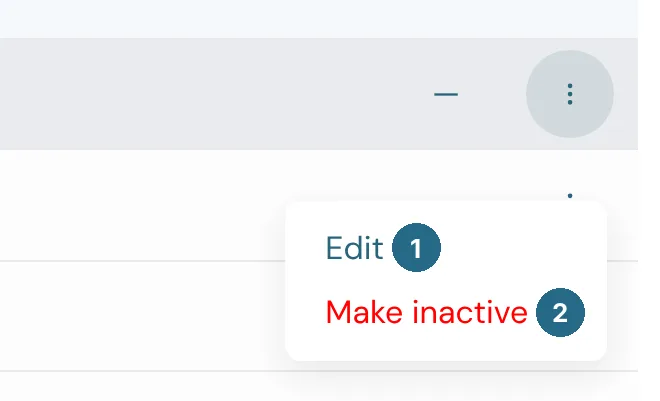
- Edit opens the product.
- Make inactive hides it from the pickers on new forms. Past invoices and bills that use it don't change.
On an assembly the menu also has Build, which turns parts on hand into finished units.
Adding a product
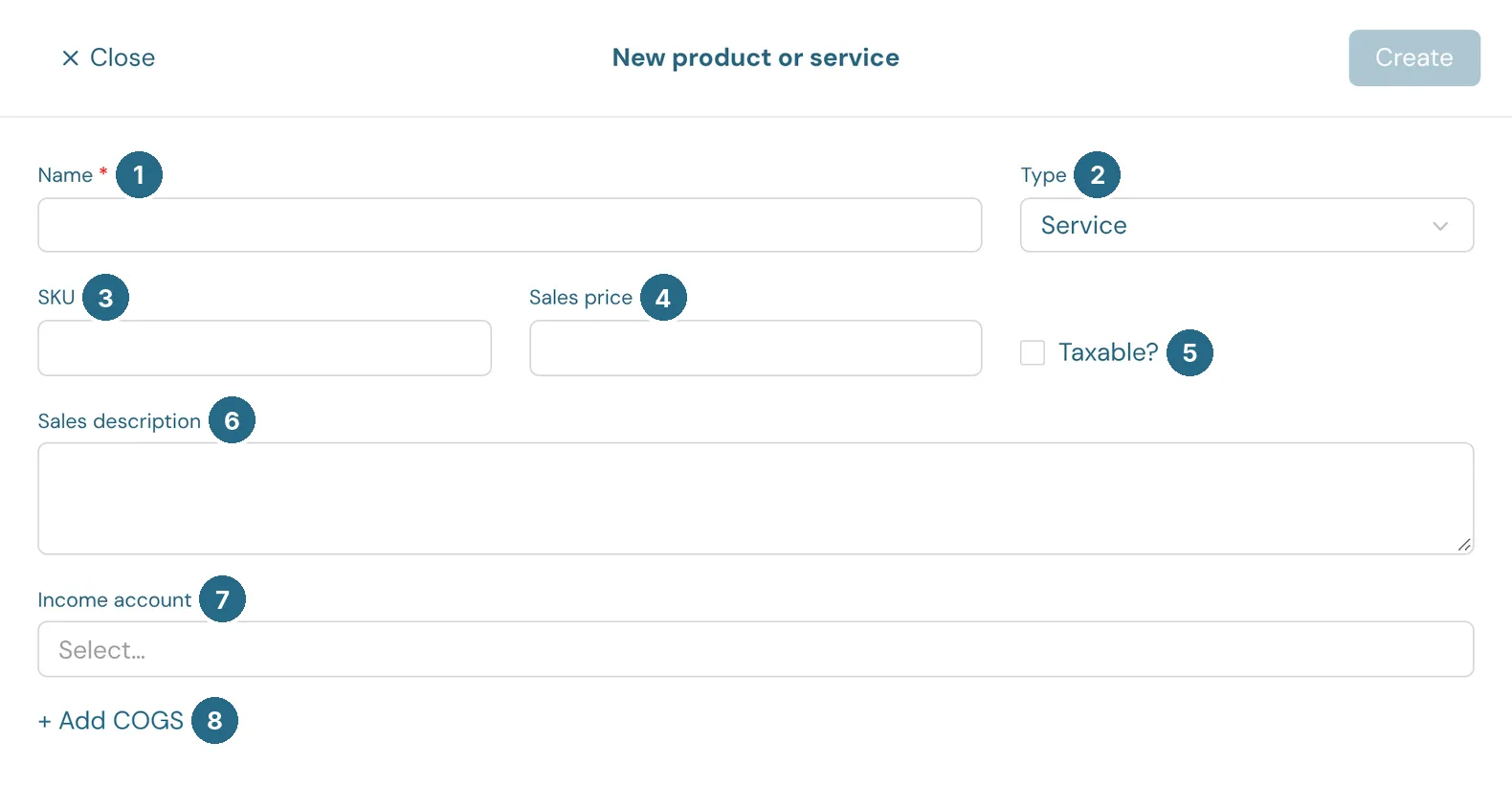
- Name: what shows in the product picker. Required.
- Type: Service for work you do, Non-inventory for things you sell but don't count, Inventory for things you stock and count, and Bundle for products sold together. Inventory is on the Pro and Enterprise plans, bundles on Enterprise.
- SKU: your own product code. Optional.
- Sales price: the rate an invoice line starts with. You can change it on any line.
- Taxable?: whether sales tax applies when it's sold.
- Sales description: the description an invoice line starts with.
- Income account: where sales of it post.
- + Add COGS adds a cost and a Cost of Goods Sold account, so each sale also posts what the item cost you. Only Cost of Goods Sold accounts are offered.
Inventory
Choosing Inventory adds the stock fields.
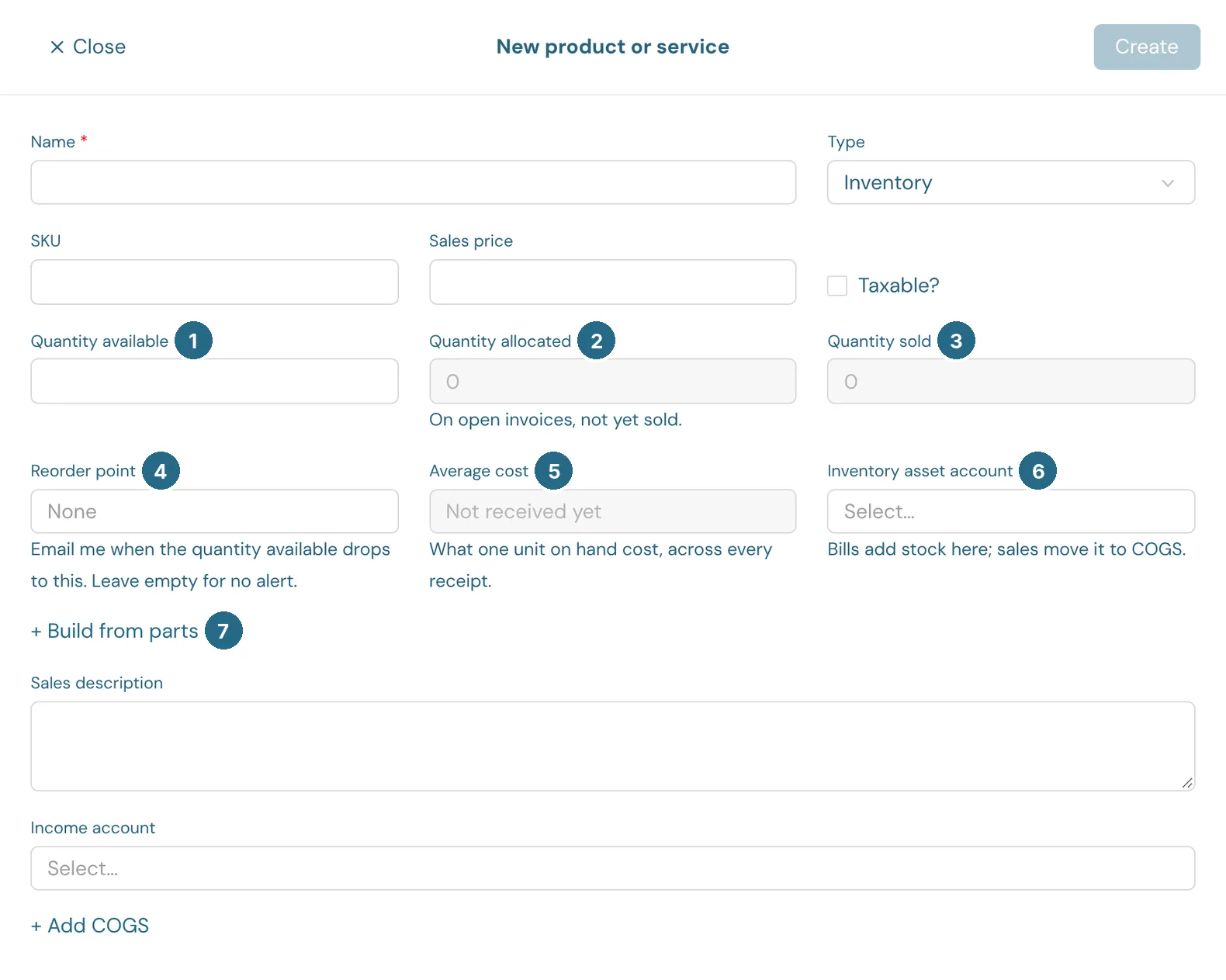
- Quantity available: how many you have on hand to sell.
- Quantity allocated: units on open invoices, not yet sold.
- Quantity sold: units sold so far.
- Reorder point: WizeBooks emails you when the quantity available drops to this. Leave it empty for no alert.
- Average cost: what one unit on hand cost, across every receipt.
- Inventory asset account: bills add stock here, and sales move its cost to Cost of Goods Sold.
- + Build from parts (Enterprise) makes this product an assembly: list the parts and how many of each go into one unit.
When you sell an inventory item, WizeBooks posts its cost from the inventory asset account to Cost of Goods Sold, so your profit for the period reflects what the goods cost you.
Importing products
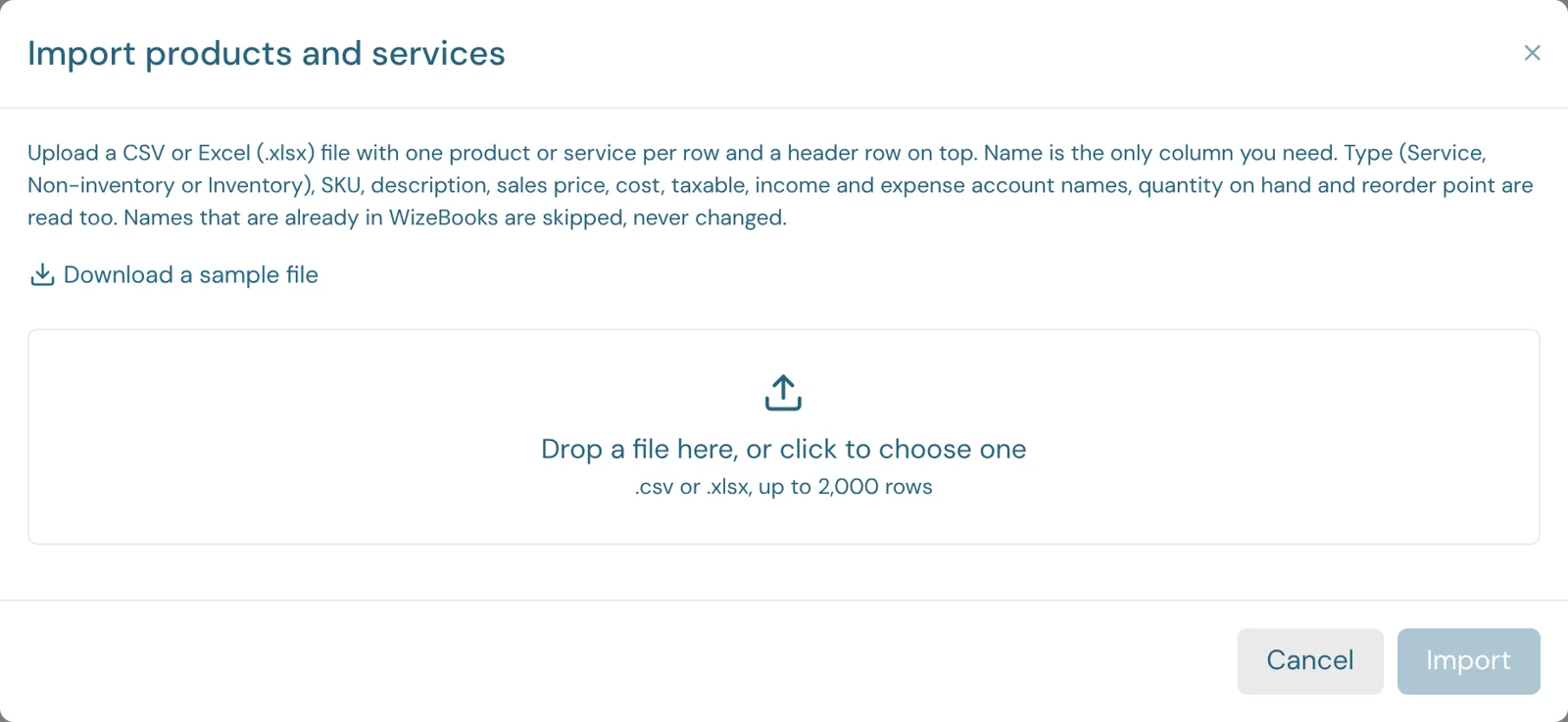
Choose New product or service › Import products and services and drop in a CSV or Excel (.xlsx) file with one item per row and a header row on top. Download a sample file gives you one to fill in.
- Name is the only column you need.
- Type is Service, Non-inventory or Inventory. Left blank, the item is a service. Inventory items need the Pro or Enterprise plan.
- SKU, Description, Sales price, Cost and Taxable (Yes or No) are read too.
- Income account and Expense account are account names from your chart of accounts. A cost with no expense account goes to Cost of Goods Sold.
- Quantity on hand sets an inventory item's starting stock, posted as a quantity adjustment dated today, and Reorder point turns on its low-stock alert.
A name that's already in WizeBooks is skipped, never changed. When it's done you see how many were added, and each row that couldn't be, with the reason (an unknown type or an account that isn't in your chart of accounts, for example).
Updated in v1.0.0