
Getting started
Working with lists
The search, filters, columns and options that every list in WizeBooks shares.
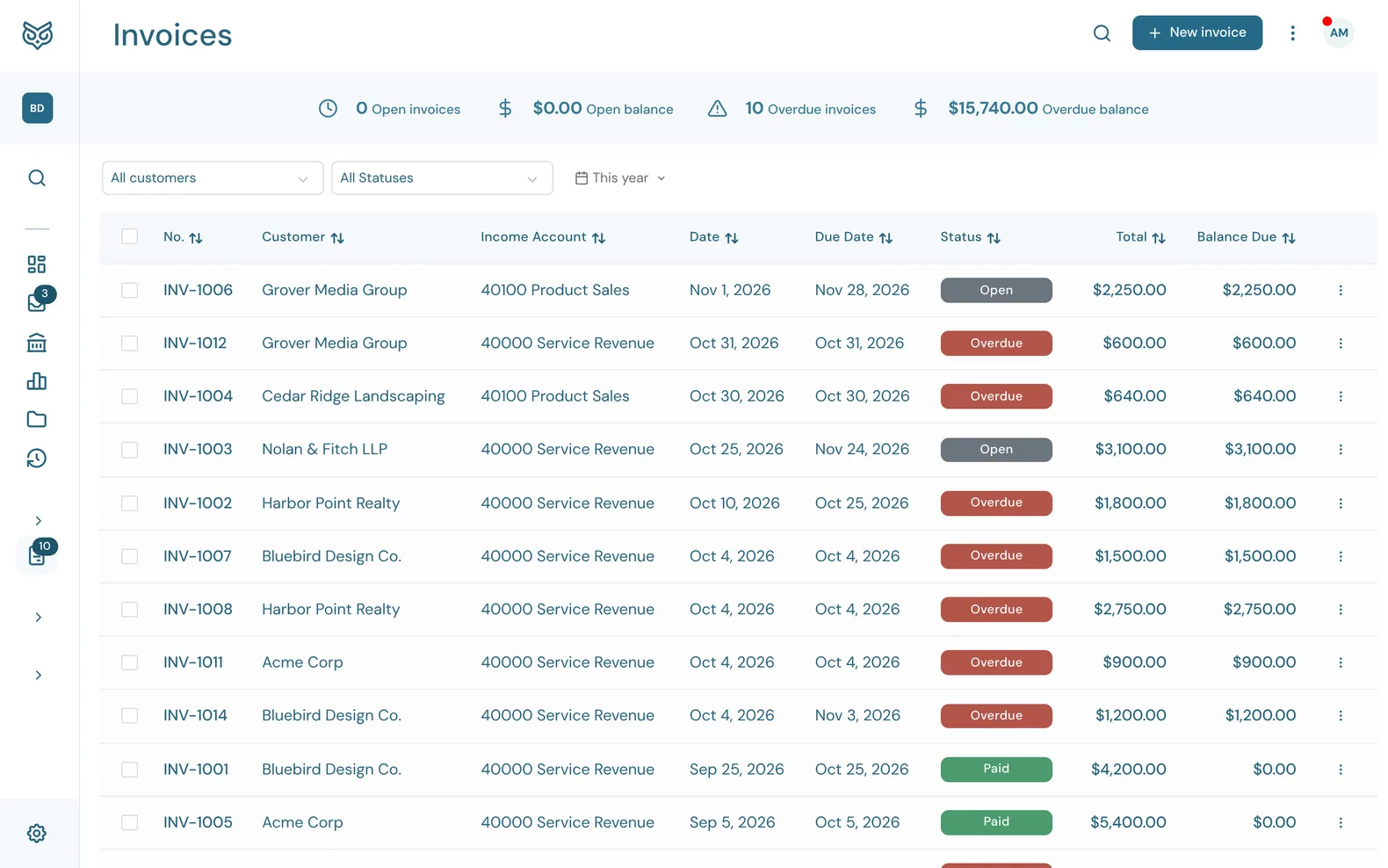
Every list in WizeBooks, such as invoices, bills, customers or products, works the same way. Here it's the invoice list.
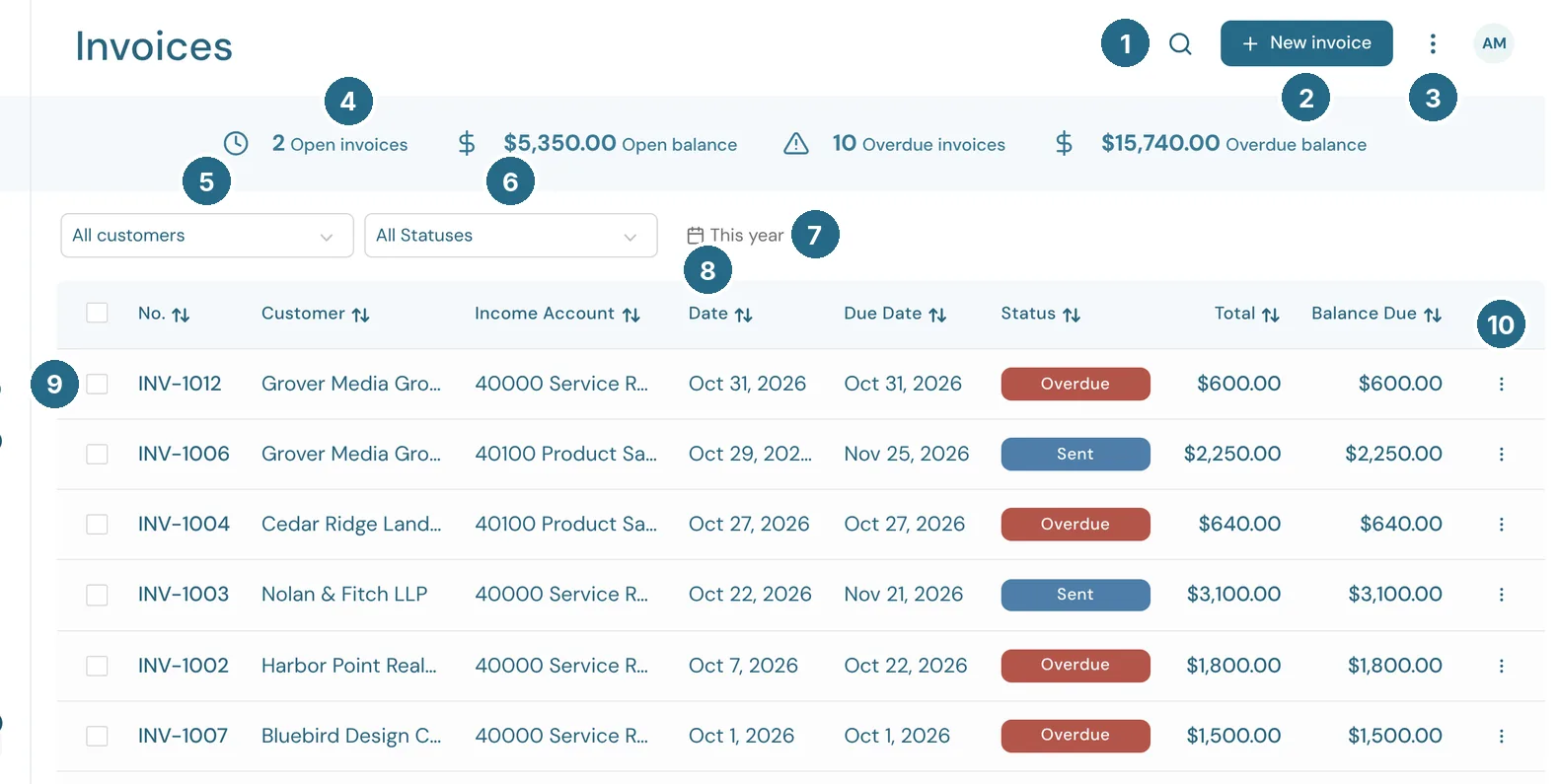
- Search finds rows by any text or amount.
- New adds one, here New invoice.
- More options (below).
- The stat band sums the list up, for example Open invoices, Open balance, Overdue invoices and Overdue balance.
- The first filter: by customer, vendor, account or type.
- The status filter, such as All Statuses, Overdue or Paid.
- The date filter (This year by default) sets the date range.
- A column heading with arrows sorts by it. Choose it again to reverse. Drag a heading to move the column, and drag its edge to resize it. The width comes from the columns to its right, so a list never scrolls sideways.
- The checkboxes pick rows to act on together.
- The ⋮ at the end of a row holds the actions for that item.
Choose a row to open it. Long text is shortened with "…": hover to read it all, and use the copy button beside an email to copy it.
More options
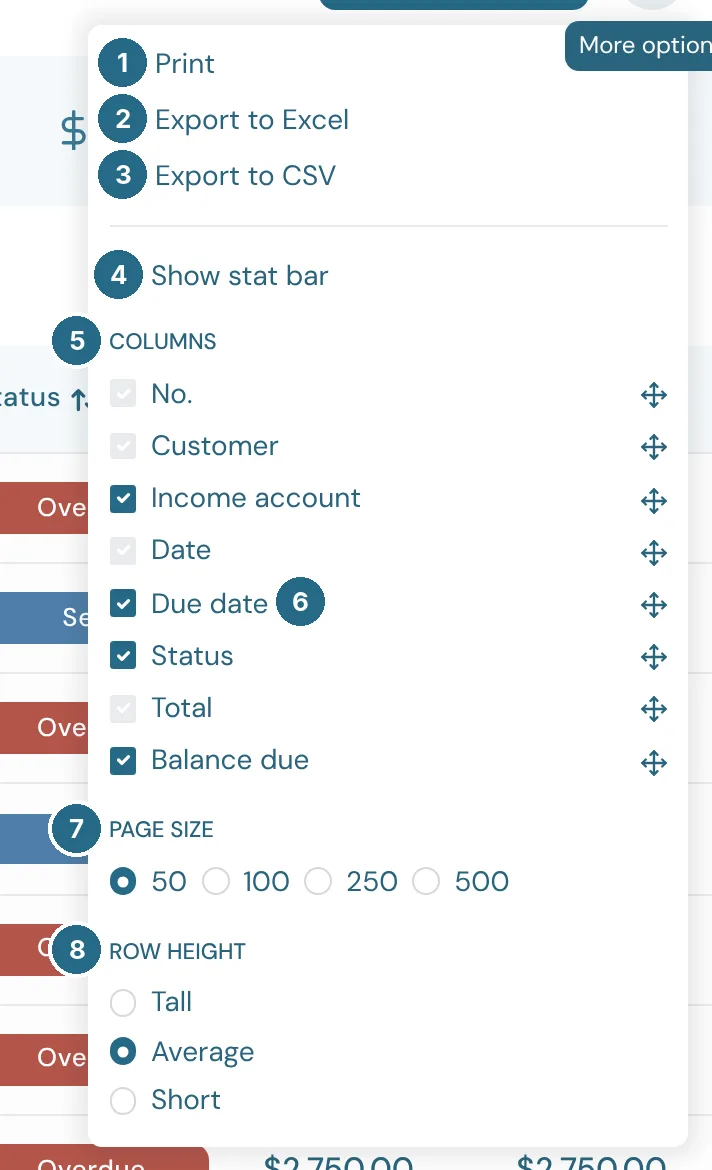
- Print the list as filtered.
- Export to Excel.
- Export to CSV.
- Show stat bar turns the summary band on or off.
- Columns: tick the ones to show.
- Drag the handle beside a column to change the order.
- Page size: 50, 100, 250 or 500 rows at a time.
- Row height: Tall, Average or Short.
Lists of customers, vendors and products also have Show inactive here. WizeBooks remembers these choices for each list, on each browser.
Acting on many rows
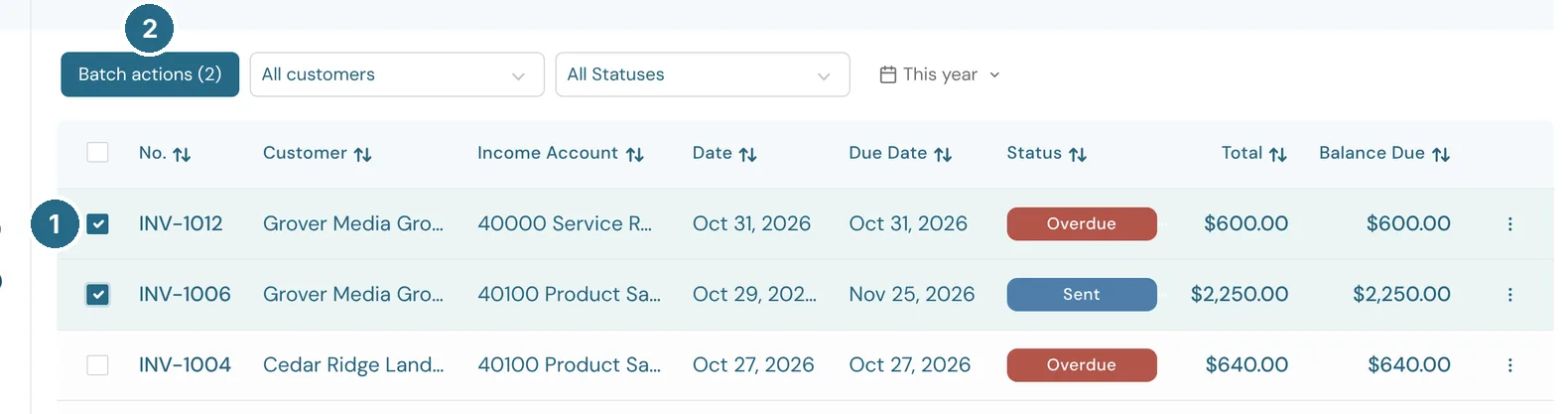
- Tick the checkboxes of the rows you want. The box in the heading ticks every row shown.
- Batch actions appears in place of the filters, with how many are ticked.
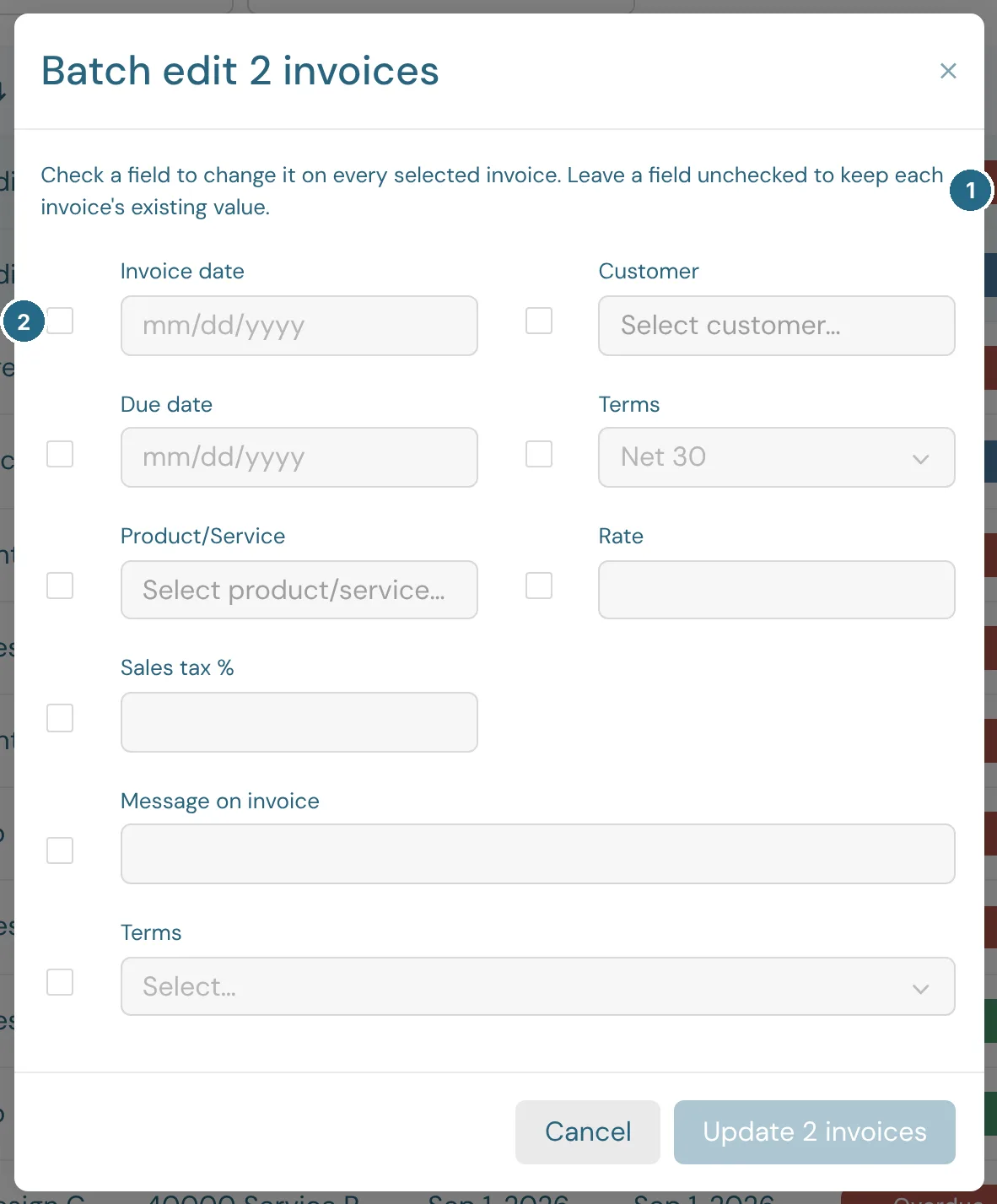
- Batch edit changes only the fields you check. The rest keep each row's own value.
- Check a field and fill it in, then save to change it on every ticked row.
On a phone
Lists show as cards, one per row, with the most important fields. 500 rows load at a time, with Load more at the bottom.
Updated in v1.0.0