
Accounting
Reclassify
Move many transactions to another account at once, or split them by percentage.
In the app: Accounting › Reclassify
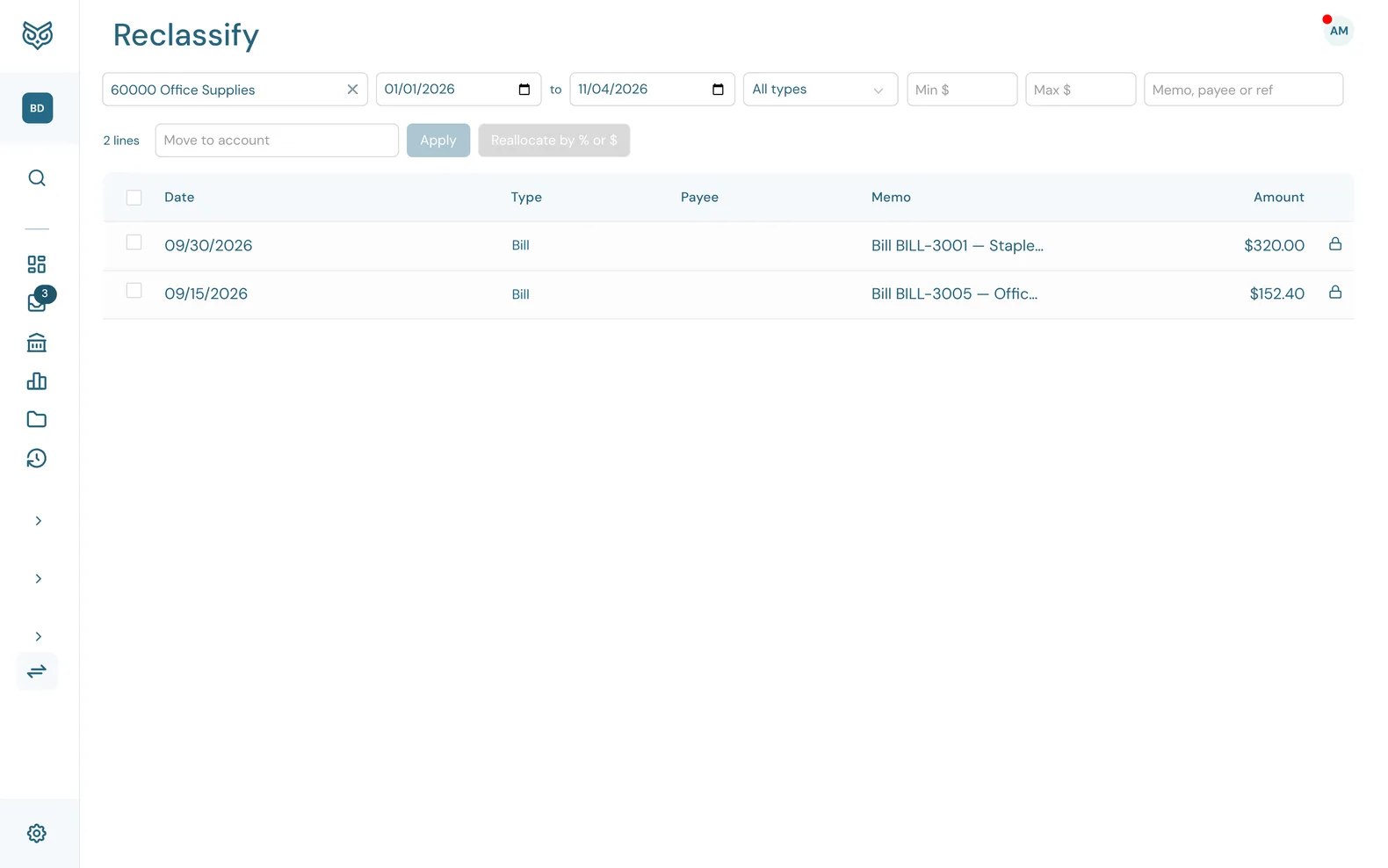
Reclassify fixes many transactions at once, such as a year of software costs that were posted to Office Supplies.
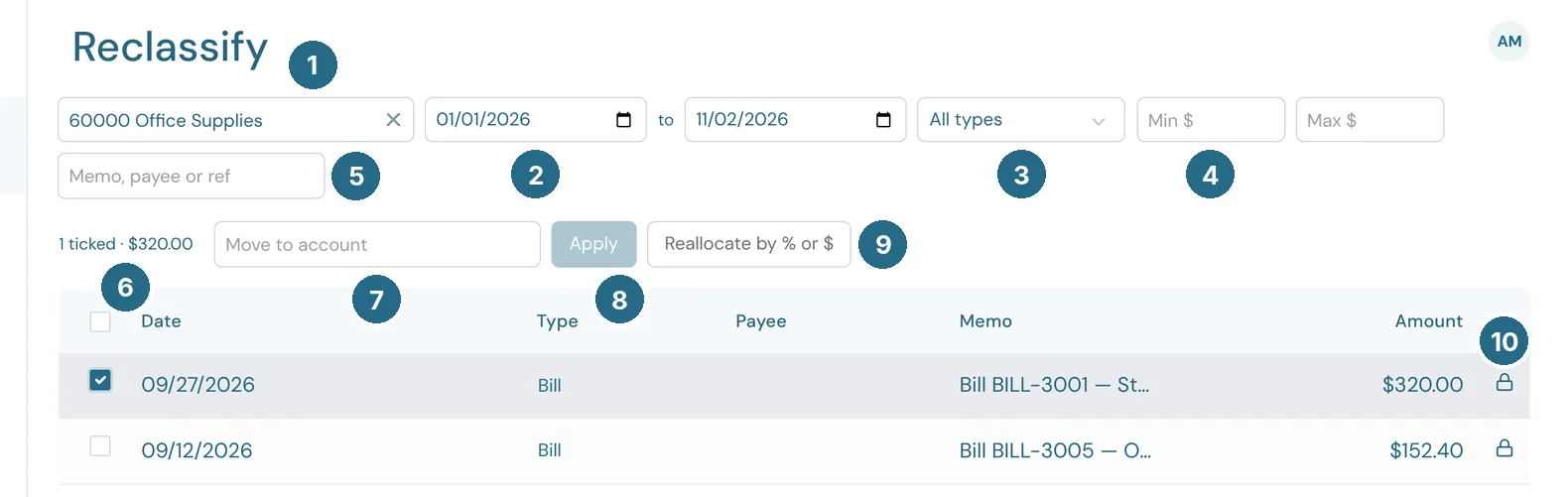
- Choose an account to list what's posted to it.
- The date range, from and to.
- All types, or just Expense, Journal Entry, Transfer, Deposit, Sales, Bill or Invoice.
- Min $ and Max $ narrow by amount.
- Memo, payee or ref narrows by text.
- How many lines are ticked, and their total.
- Move to account: where the ticked lines should go. If you use Classes or other line custom fields, a picker for each one sits beside it, so you can set or clear it at the same time.
- Apply makes the change in place.
- Reallocate by % or $ splits the ticked lines across accounts or Classes, for example 60% to one and 40% to another. This writes a new journal entry, which opens for you to check before saving.
- The lock marks a line that can't change in place. Hover over it for the reason.
Lines from invoices, bills, credits and payments are locked, because the document that wrote them would put them back the next time it's saved. Change those on the document itself, or reallocate them. A reconciled line can have its Class changed but not its account. Lines on Accounts Receivable and Accounts Payable belong to a customer's or vendor's balance, so they can't be moved here.
Updated in v1.0.0