
Purchases
Expenses
Money you've spent, whether paid on the spot, through a bill, or from the bank feed.
In the app: Purchases › Expenses
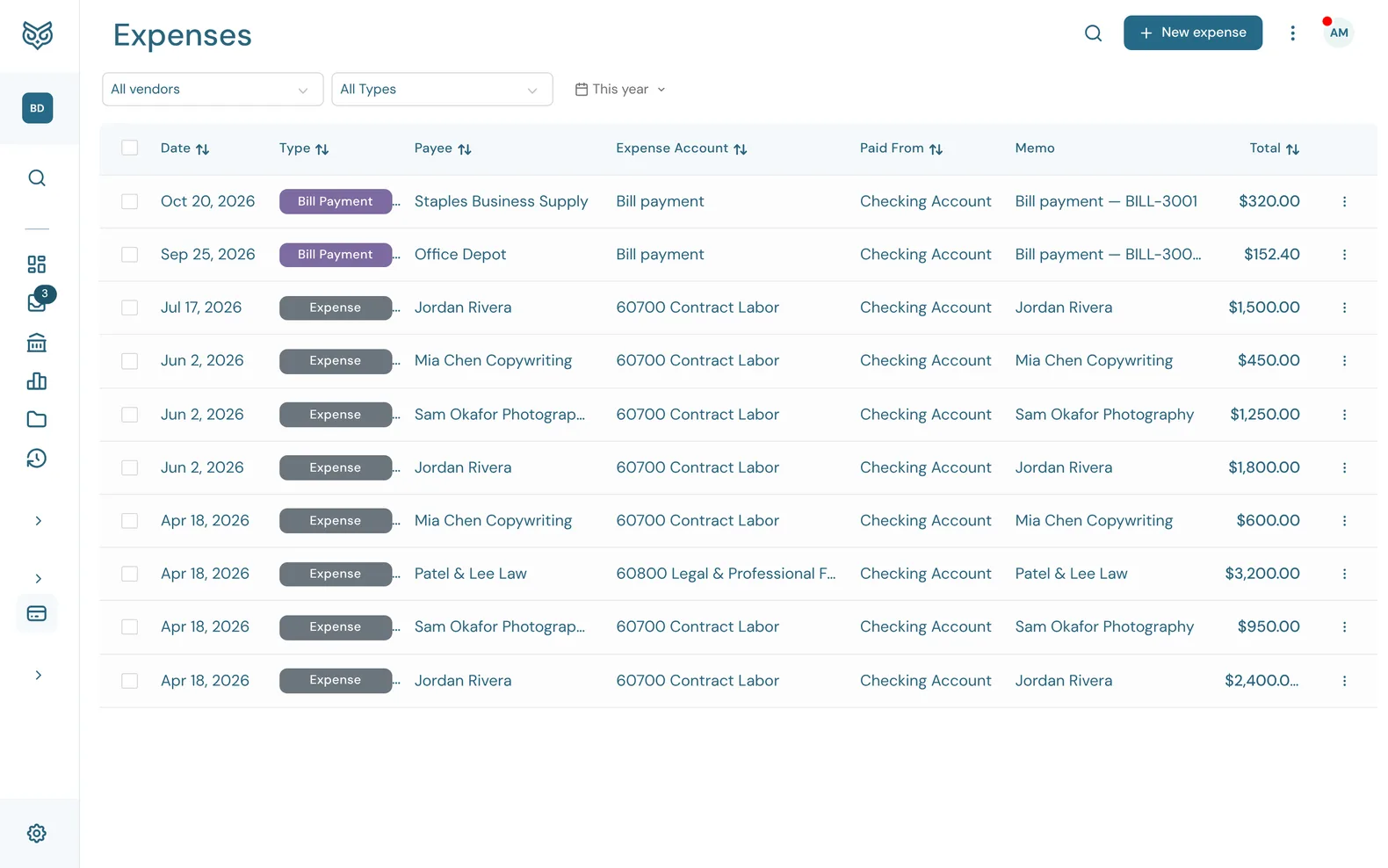
The Expenses page lists everything you've paid out, in one place: expenses you entered, payments against bills, and spending posted from your bank feed.
The page
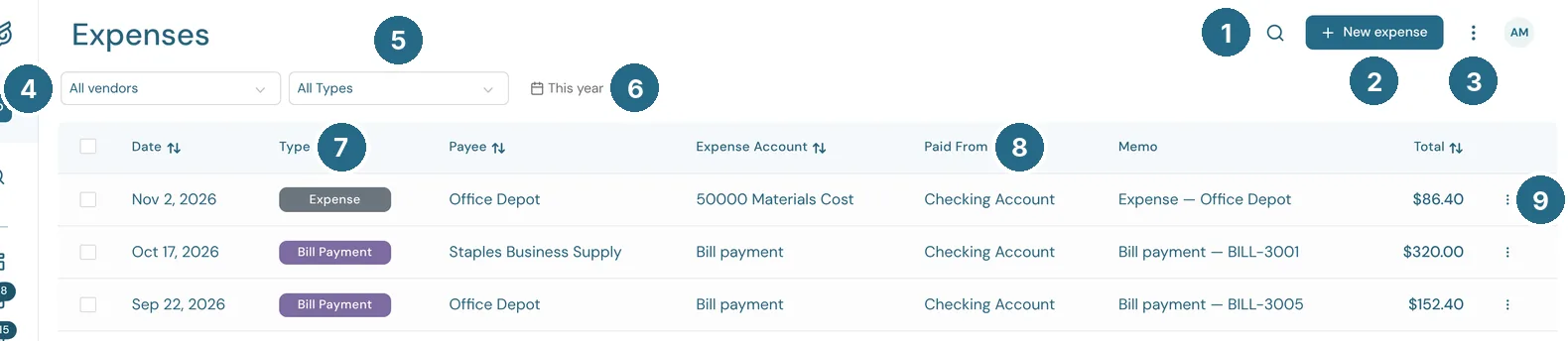
- Search filters the list as you type.
- New expense opens a blank expense (see Recording an expense).
- More options: print or export the list, and choose columns, page size and row height.
- All vendors: one vendor's spending only.
- All Types: Expense (entered here, paid on the spot), Bill payment (a payment against a bill) or Bank feed (posted from an account's register).
- The date filter sets the range. It starts at This year.
- Type: which of the three it is.
- Paid From: the bank or card account the money left.
- The row's ⋮ menu opens the transaction: View expense, View bill for a bill payment, or View in register for a bank feed item.
Date, Payee, Expense Account, Memo and Total fill in the rest. Click a row to open it.
Recording an expense
New expense is for something already paid, such as a card purchase or a check you wrote. For something you'll pay later, enter a bill instead. Spending that came in through the bank feed doesn't need entering again: post it from the account's register.
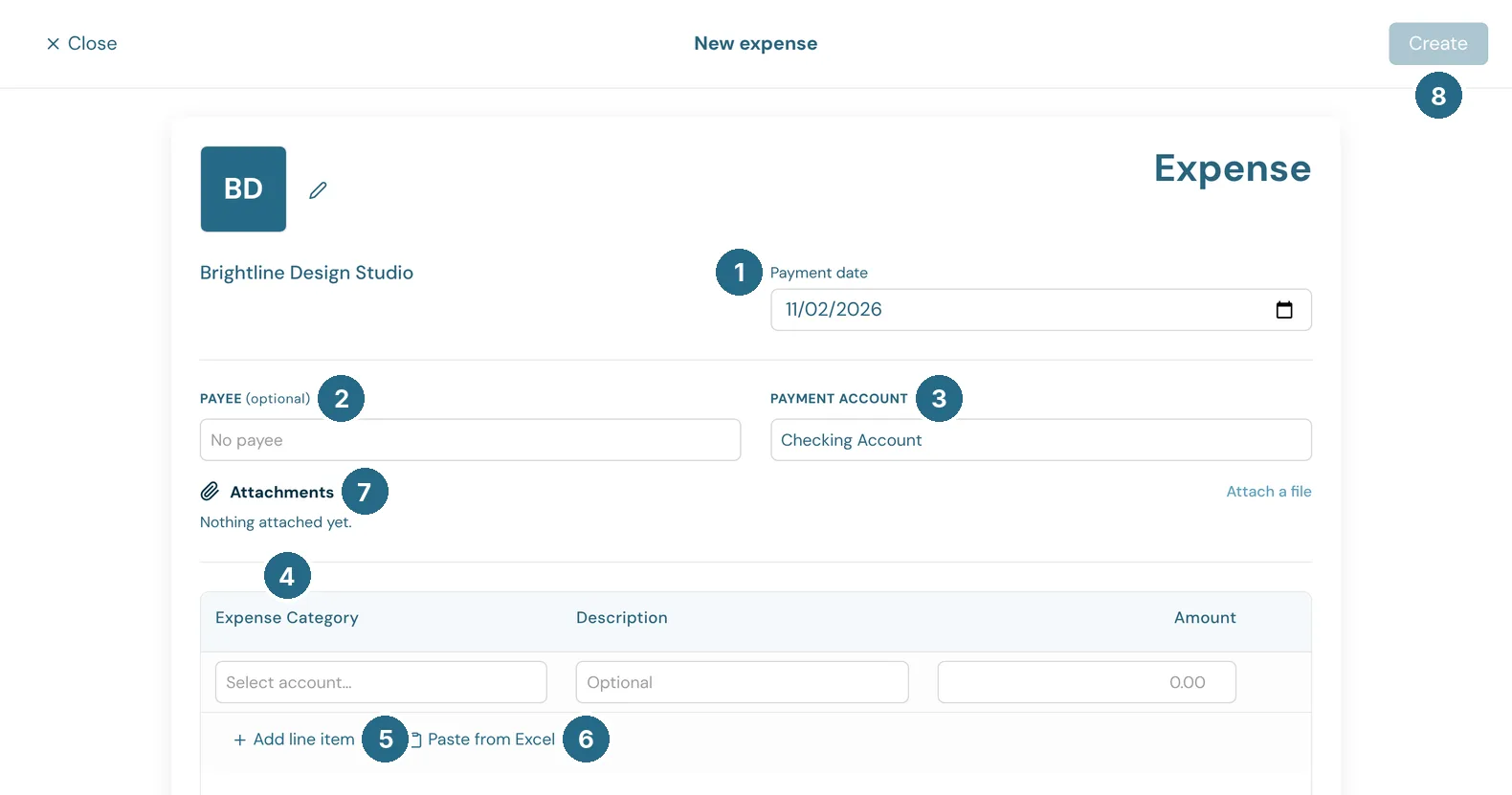
- Payment date: when it was paid.
- Payee (optional): the vendor, or anyone else you paid.
- Payment account: the bank or card account it came out of.
- Expense Category: the account each line posts to, such as Office Supplies. Each line also takes a Description and an Amount.
- Add line item adds a line, to split one payment across categories.
- Paste from Excel pastes many lines at once, copied from a spreadsheet.
- Attachments: Attach a file keeps the receipt with the expense.
- Create saves it.
Below the lines are the Discount, Sales tax, Total and a Memo, as on an invoice.
Updated in v1.0.0